To enhance account security, an additional validation layer has been introduced for all users with SSO (Single Sign-On) enabled.
Users logging in via Google SSO or Microsoft SSO will only be allowed to access the ClickPost dashboard if their email domain has been explicitly whitelisted within the account settings.
For example, if a user attempts to log in using user@gmail.com, the domain gmail.com must be added to the approved domain list.
How to Whitelist an SSO Domain?
Step 1: Navigate to Sentinel Suite
Log in to the ClickPost dashboard and click on Sentinel Suite available in the top navigation header.

Step 2: Open Authentication & Access Control
- Within Sentinel Suite, navigate to the Authentication & Access Control section.
- Locate the setting Enforce SSO for Sub Users.
- On the right-hand side, click View Details.

Step 3: Add the Domain
- A pop-up window will appear.
- Enter the domain you wish to whitelist in the following format: gmail.com
Note: Only enter the domain name. Do not include email addresses or special characters.
- Click + Add Domain.
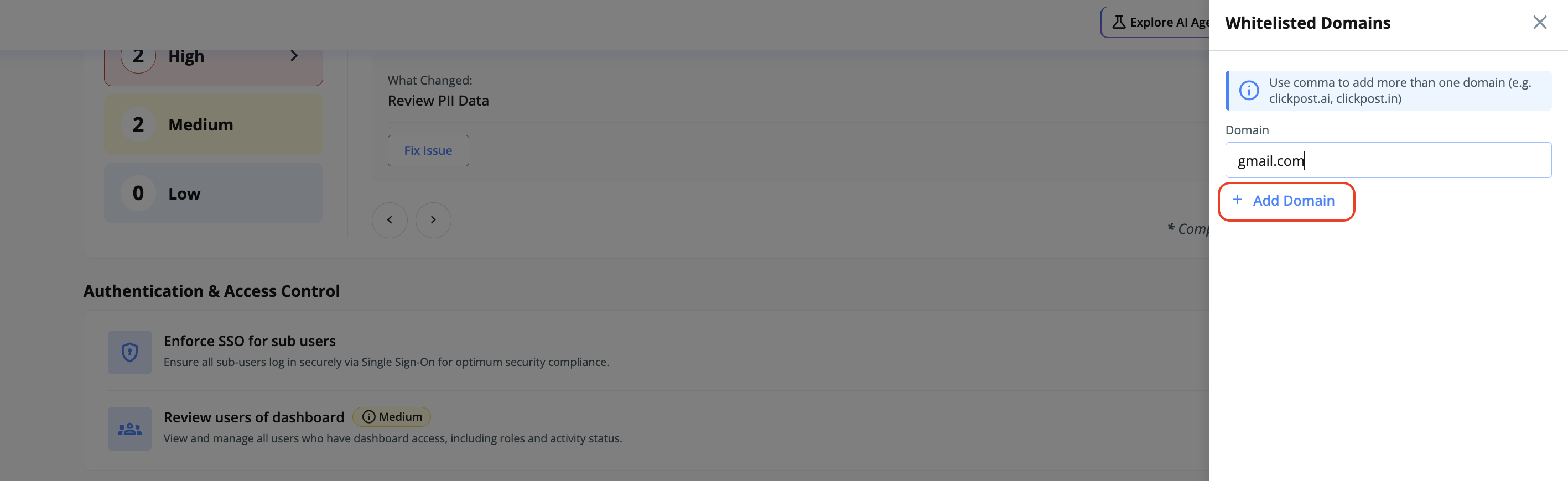
The domain will be added to the approved SSO domain list.
Once the domain has been successfully added:
- Users belonging to the whitelisted domain can log in using Google SSO or Microsoft SSO.
- Login attempts from non-whitelisted domains will be restricted.
- This ensures only authorized users from approved domains can access the dashboard.
Was this article helpful?
That’s Great!
Thank you for your feedback
Sorry! We couldn't be helpful
Thank you for your feedback
Feedback sent
We appreciate your effort and will try to fix the article