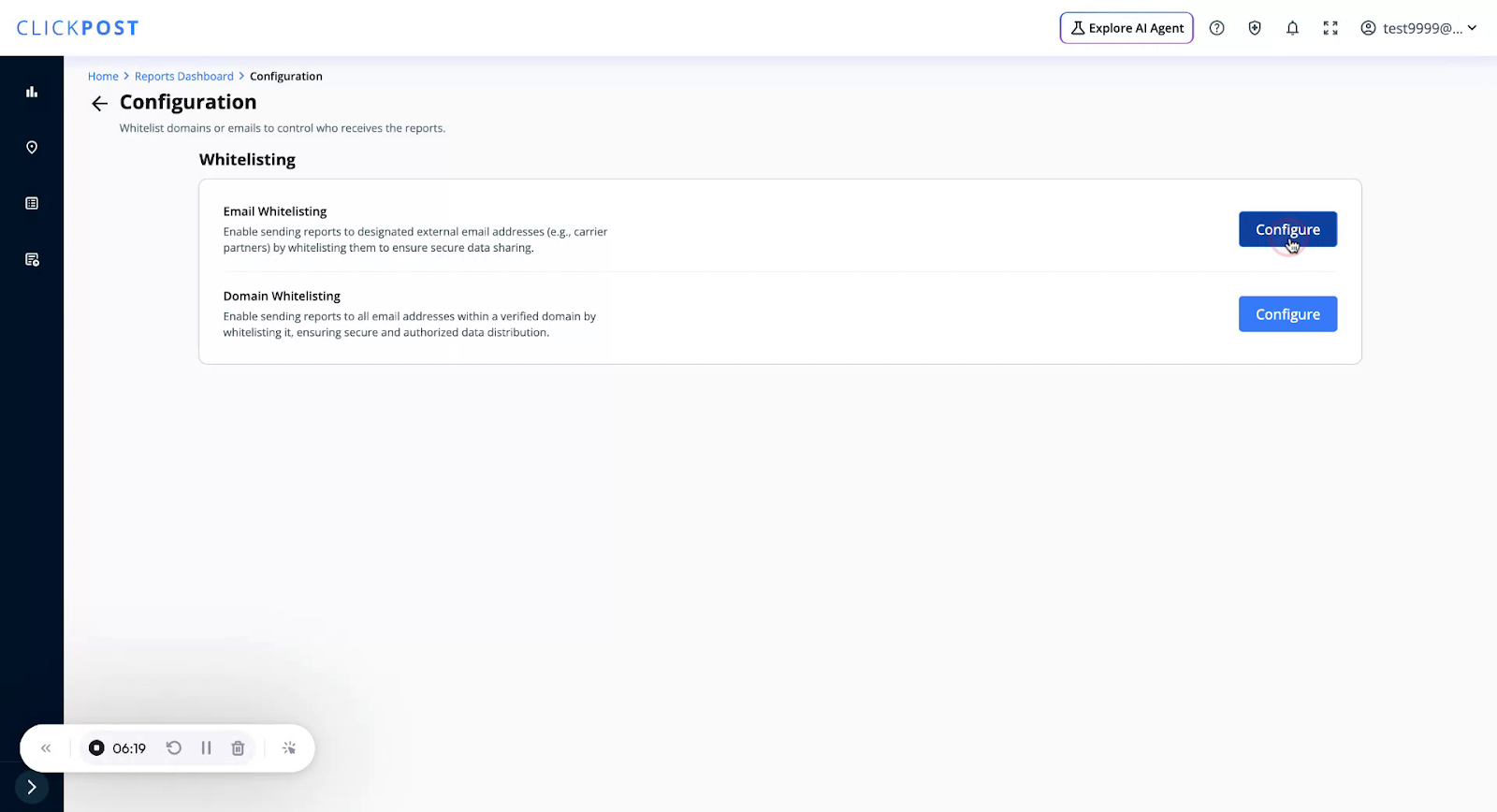
To control which email addresses can receive reports, navigate to Configuration.
All recipient email addresses must be whitelisted. You can whitelist either:
Entire domains, or
Specific email addresses
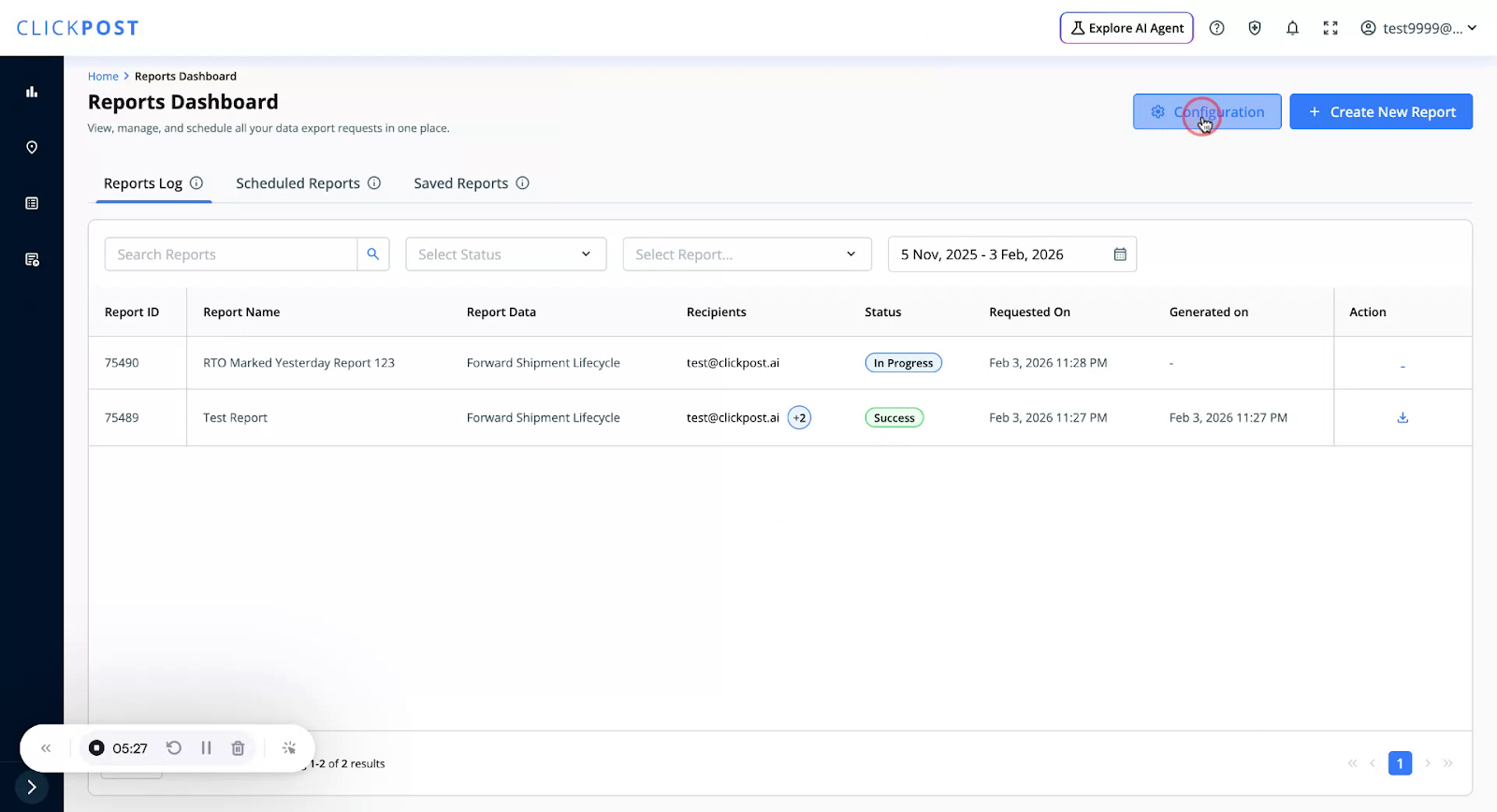
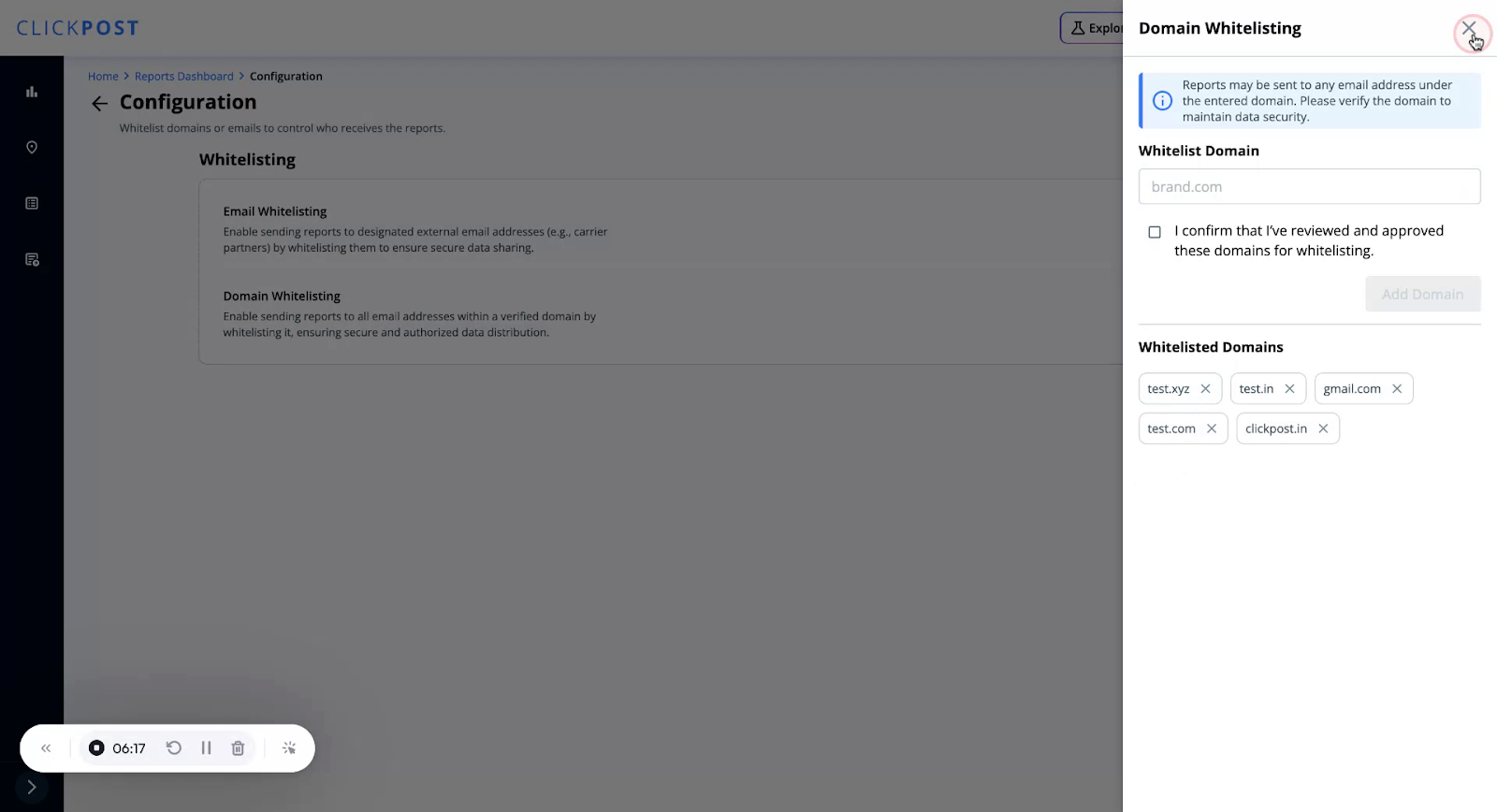
If you want users to be able to send reports to any address under a domain, you can whitelist that domain.
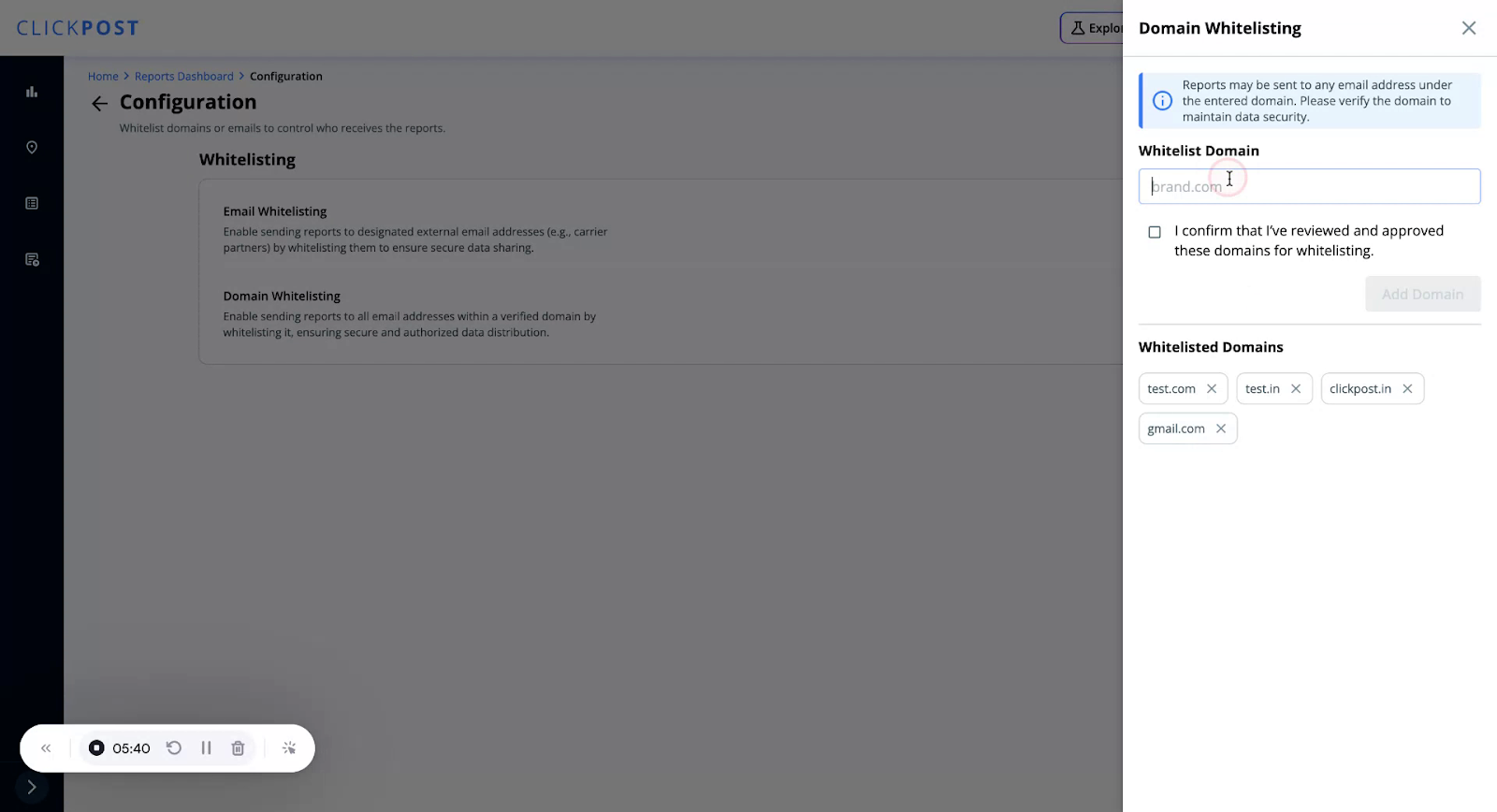
Example: To allow all emails under test.xyz
Enter
test.xyzin the domain field.Click Add Domain.
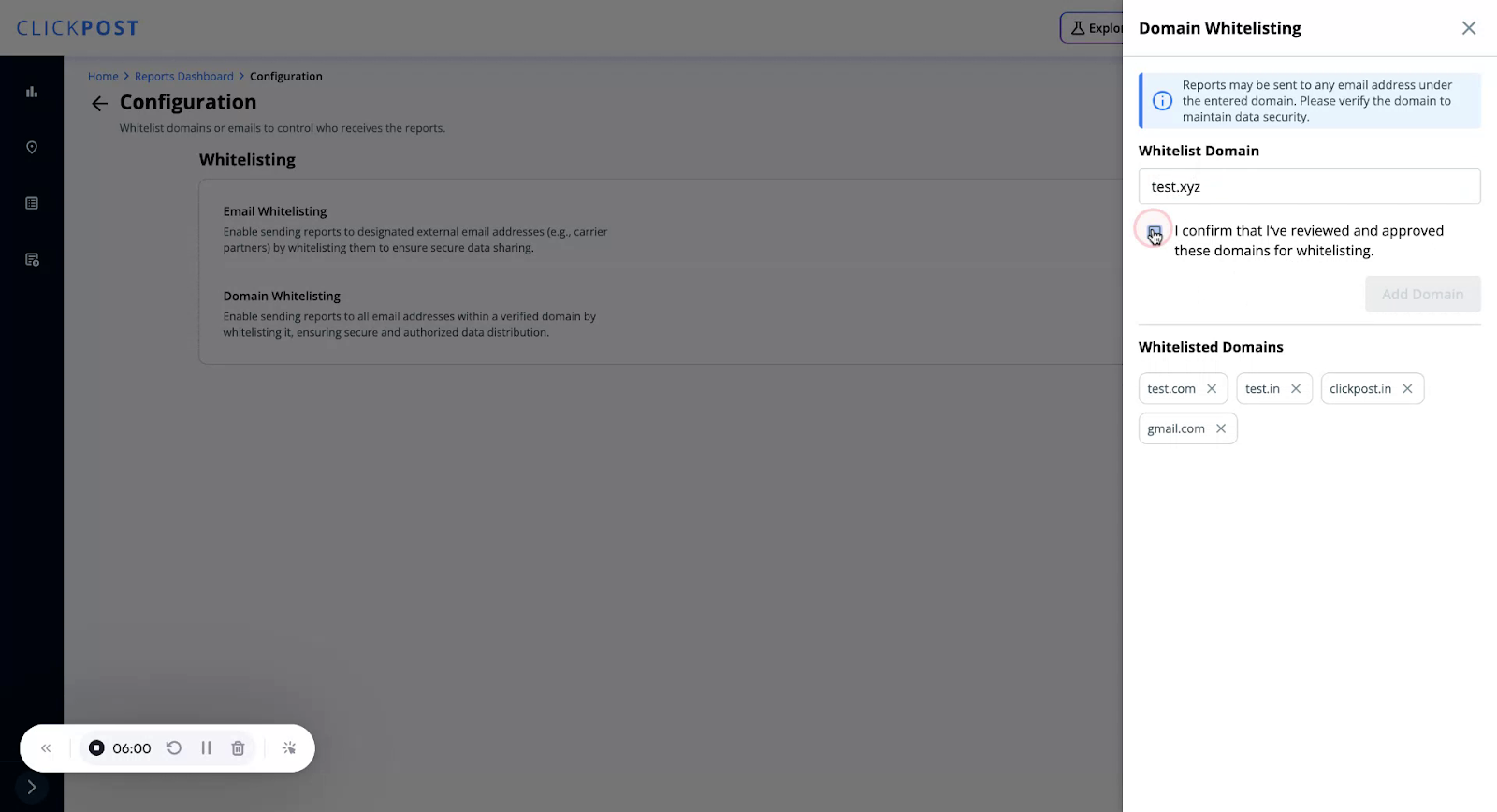
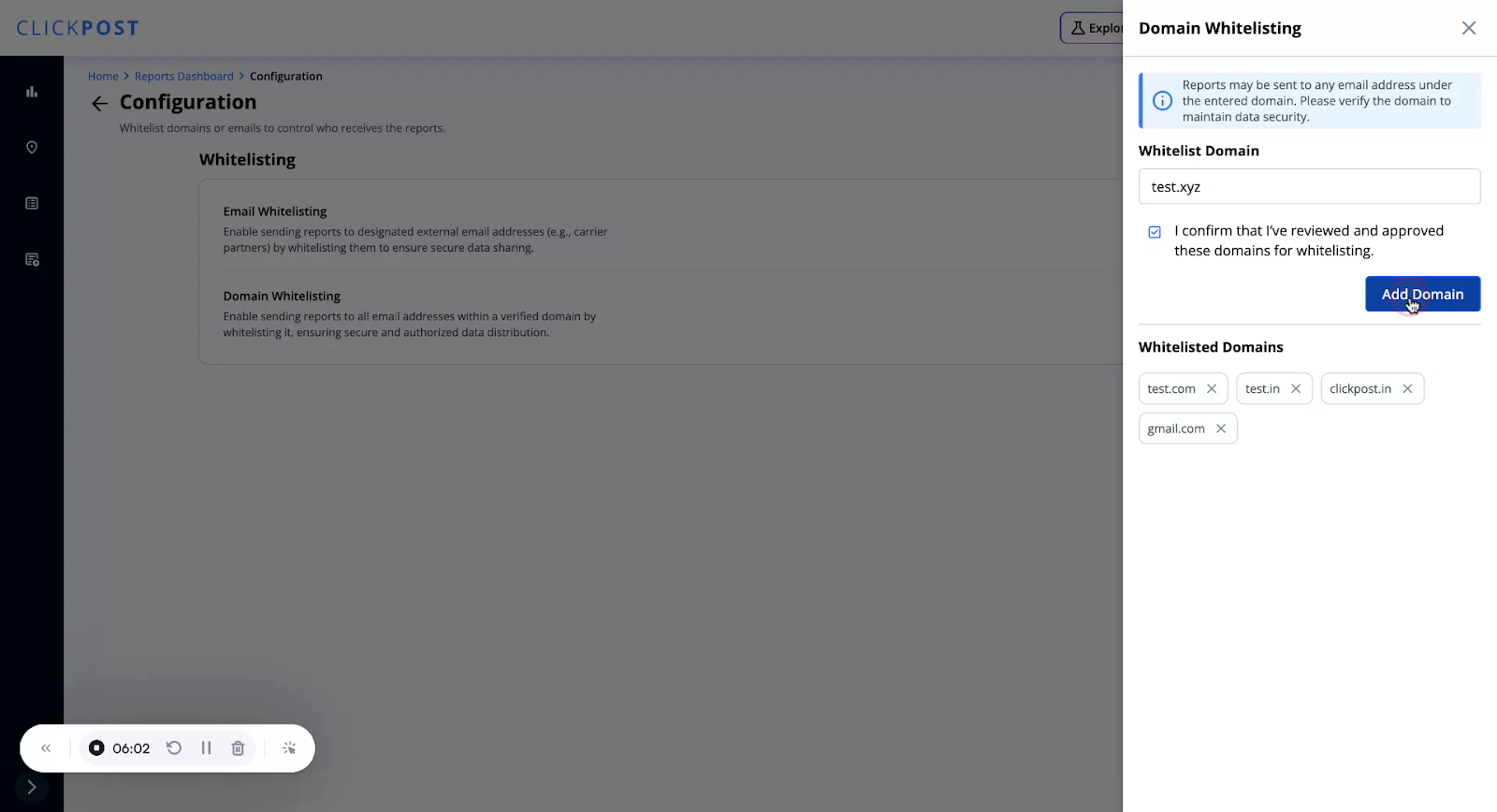
Once added, all email addresses with the test.xyz domain will be allowed to receive reports.
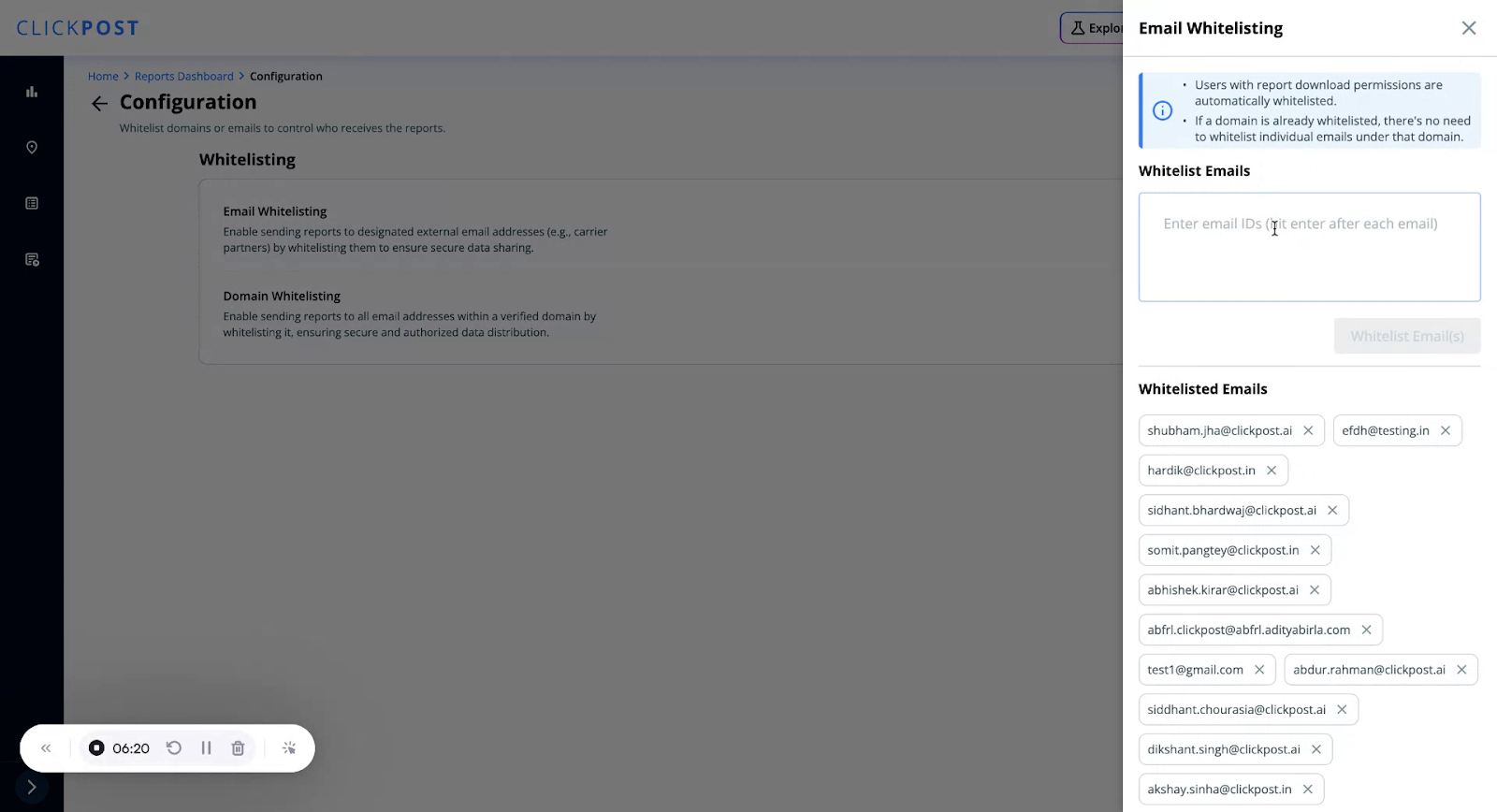
If you want to allow only selected email addresses (and not the entire domain):
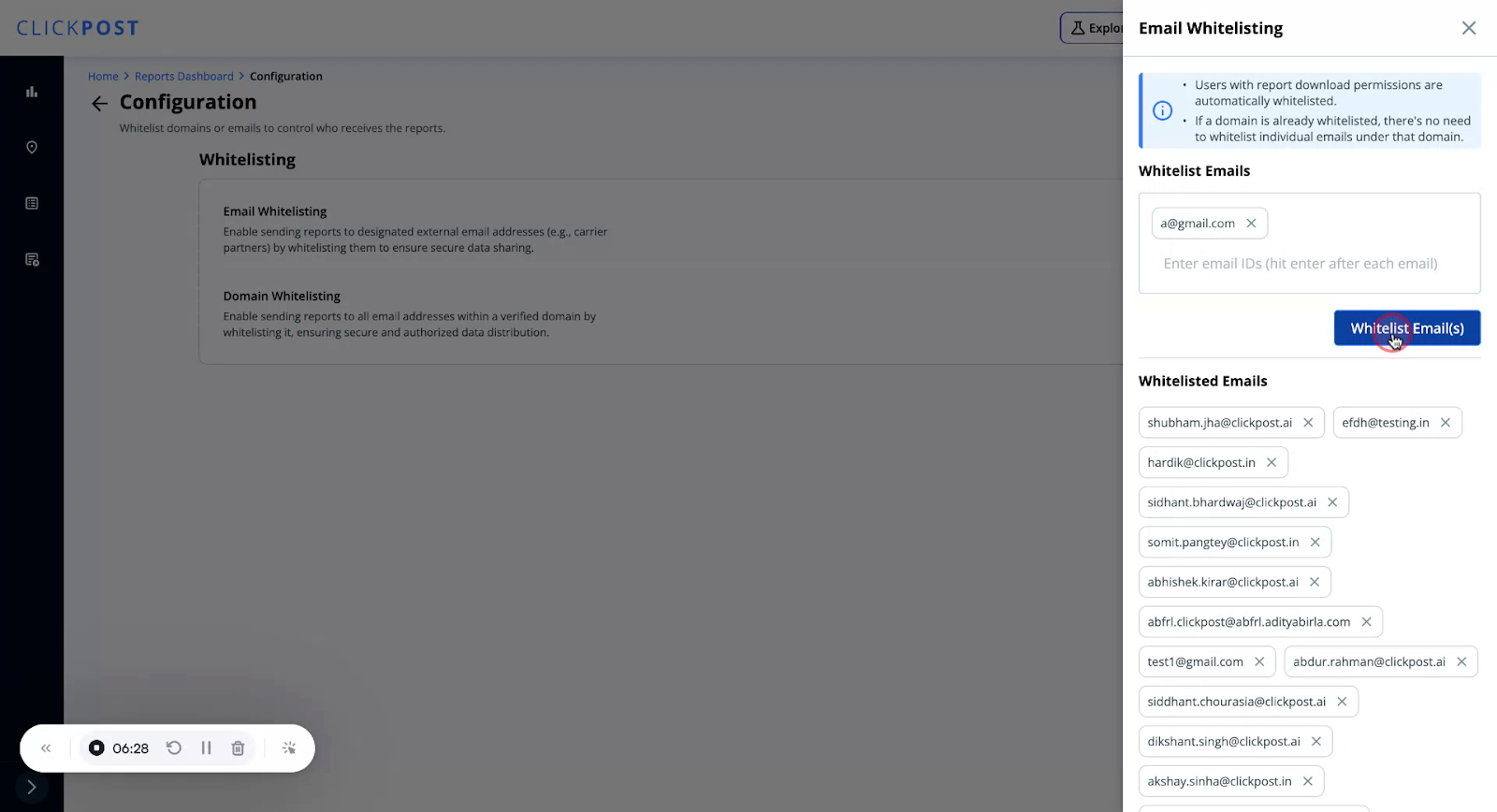
Example: a@gmail.com
Add
a@gmail.comto the email list.
2. Click Whitelist Emails.
Note the following:
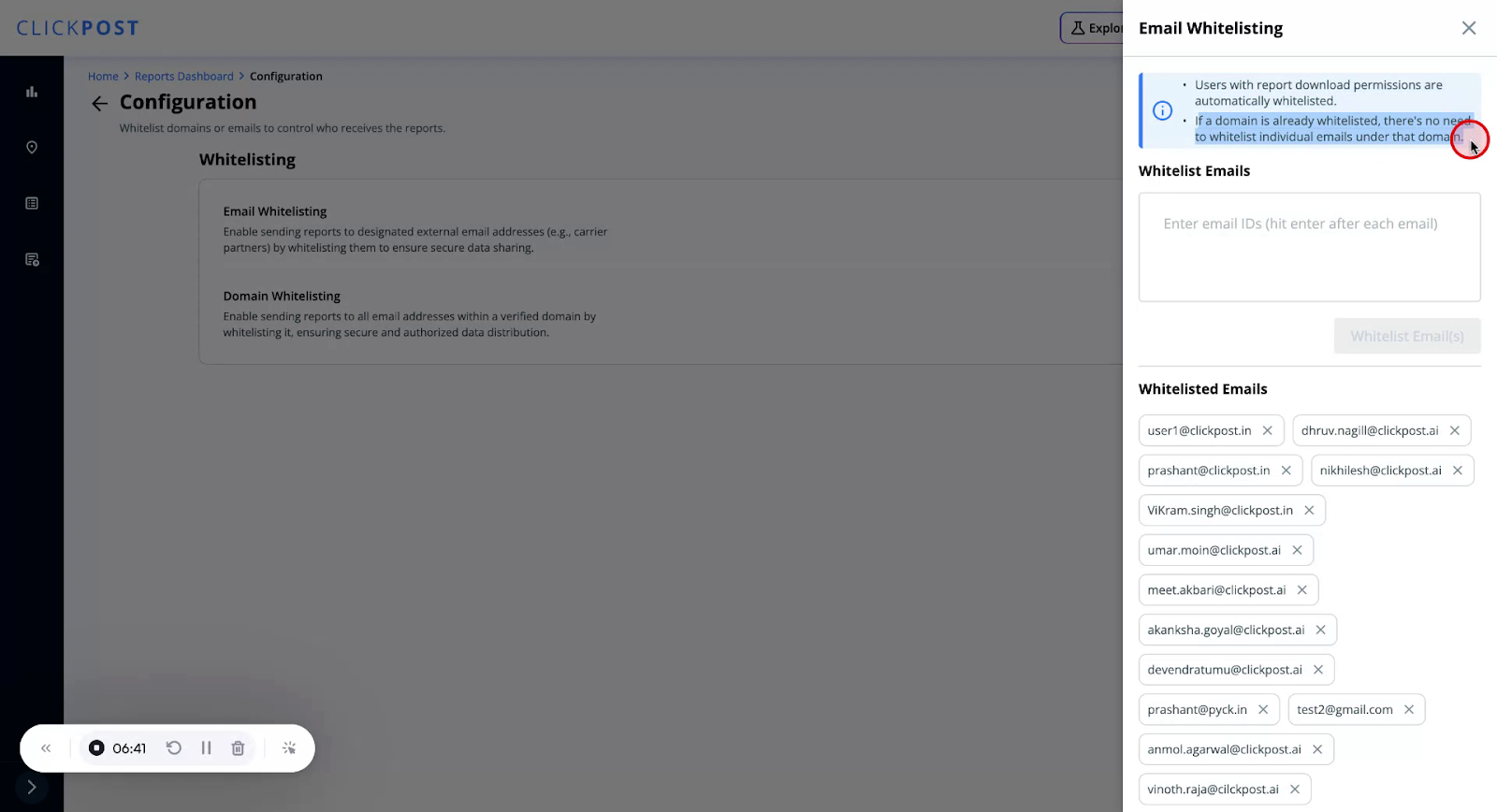
• Users with report download permission are automatically whitelisted.
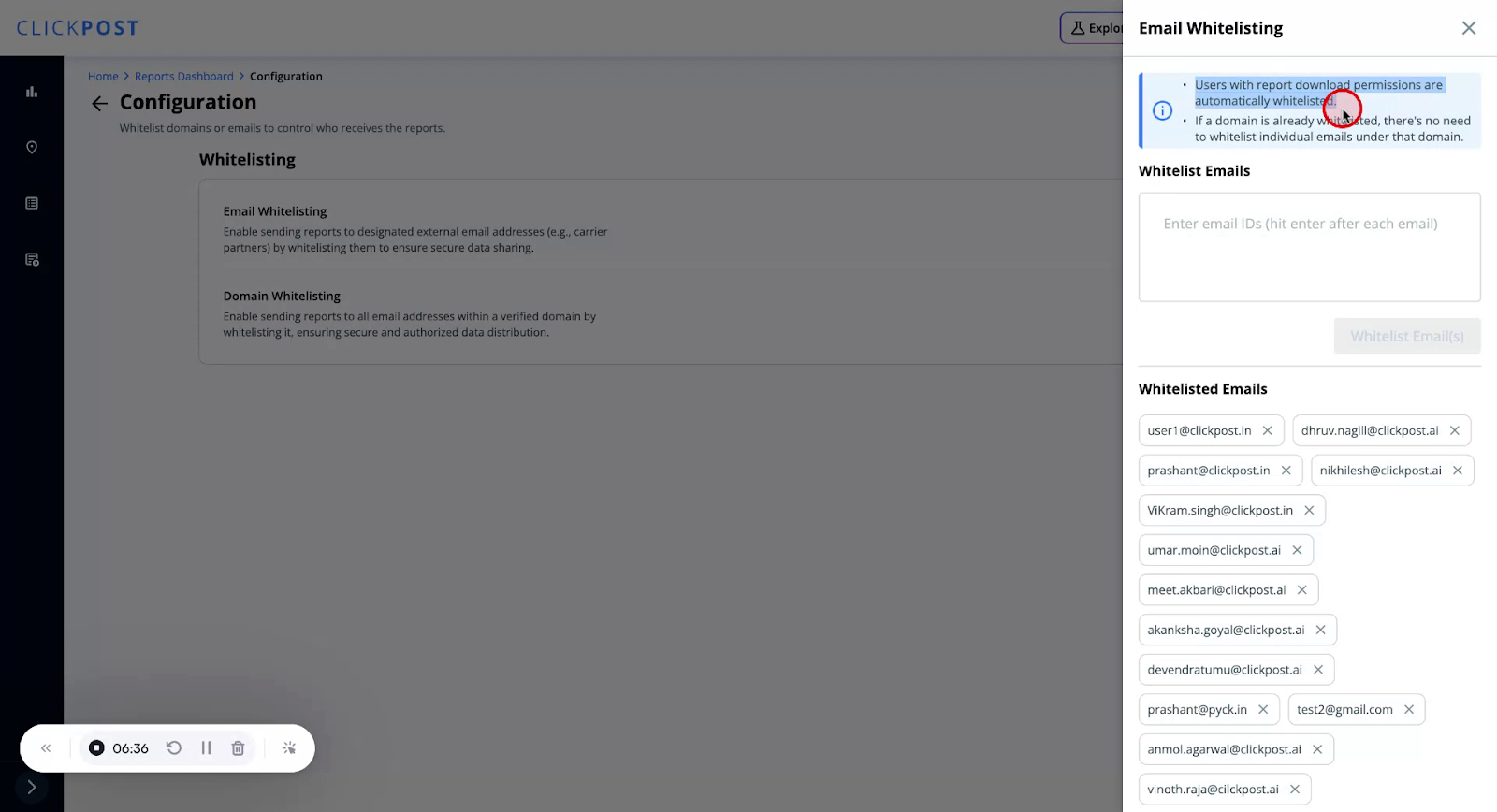
• If a domain is whitelisted, there’s no need to whitelist individual email IDs under that domain.
Was this article helpful?
That’s Great!
Thank you for your feedback
Sorry! We couldn't be helpful
Thank you for your feedback
Feedback sent
We appreciate your effort and will try to fix the article