You can easily configure a custom report from the Reports Dashboard, assign a custom name, and schedule it as needed. To do this, follow the steps outlined in Generate Custom Reports from the Reports Dashboard, and then use the steps below to name and schedule your report.
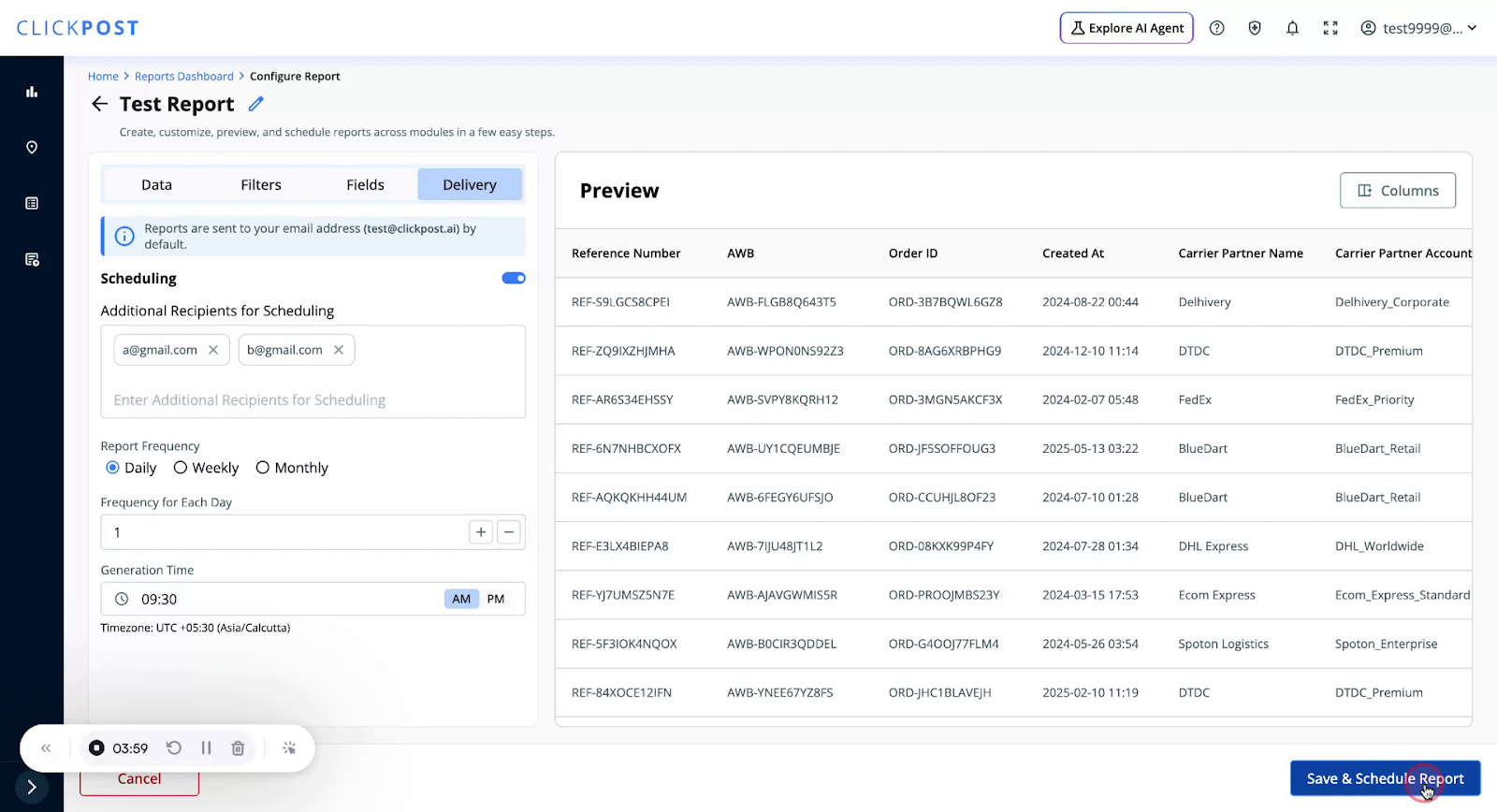
Go to the Delivery tab.
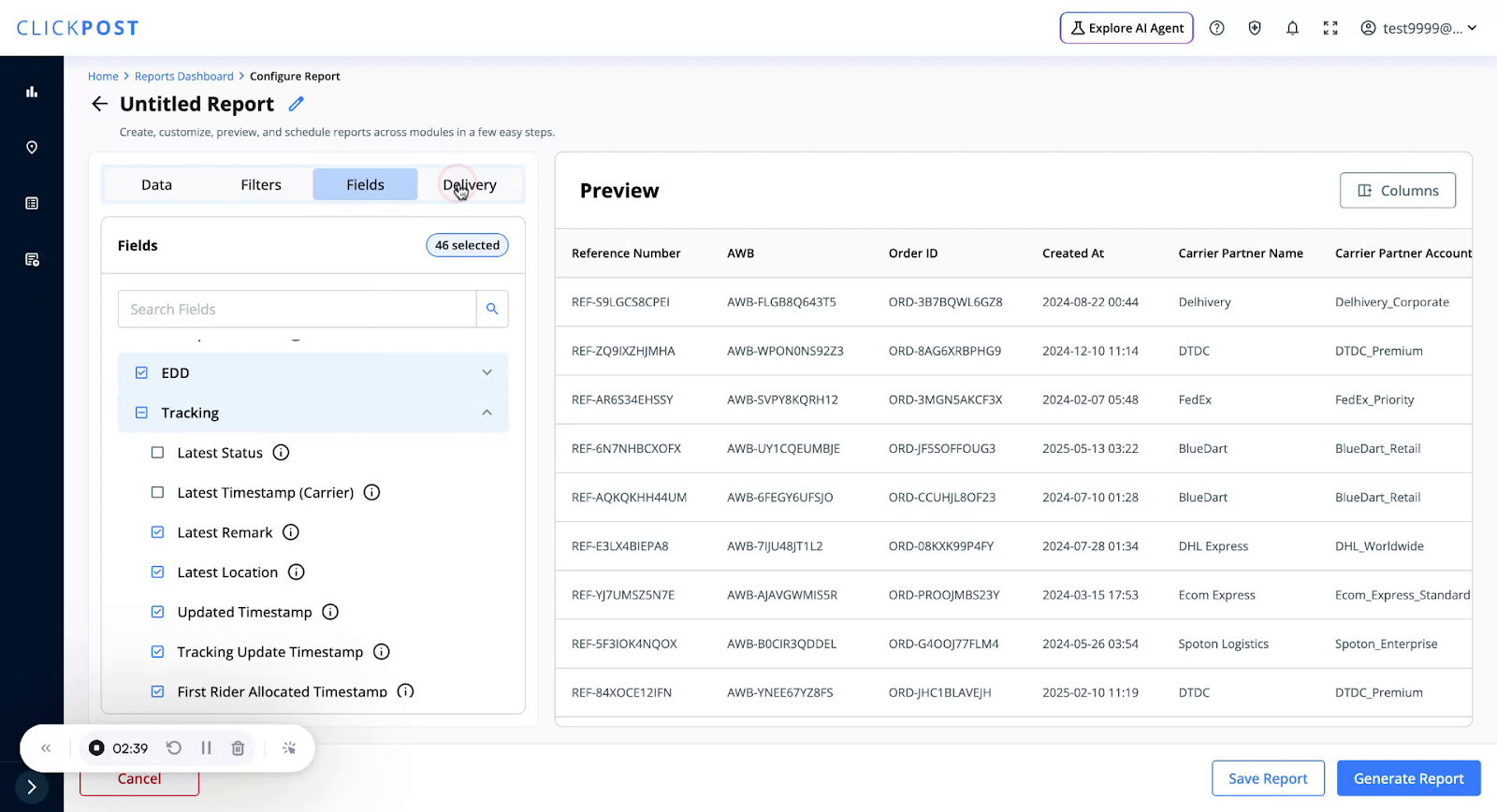
By default, reports are sent to your own email address.
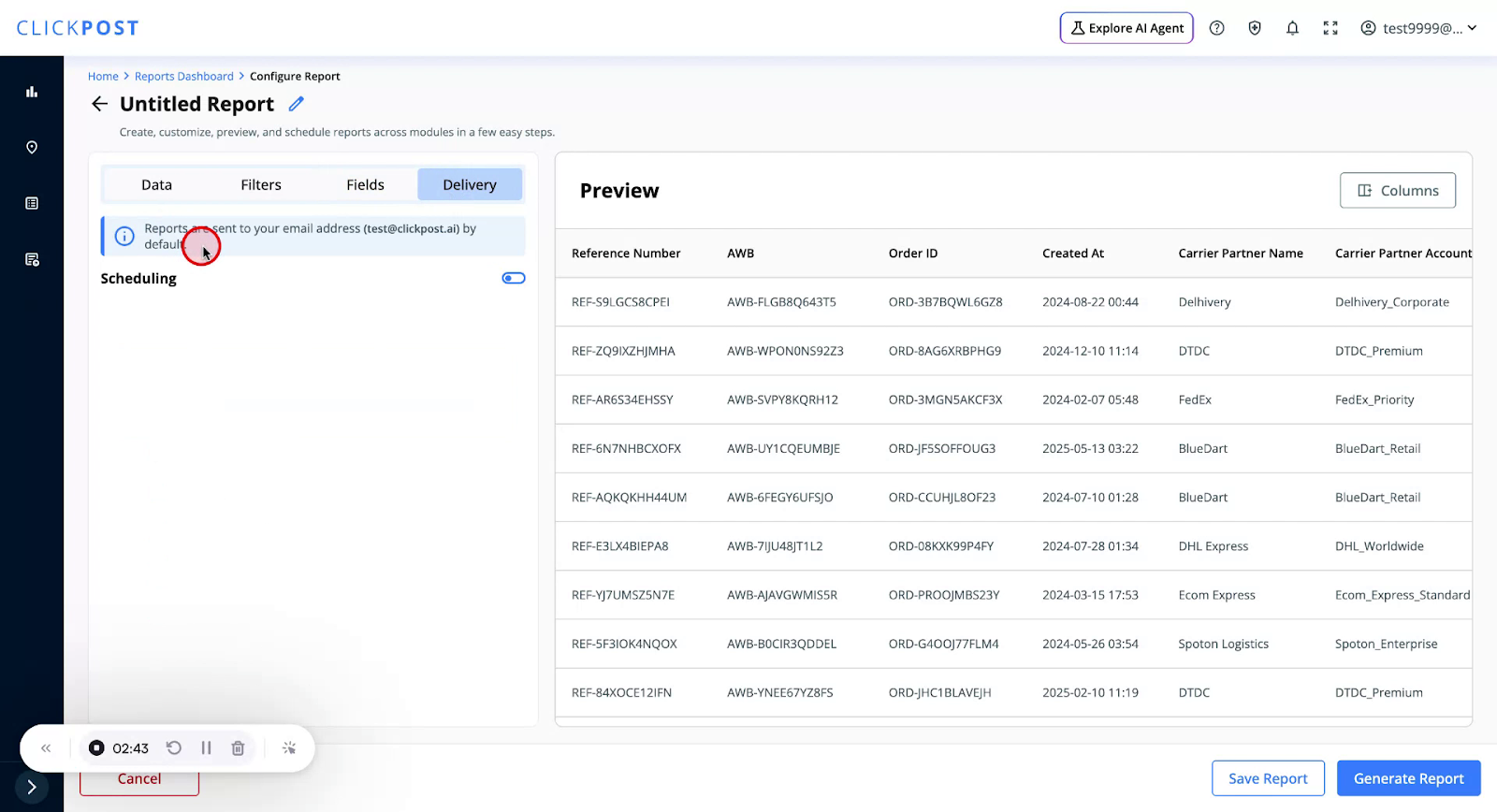
You have two options:
• Generate once by clicking on the Generate Report button below, or
• Schedule the report for recurring delivery.
To save the configuration as a reusable template, first name your report.
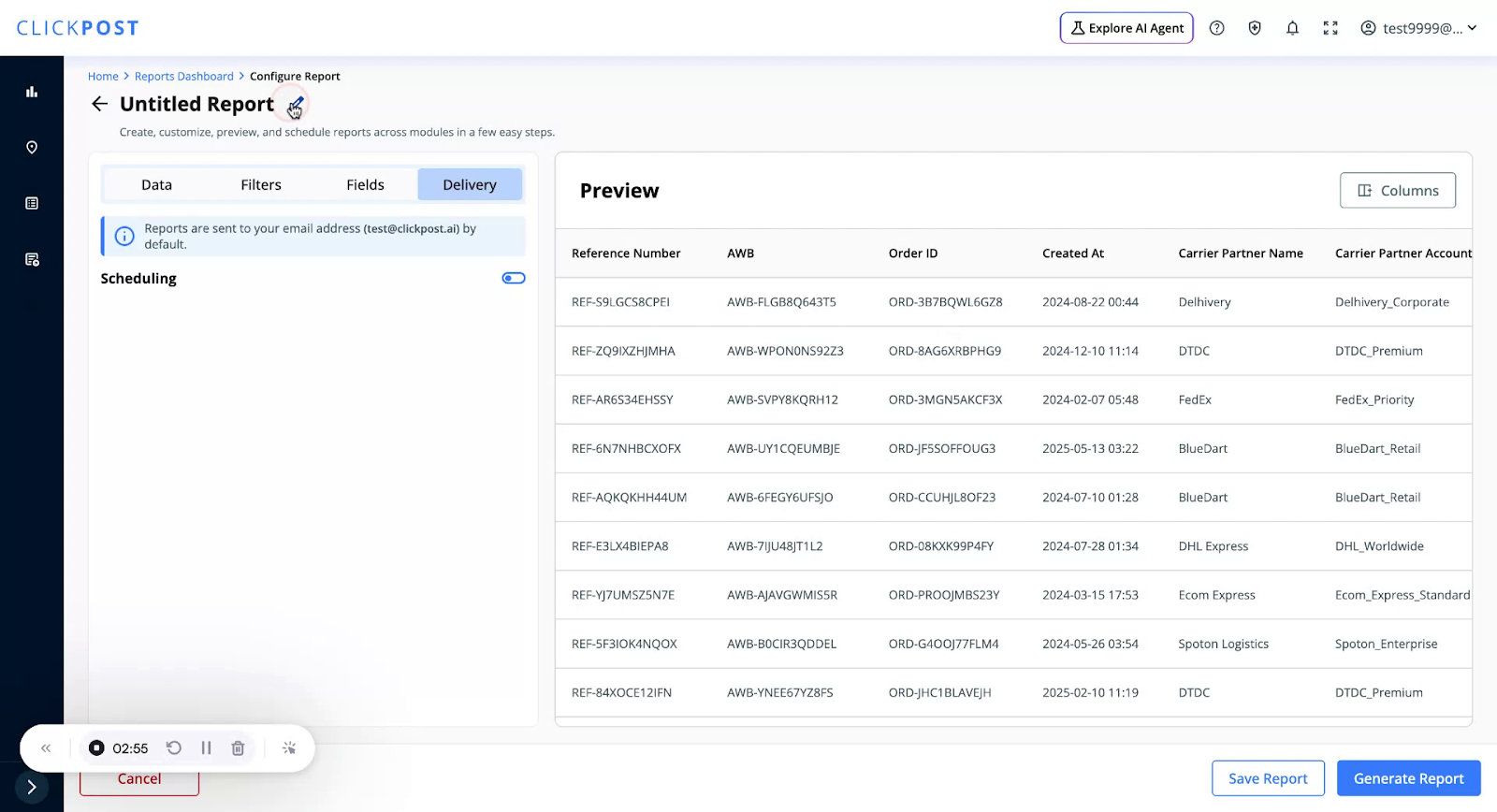
Replace the default “Untitled Report” with a meaningful name.
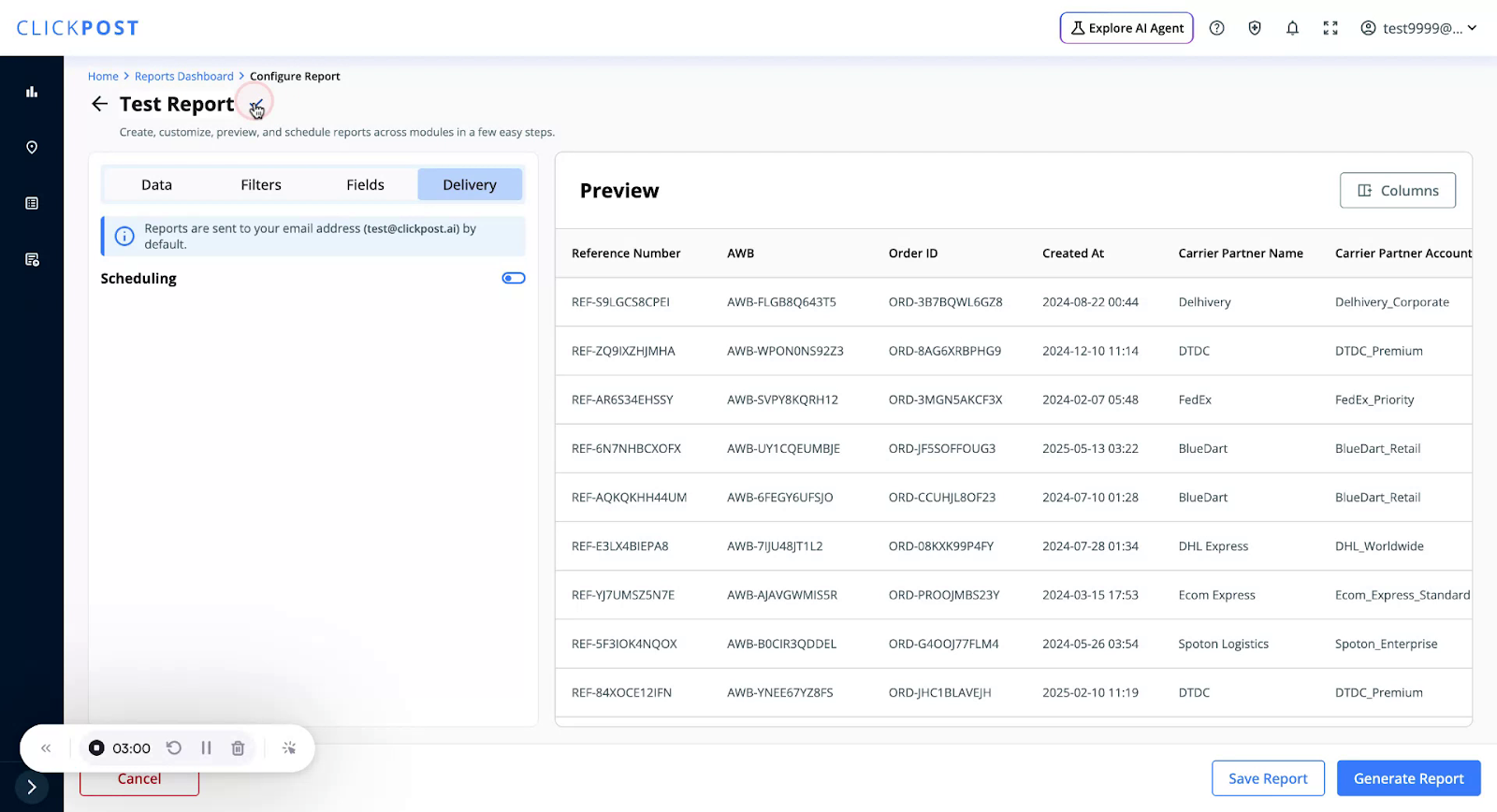
Saving the report allows you to reuse it multiple times and generate it on demand without reconfiguring filters and fields.
To schedule the report:
• Turn on the Schedule toggle.
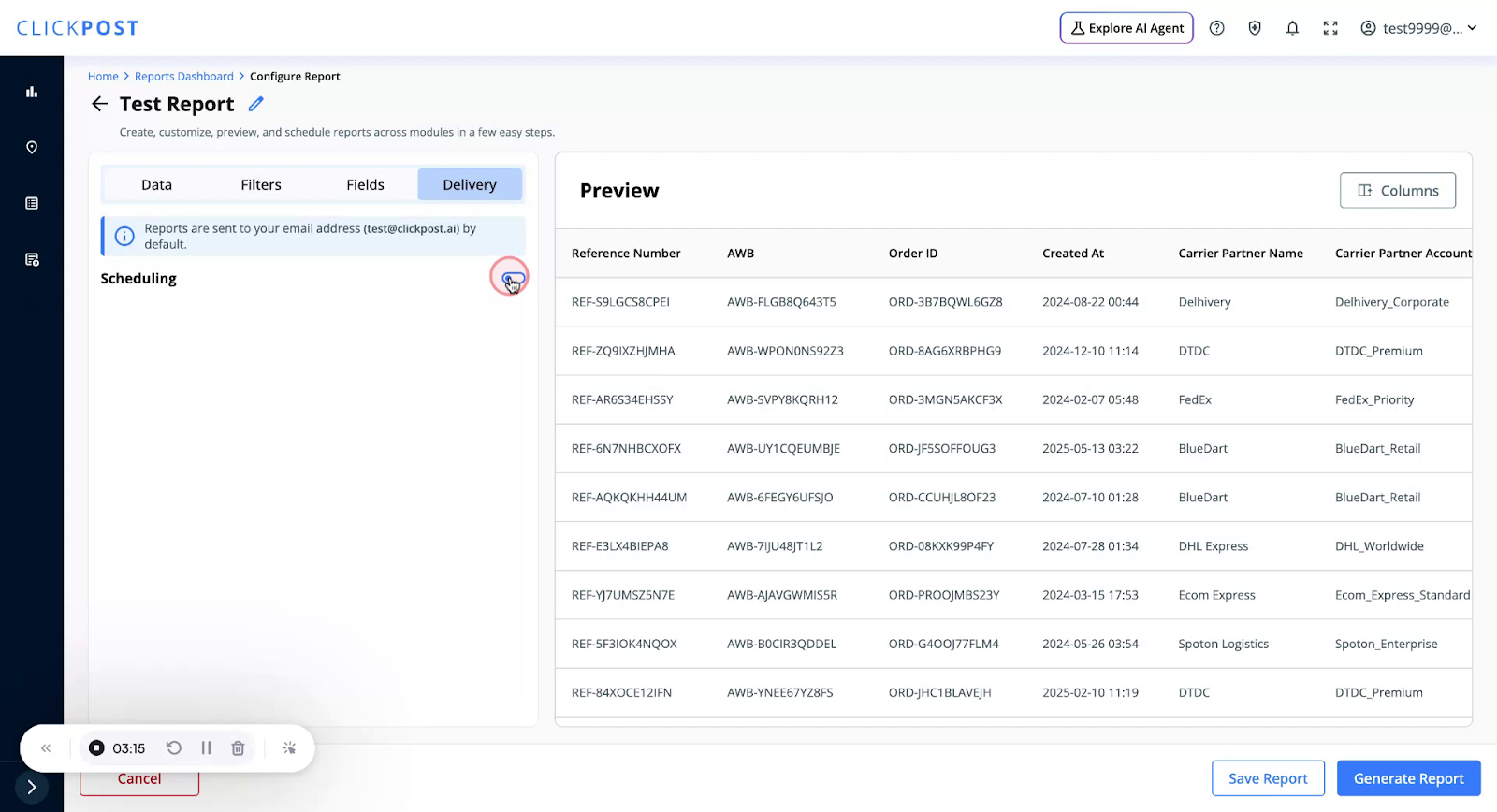
You can then Save and Schedule the report.
To send the report to additional email addresses, type the extra email IDs in the provided field.
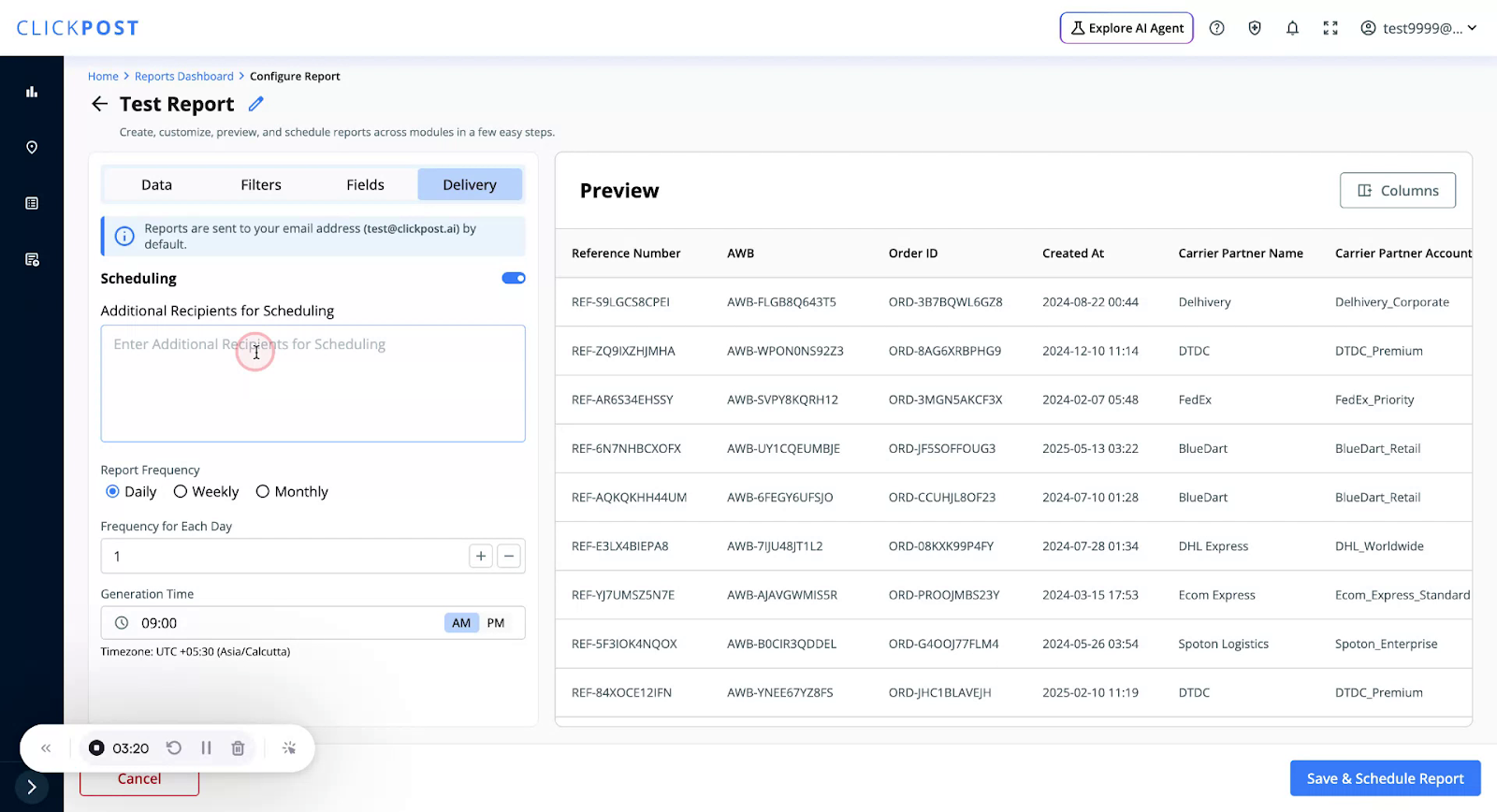
If you enter multiple addresses, the report will be delivered to all of them.
Set the frequency of the scheduled report:
• Daily or Weekly
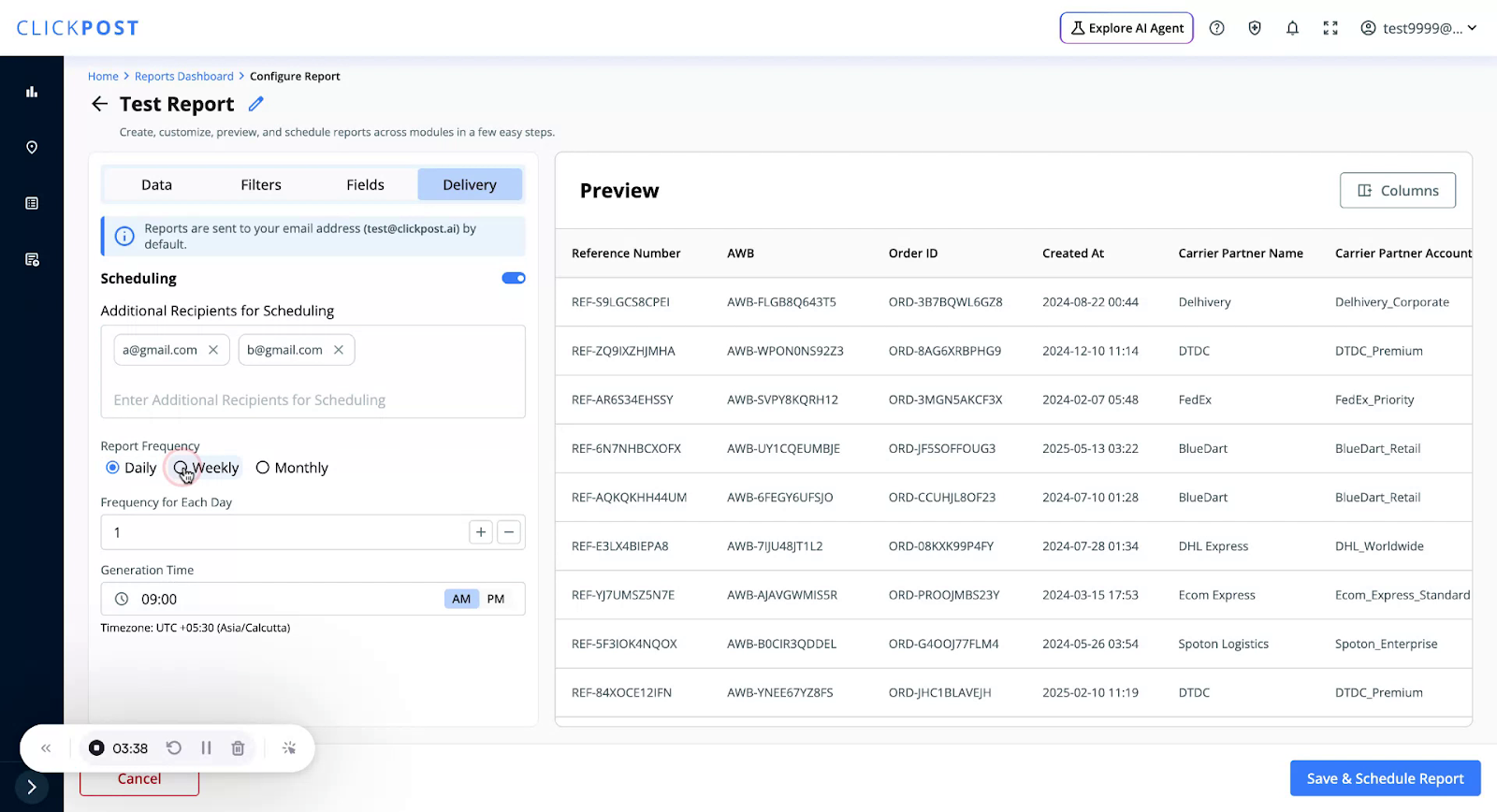
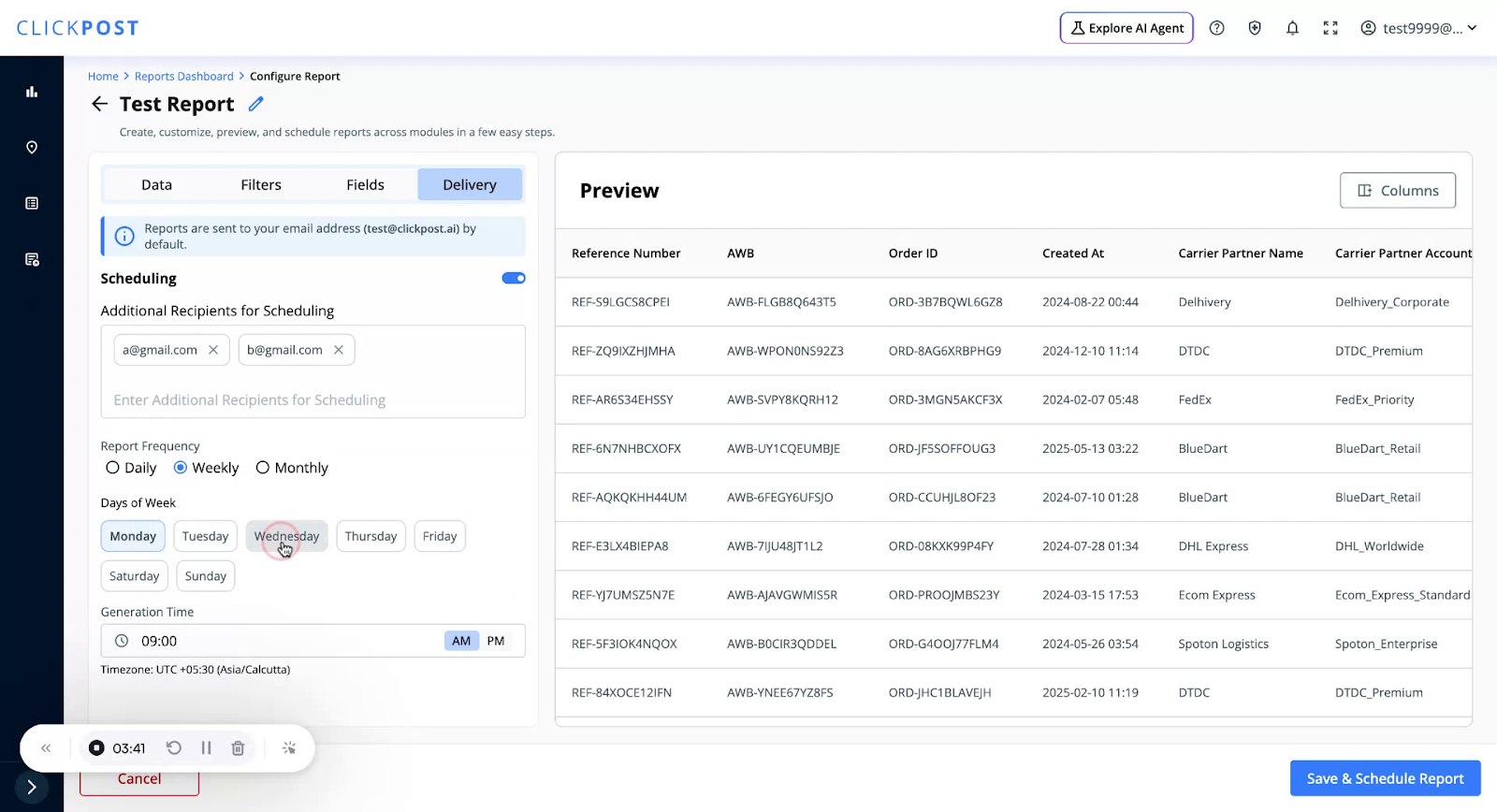
When done, click Save and Schedule.
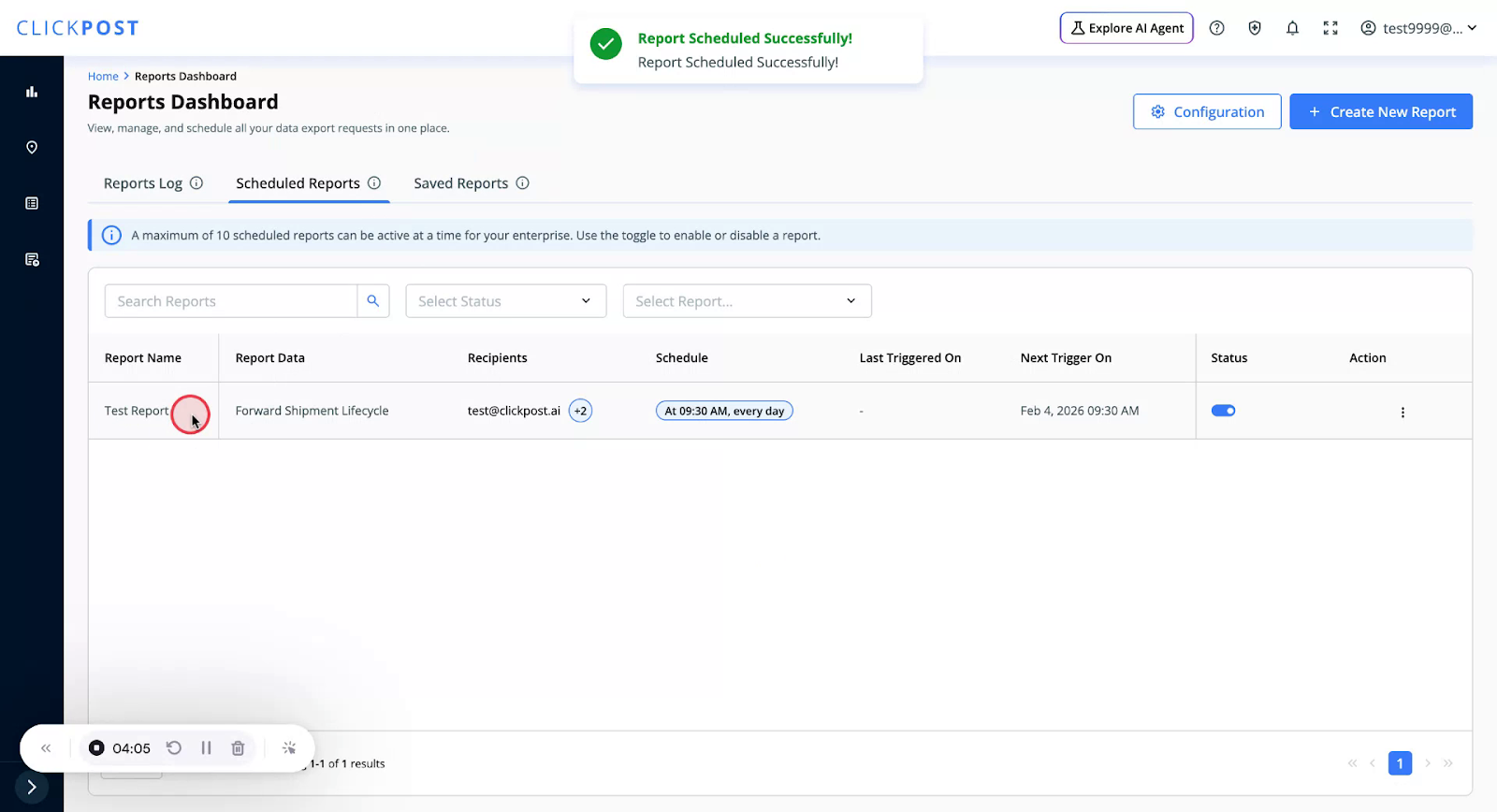
This report now appears under Scheduled Reports, where you can see the relevant details.
Was this article helpful?
That’s Great!
Thank you for your feedback
Sorry! We couldn't be helpful
Thank you for your feedback
Feedback sent
We appreciate your effort and will try to fix the article