Video Tutorial:
Step 1: Open the Reports Dashboard
From the left-side navigation, go to the Reports Dashboard.
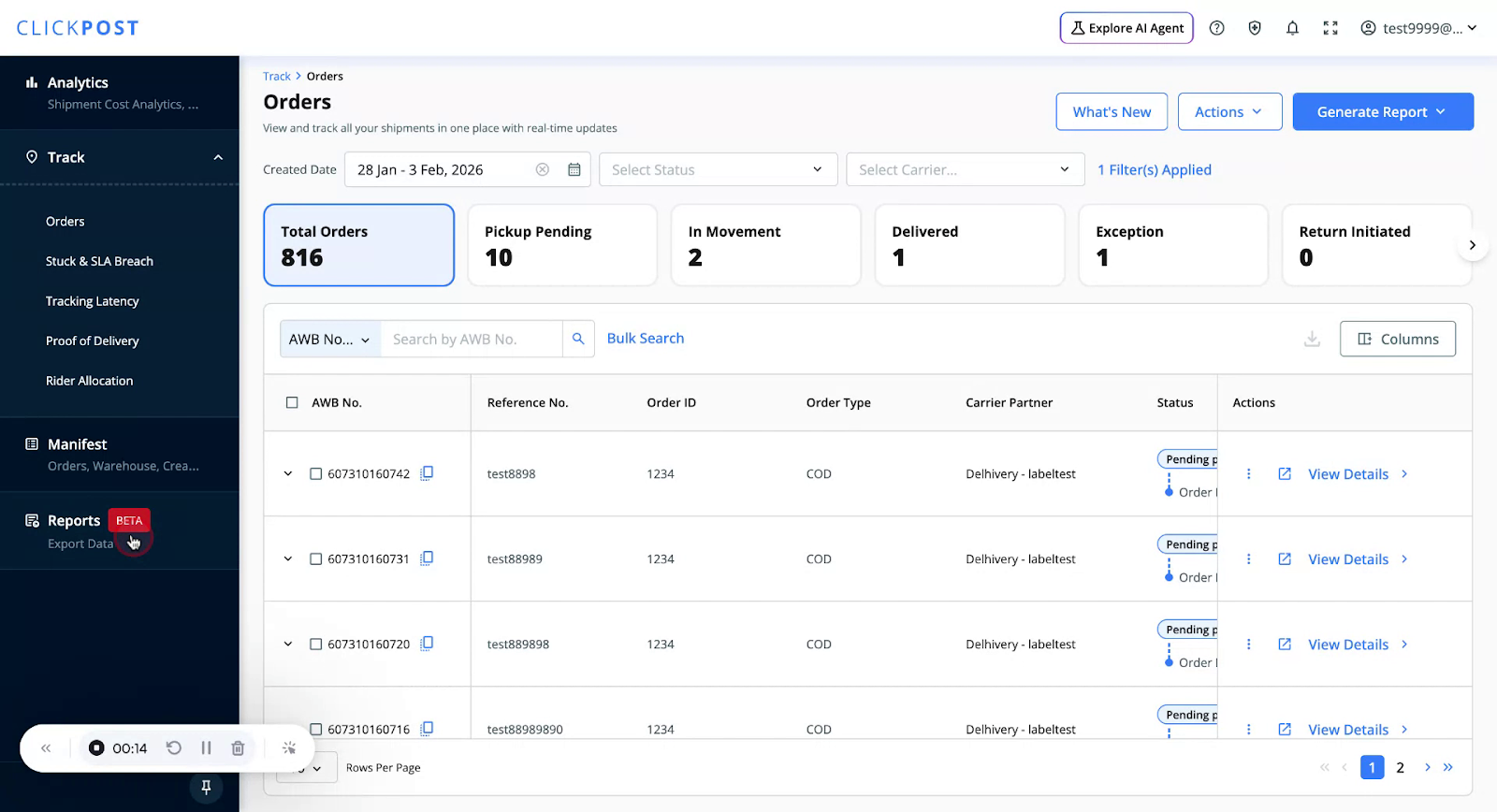
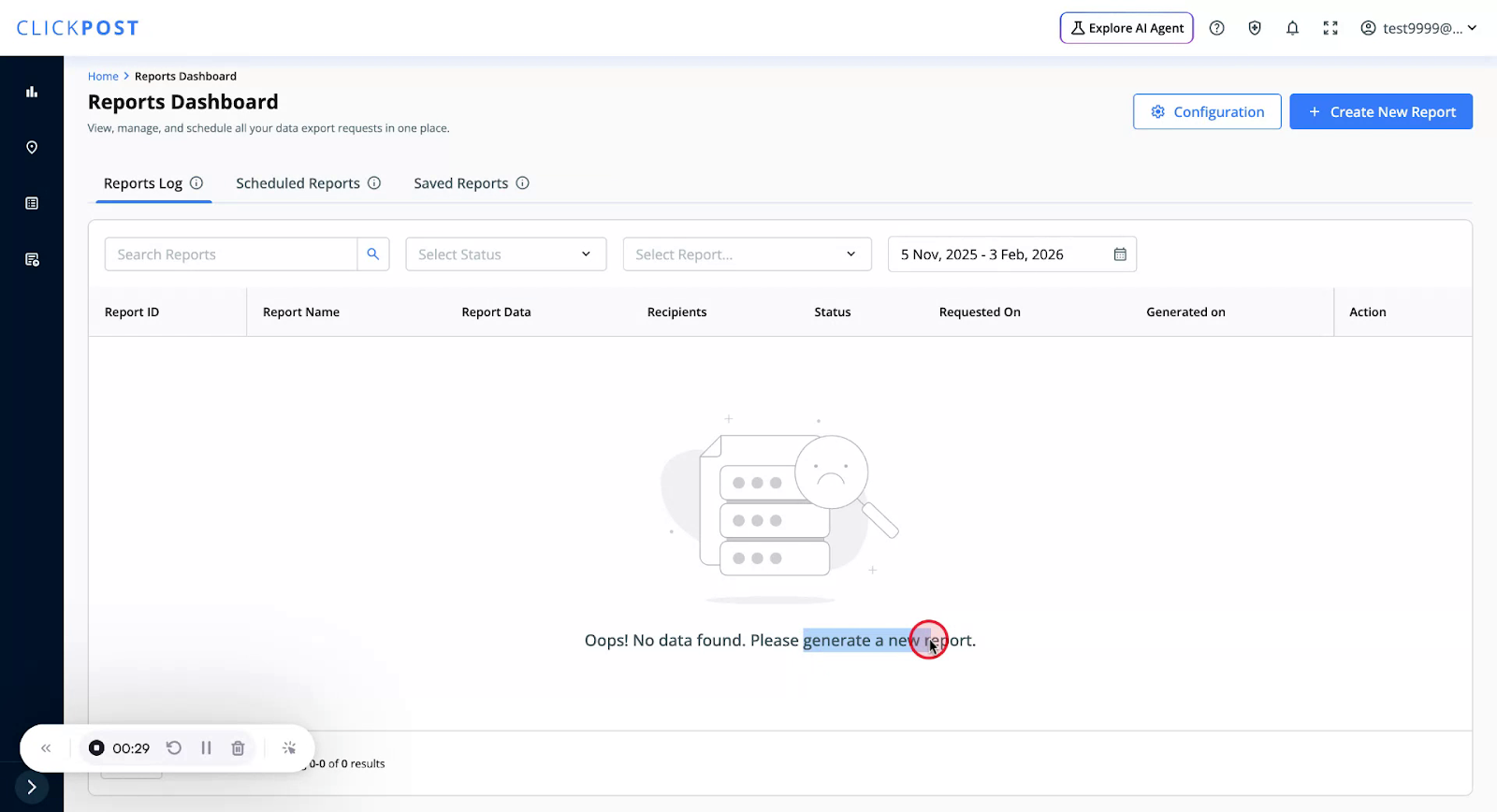
The Reports section has three tabs:
• Reports Log
• Scheduled Reports
• Saved Reports
If you do not have any reports yet, you will see a message saying “Please generate a new report.”
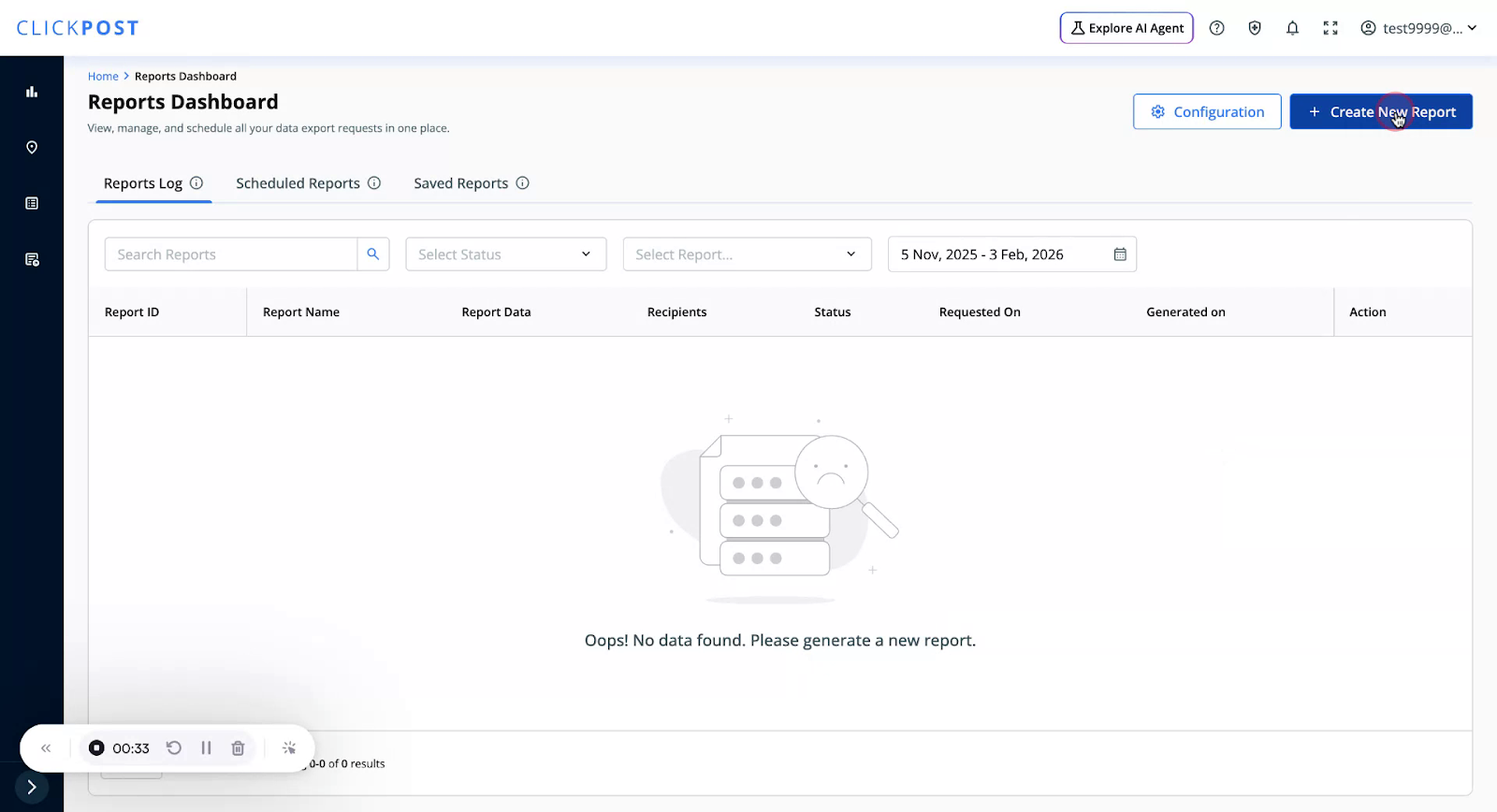
Step 2: Start Creating a New Report
Click the Create New Report button.
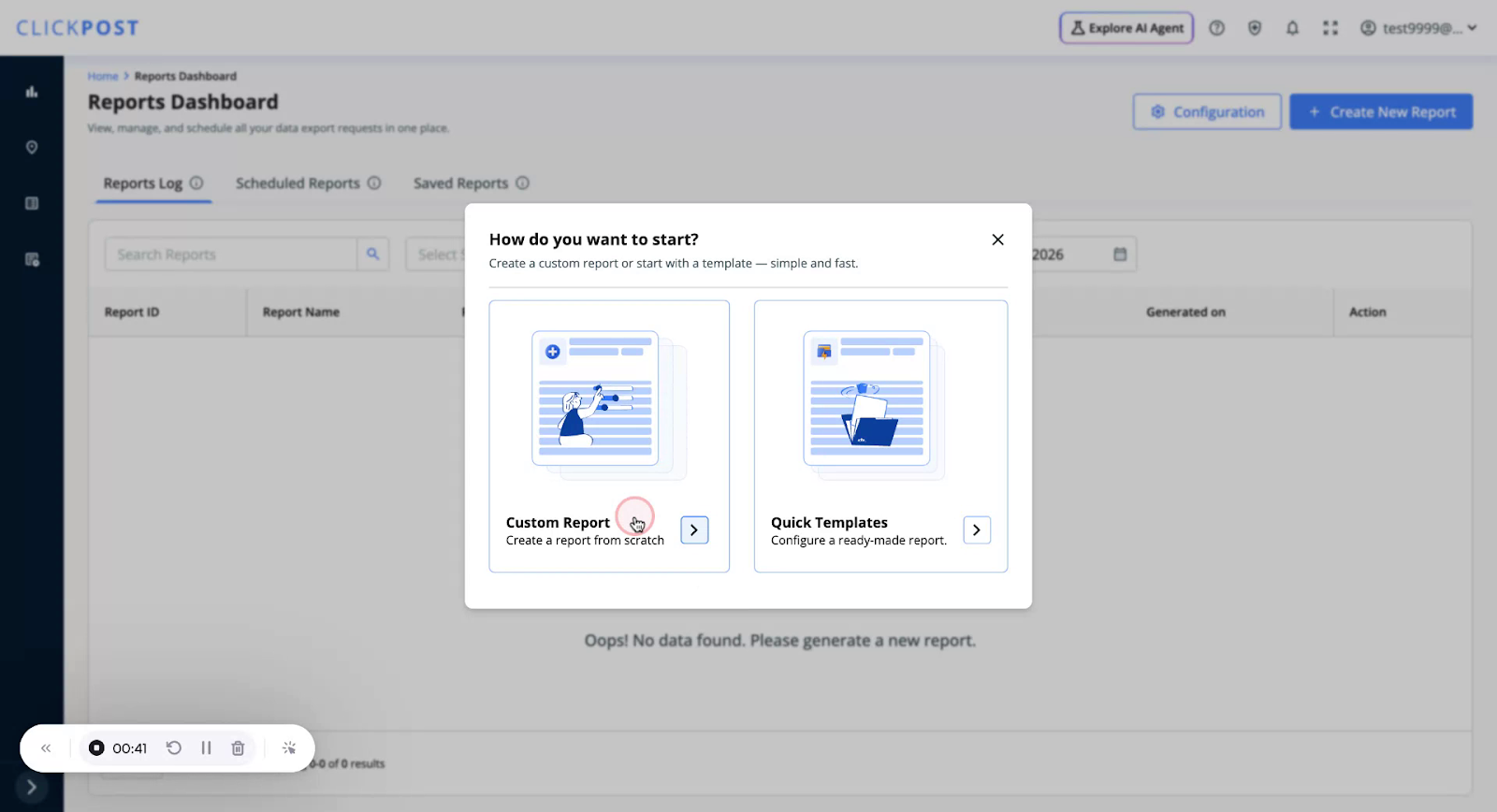
You will see two options:
• Custom Report
• Quick Templates
For now, select Custom Report.
Step 3: Select the Data Type for the Custom Report
Select the data set you want to use for the report.
Then proceed to the Filters tab.
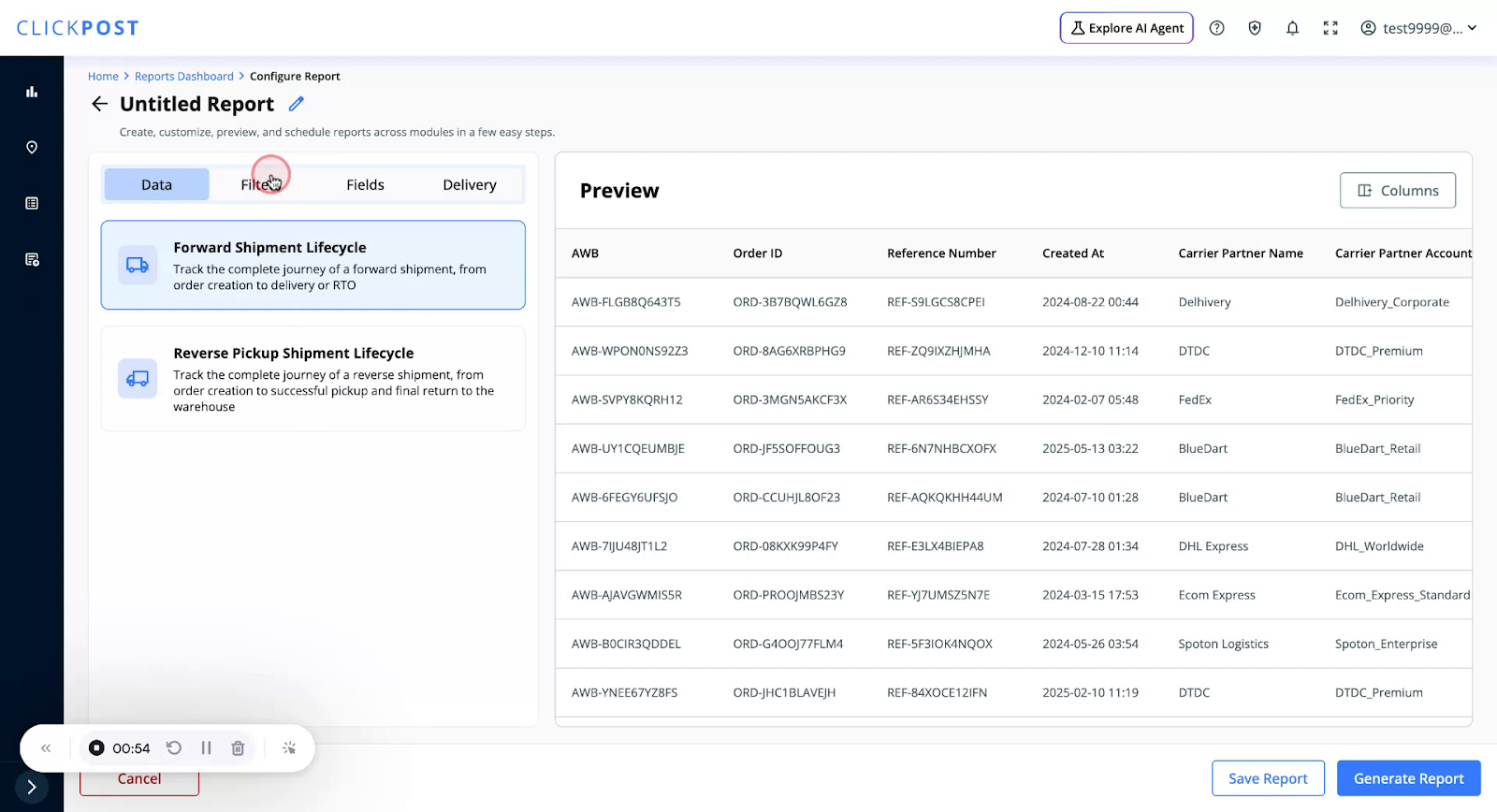
Mandatory filters are already selected. The data type you selected will determine which fields and filters are available.
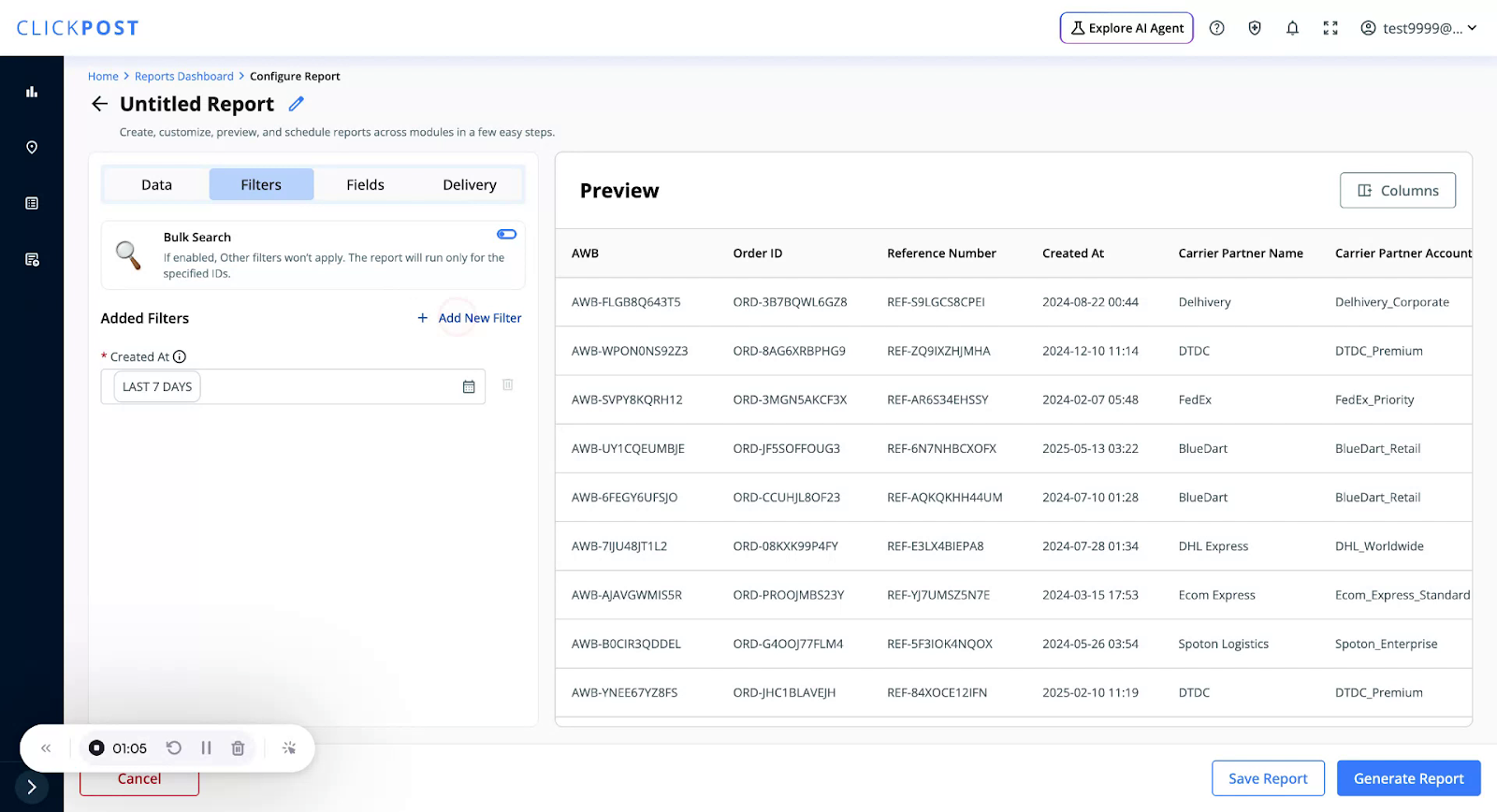
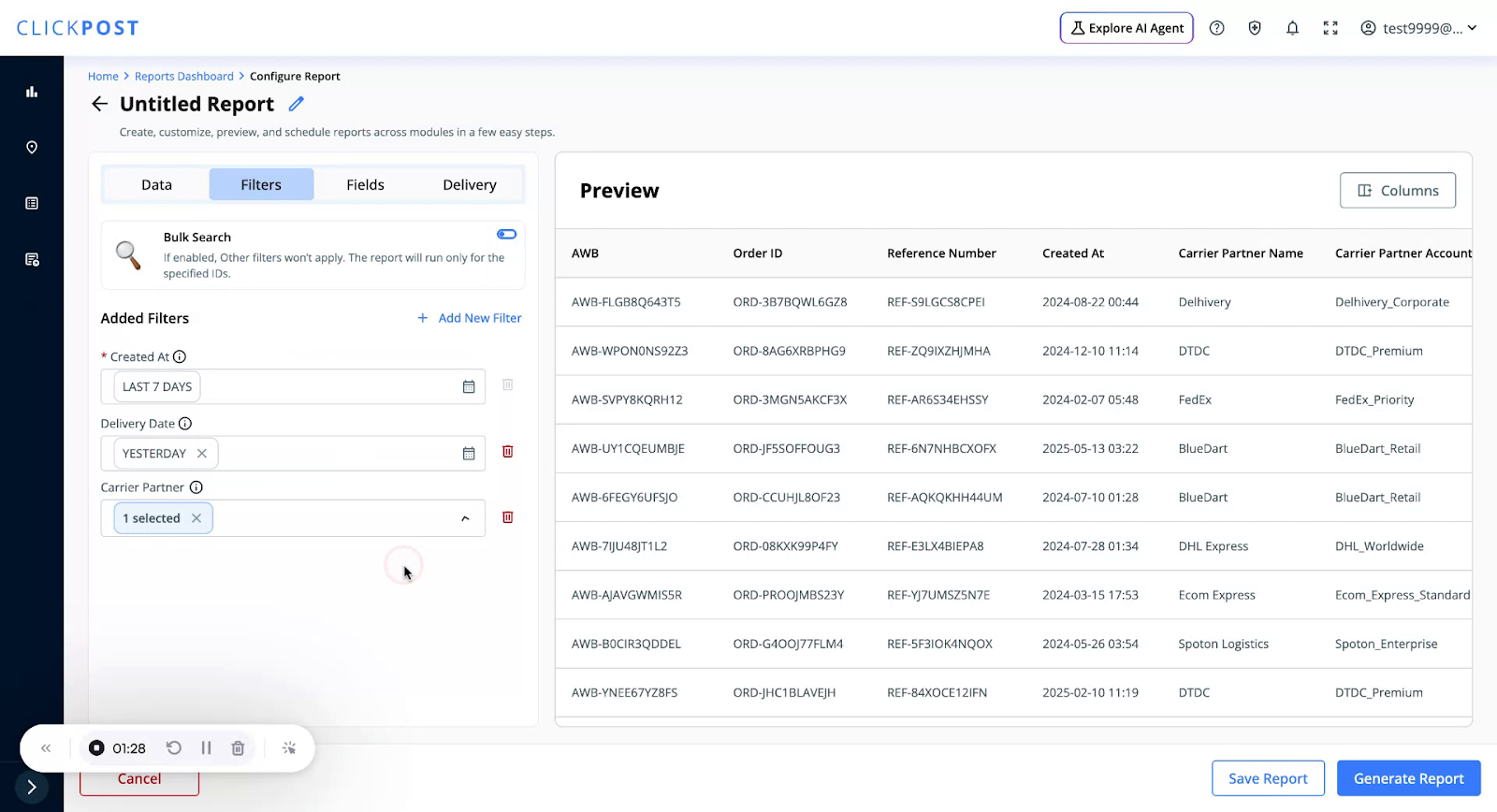
Step 4: Add and Configure Filters
To add more filters, click on the Add Filter option.
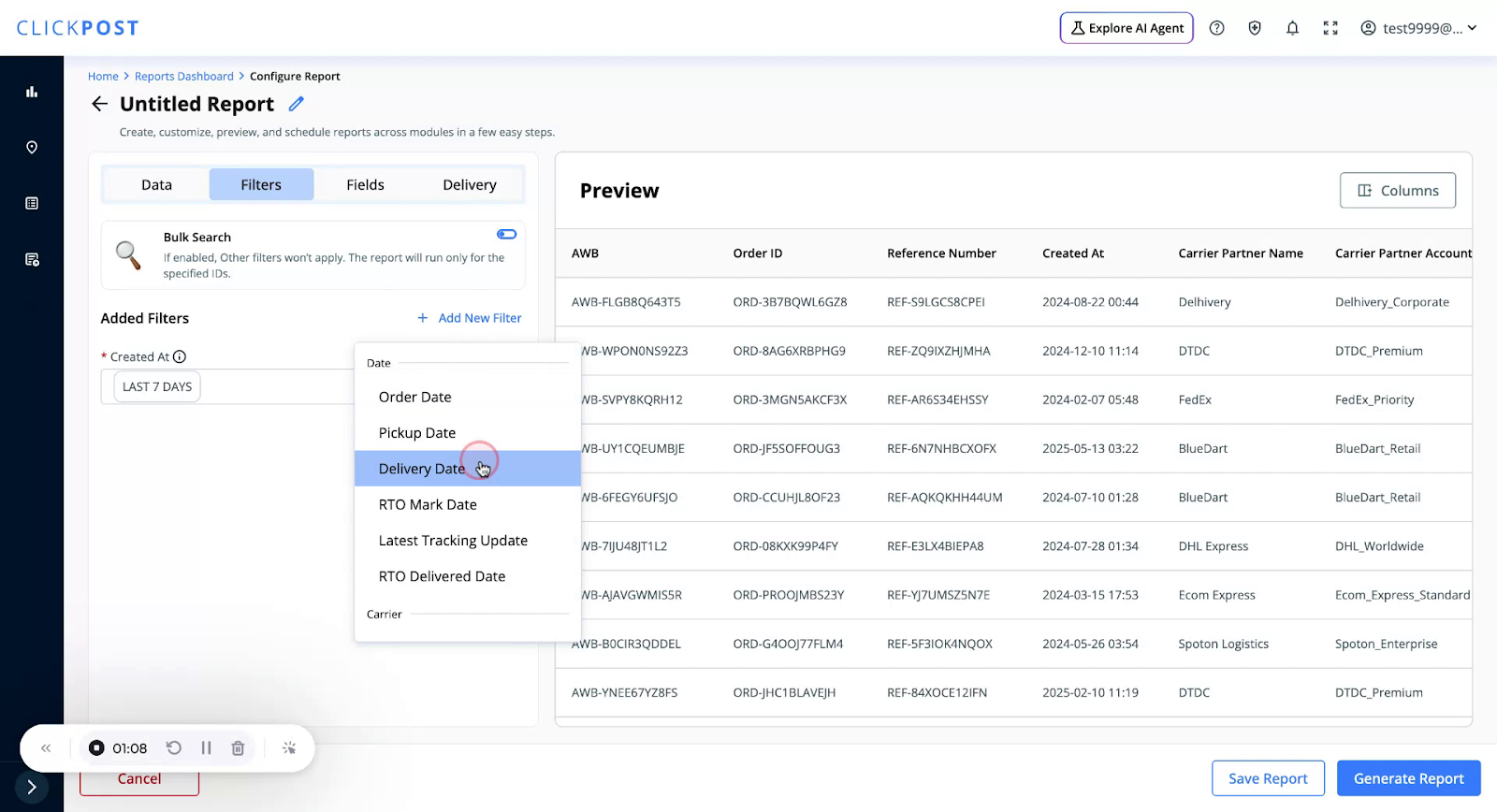
For example, if you want only delivered shipments:
1. Choose Delivery Date as a filter
2. Configure the date range. For example:
• Shipments created in the last 7 days,
• But delivered yesterday.
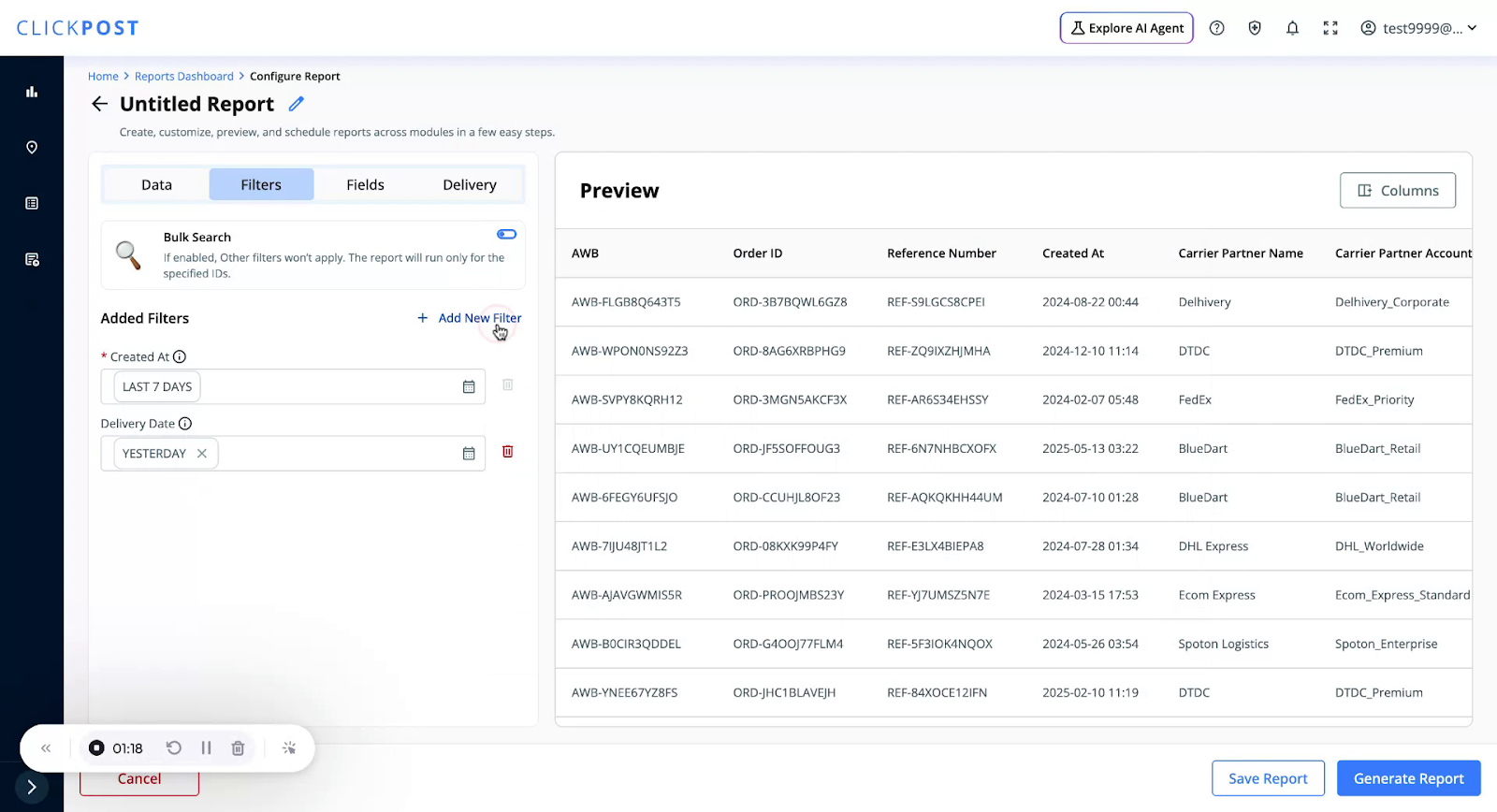
If you want to add another filter, for instance, to restrict to one carrier partner:
• Select the Carrier Partner filter.
• Choose a specific carrier.
Step 5: Choose and Manage Report Fields
In the Fields section:
• Commonly used fields are pre-selected.
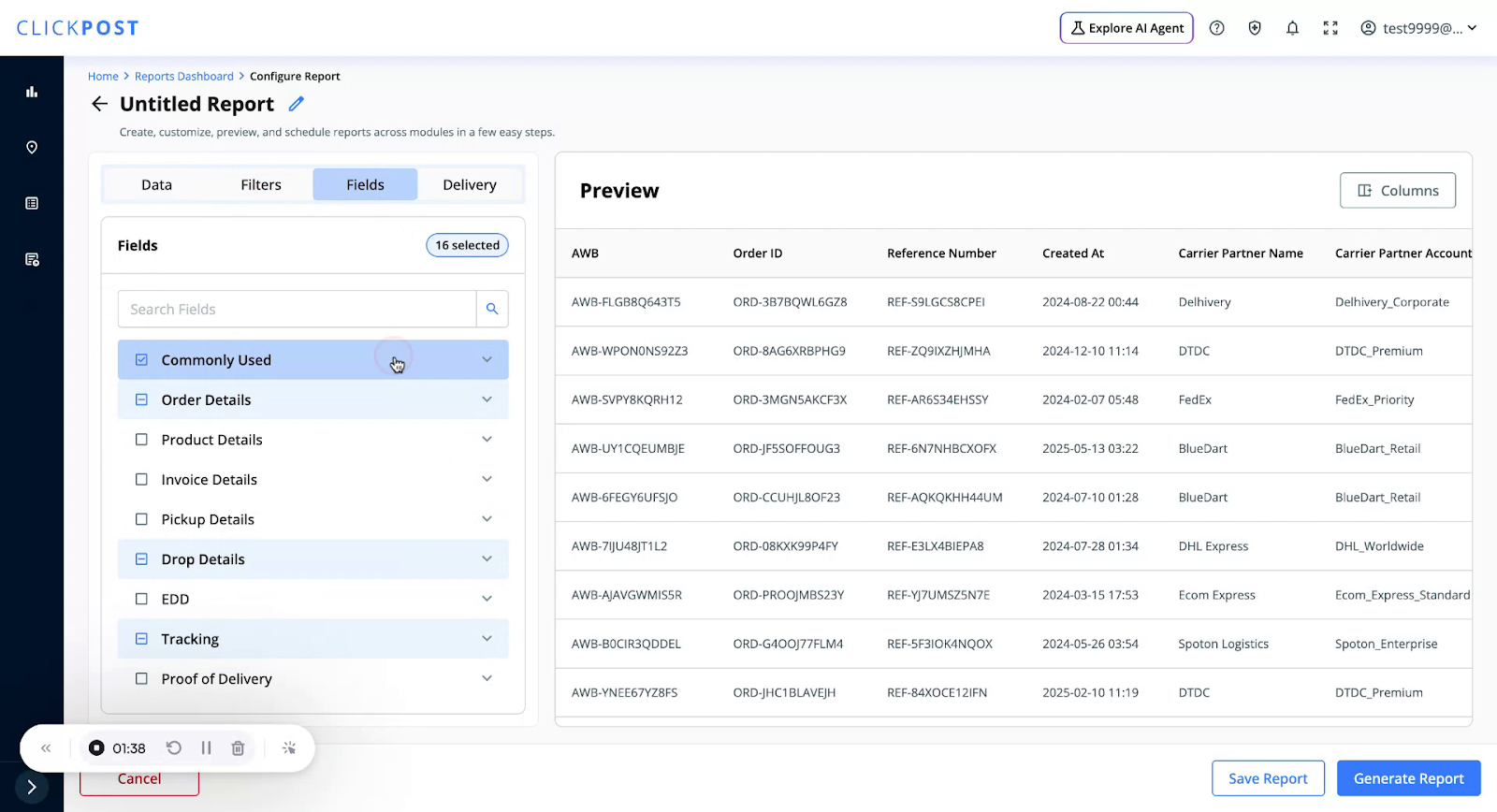
• Searched using the search box, or
• Selected from the list of available fields.
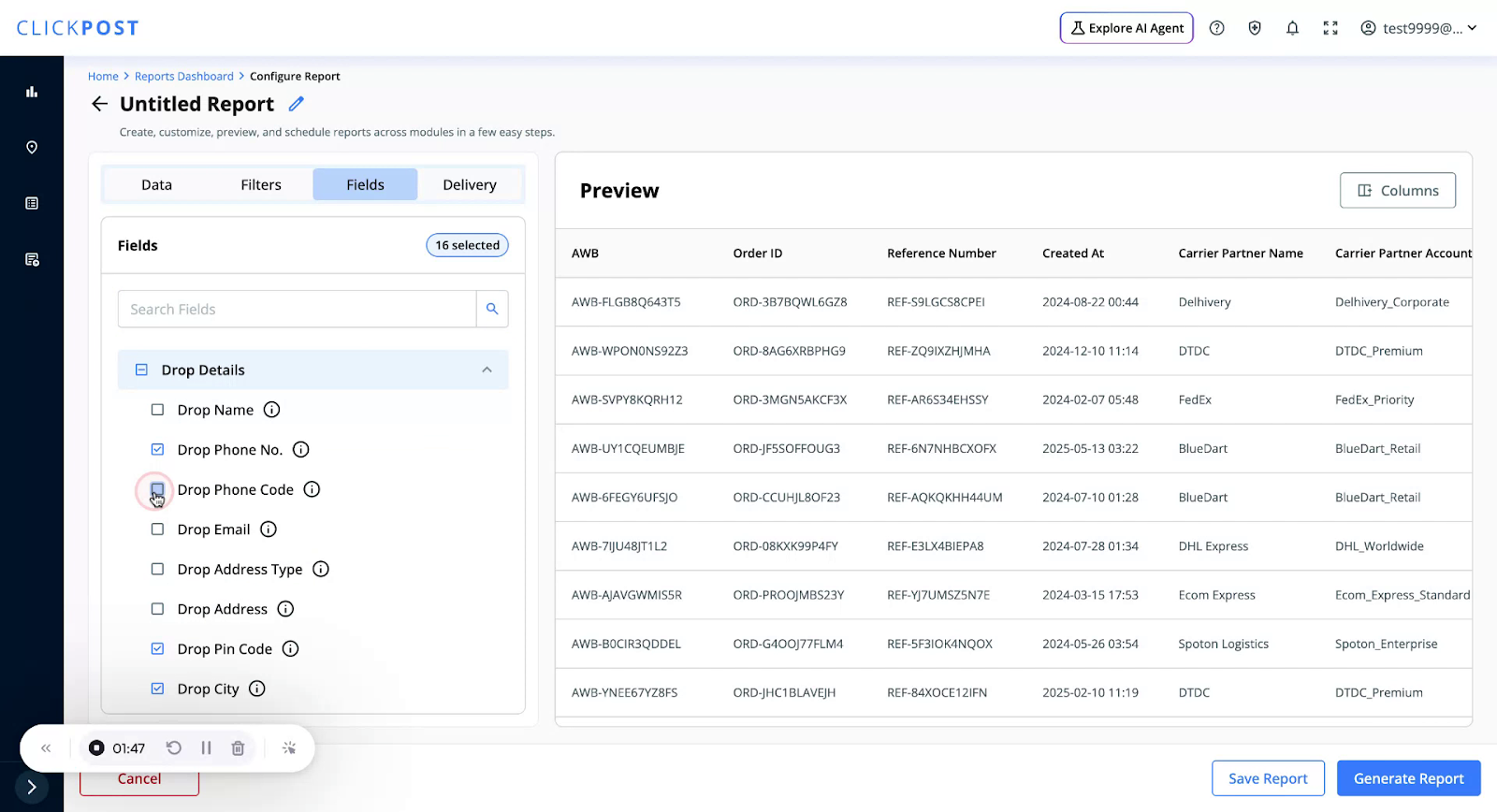
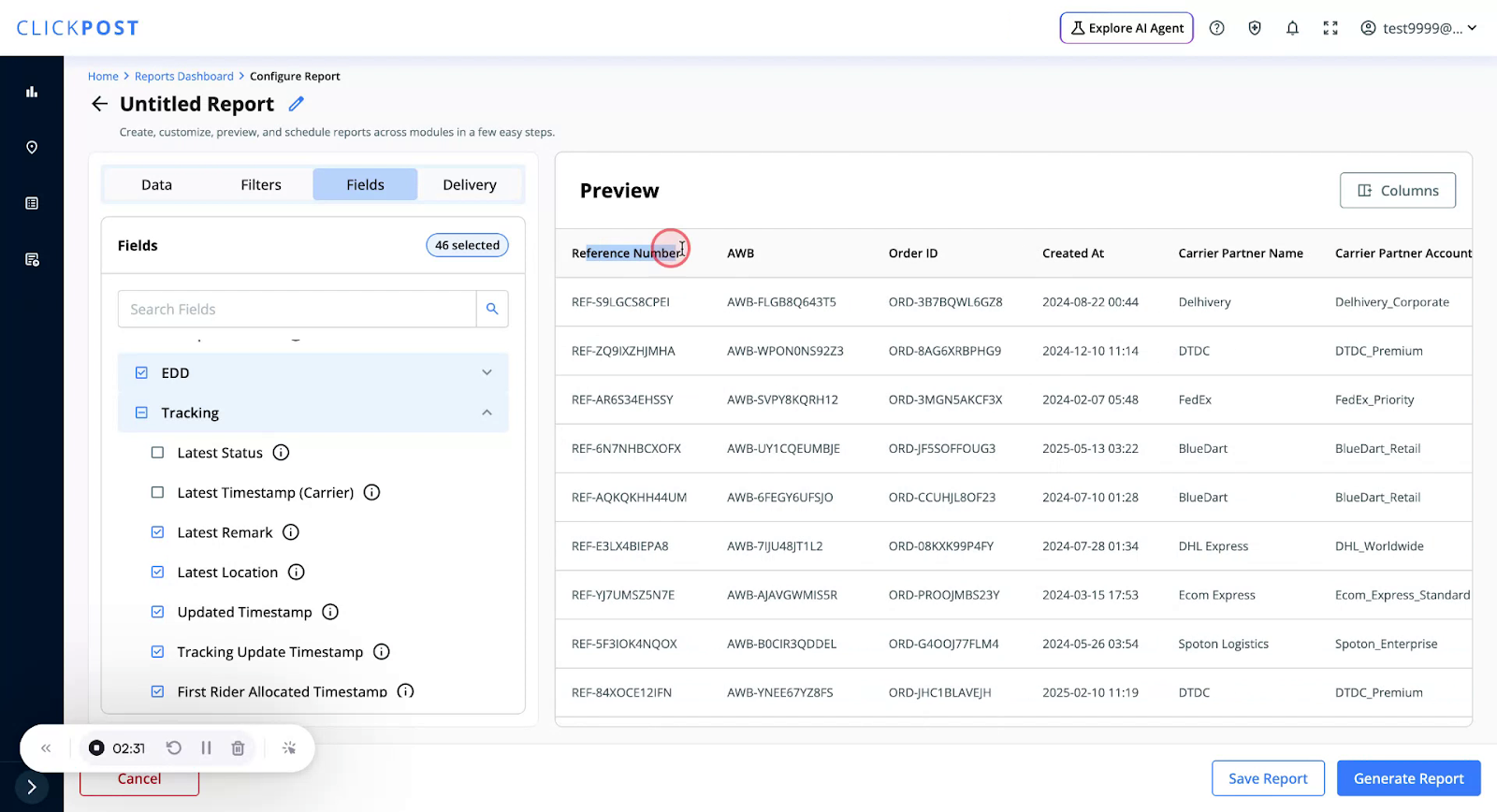
A real-time preview of your report is displayed using dummy data, so you can see how the report will look.
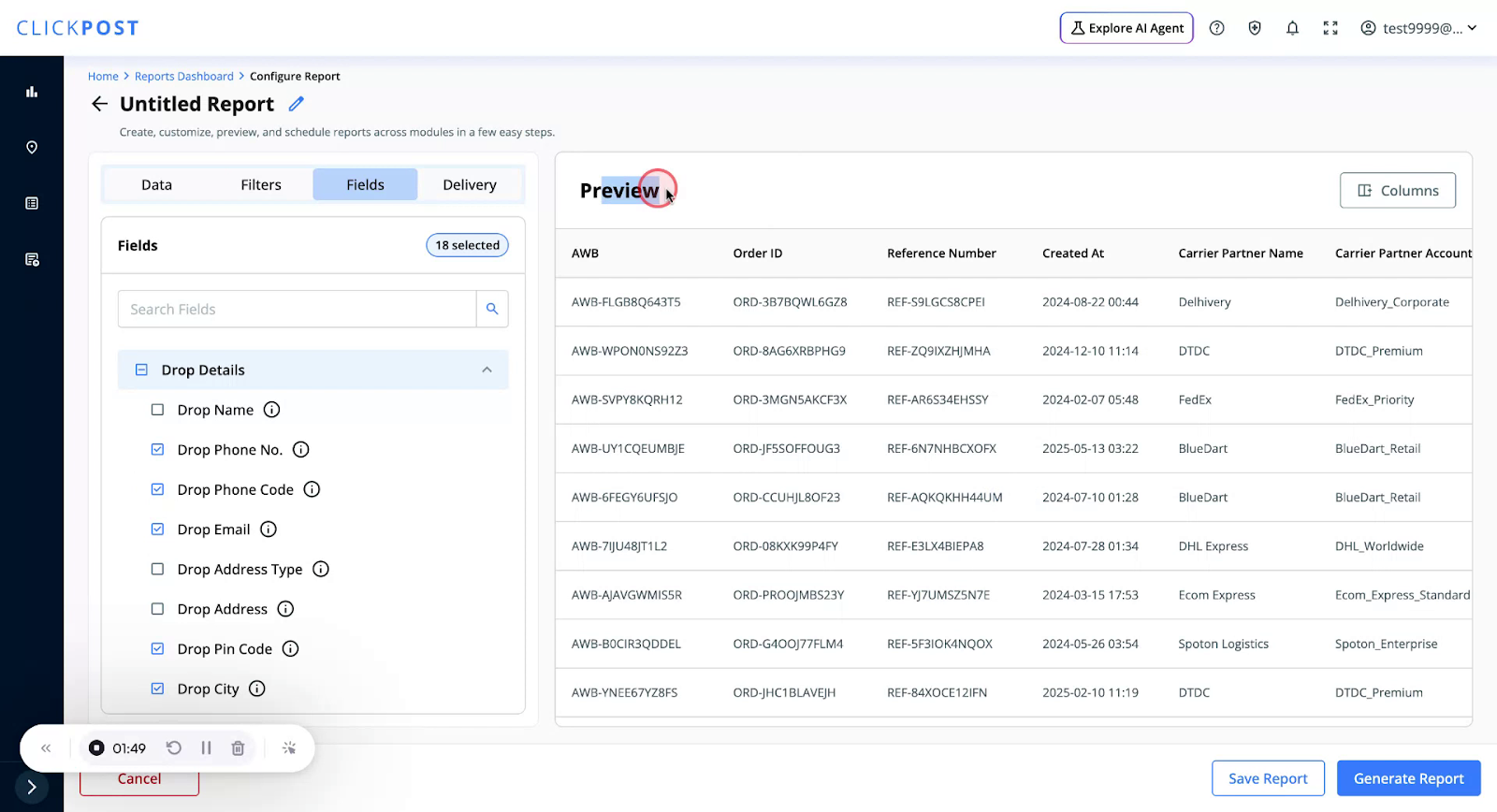
If you want to reorder columns (for example, place Reference Number first):
• Use the column reorder control.
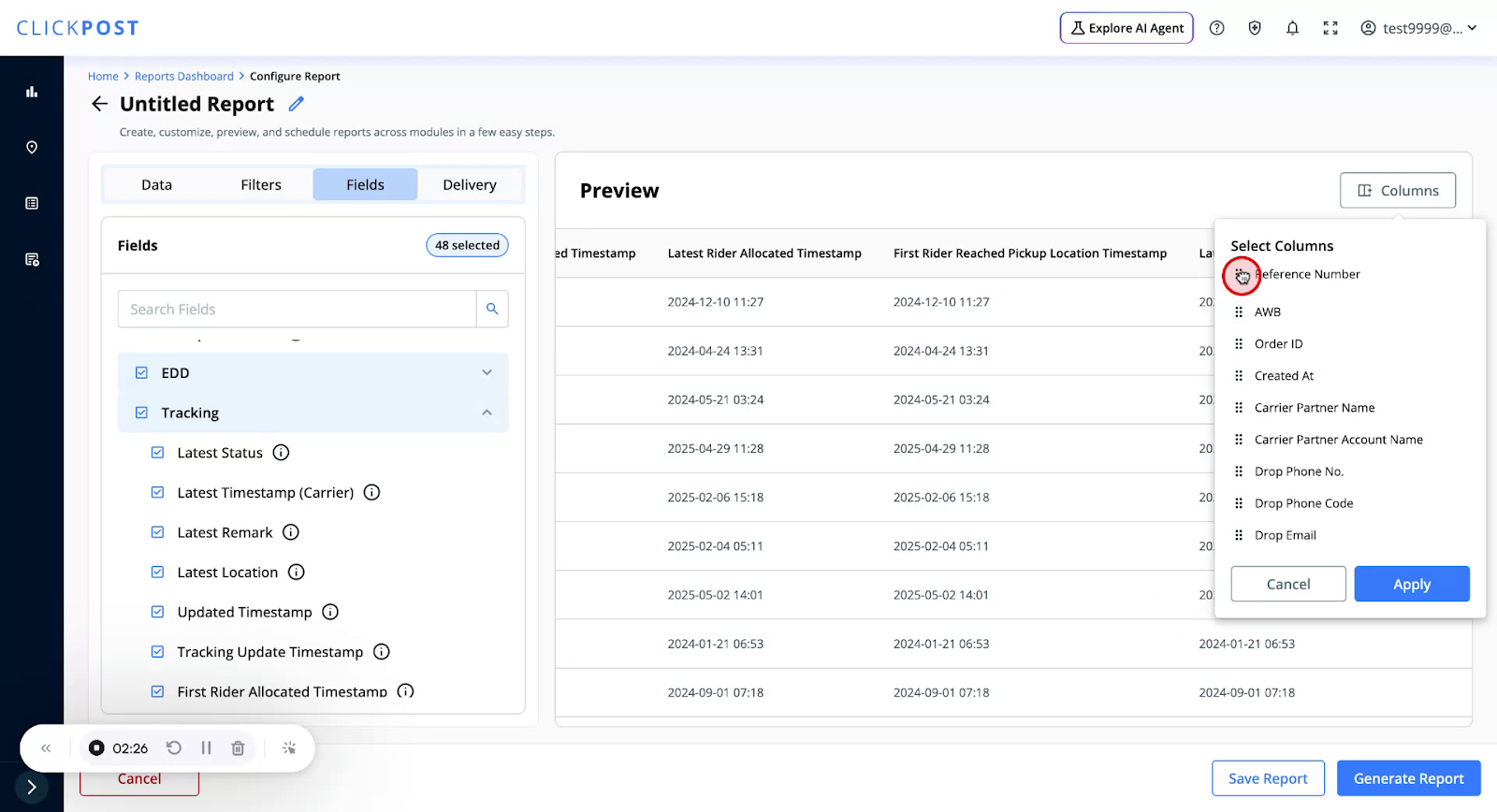
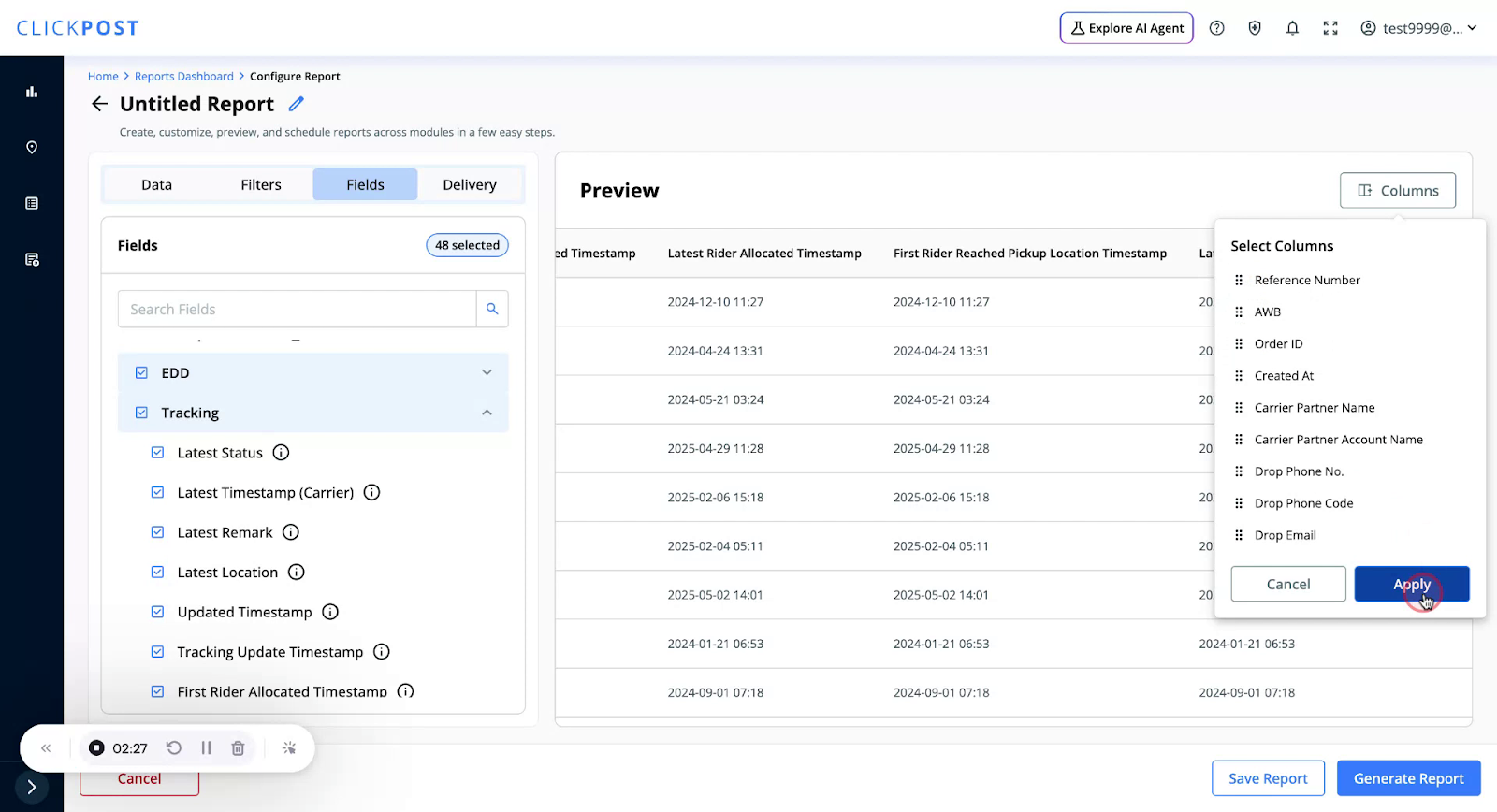
You will then see Reference Number appear before AWB in the preview.
Step 5: Generate Report
Click on the Generate Report button.
Once generated, the report will be automatically sent to your registered email ID.
You can also view and download the report anytime from Report Log → Actions.
Was this article helpful?
That’s Great!
Thank you for your feedback
Sorry! We couldn't be helpful
Thank you for your feedback
Feedback sent
We appreciate your effort and will try to fix the article