Please note that only Super Admins (and not sub-users) have the permission to download user activity logs from the dashboard.
Follow the steps below to download the activity logs:
Step 1: Log in as Super Admin
Log in to your Clickpost account using Super Admin credentials.
Navigate to the user profile section located at the top-right corner of the dashboard.
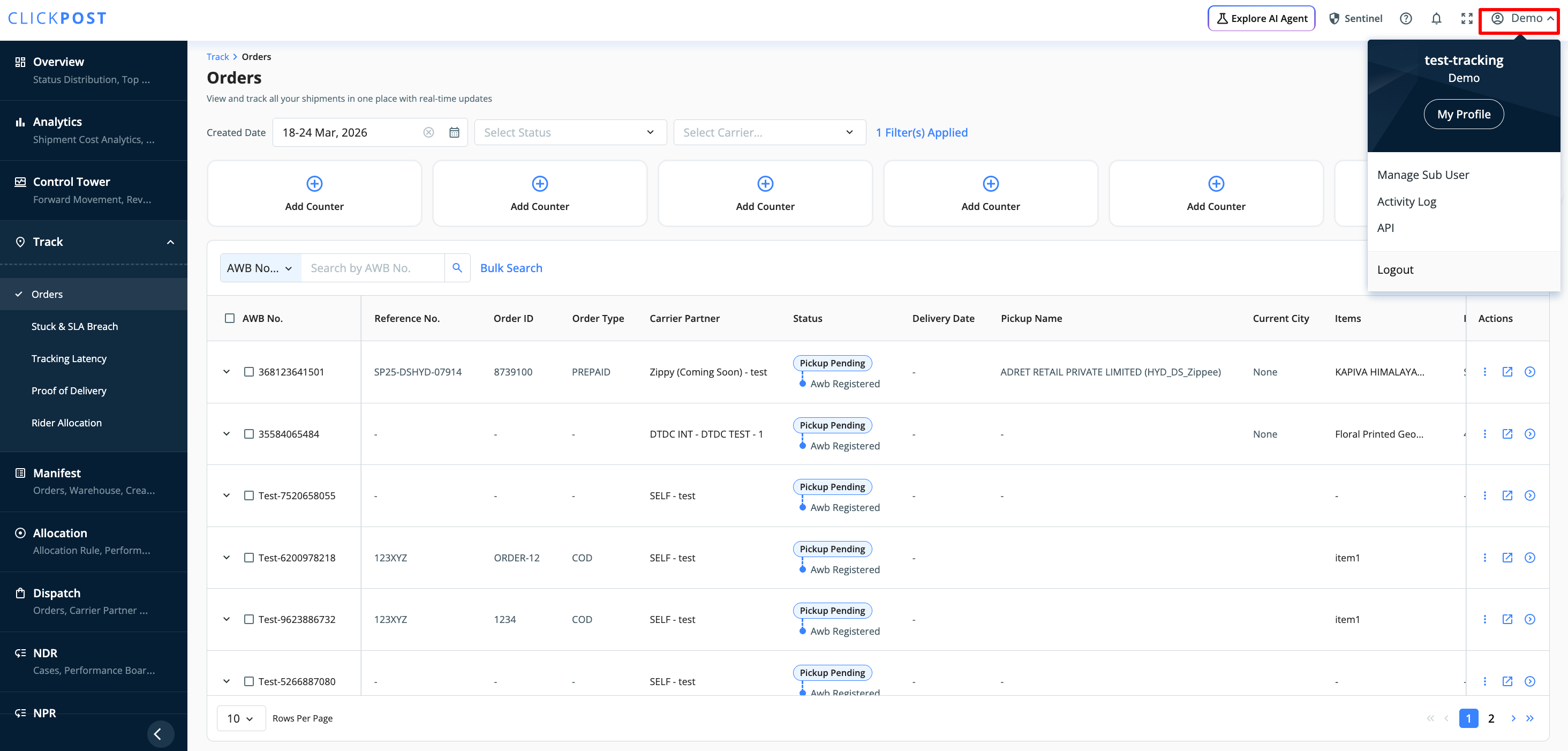
Step 2: Access Activity Logs
Click on the “Activity Log” option from the dropdown menu.
Step 3: Download the Logs
- In the Activity Log section, apply the desired date filter
- Click on “Download Records” to download the activity logs
The report will automatically start downloading once it is generated.
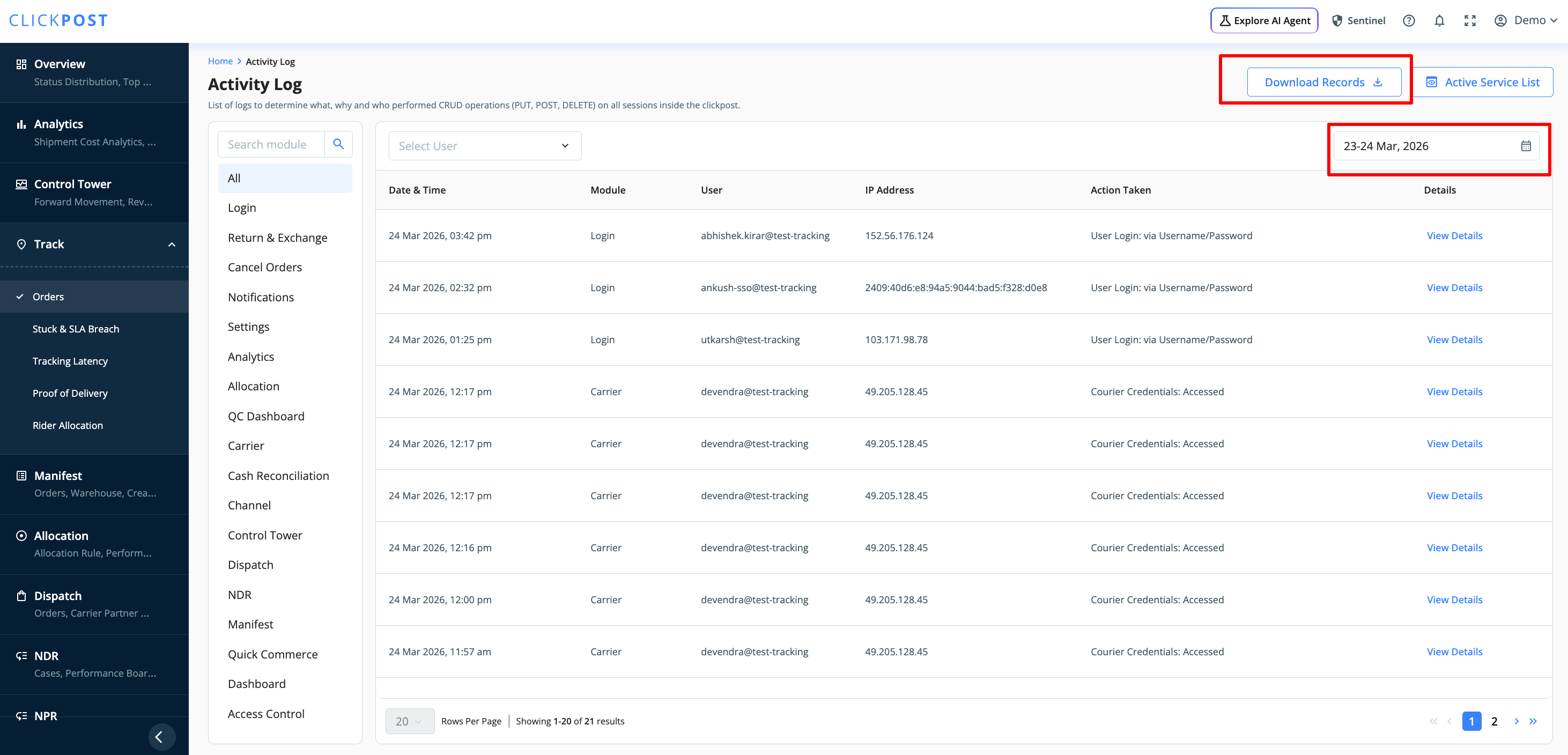
Note: Depending on the size of the report, it may take some time to generate before the download begins.
Was this article helpful?
That’s Great!
Thank you for your feedback
Sorry! We couldn't be helpful
Thank you for your feedback
Feedback sent
We appreciate your effort and will try to fix the article