ClickPost allows you to view detailed tracking status logs that are pushed to your respective Shopify orders. These logs can be directly accessed from the dashboard to help verify and troubleshoot status updates.
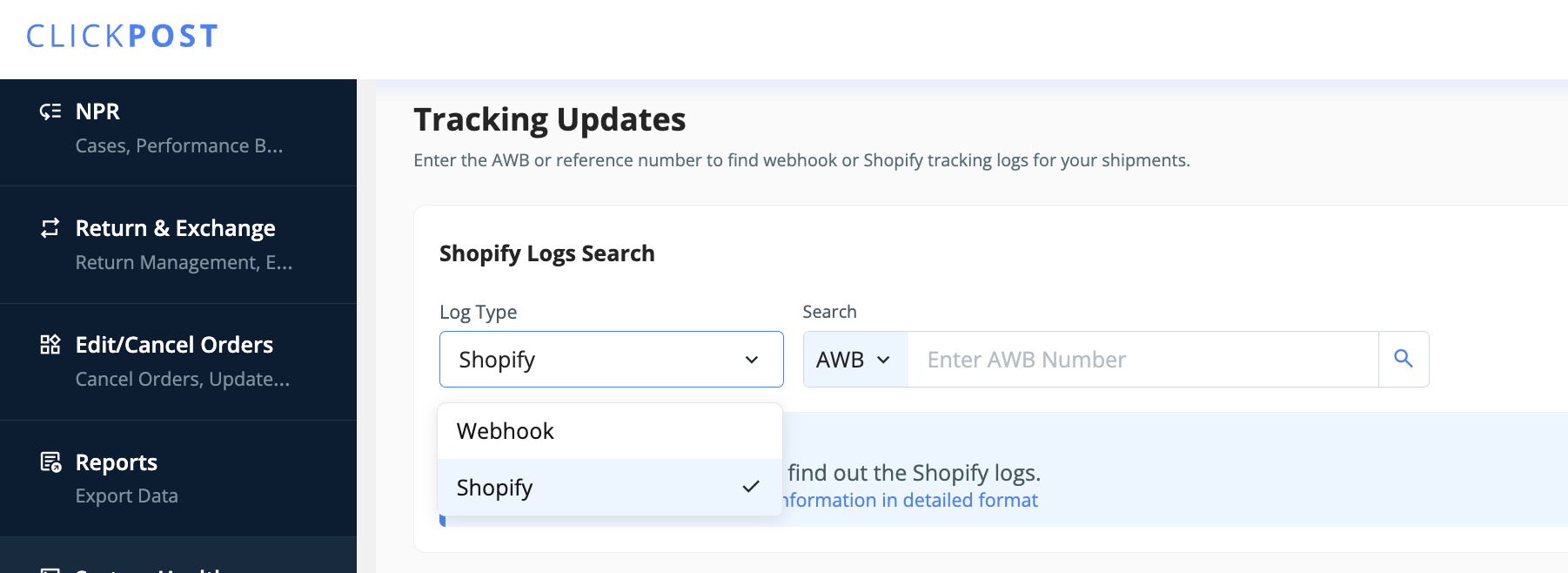
Step 1: Navigate to the Shopify Logs Section
Log in to your ClickPost Dashboard.
Go to Menu → System Health → Track.
On this page, you’ll find two fields for searching webhook logs:
Log Type – This field is set to Webhooks by default. Please change it to Shopify.
AWB – Enter the Air Waybill (AWB) number for which you want to view the logs.
Click Submit to fetch the logs.
Step 2: View Shopify Log Details
Once you submit the request, the system displays all webhook events pushed by ClickPost for that AWB.
Each log entry includes the following details:
Shopify status mapping
Mapping of Clickpost notifications_event_id to Shopify statuses
Step 3: Use Logs for Validation and Troubleshooting
These status logs help you:
Verify the events that were successfully delivered to Shopify.
Note that for any AWB, if the scans are not present, that means we have not received any scans yet for the AWB.
Only the above-listed statuses are supported on Shopify.
Validate the payload structure and data received for a given AWB.
If you observe any failed deliveries or unexpected responses, feel free to reach out to support@clickpost.in for assistance.
Was this article helpful?
That’s Great!
Thank you for your feedback
Sorry! We couldn't be helpful
Thank you for your feedback
Feedback sent
We appreciate your effort and will try to fix the article
