To create and get the templates approved, follow the below steps:
Login to Gupshup panel
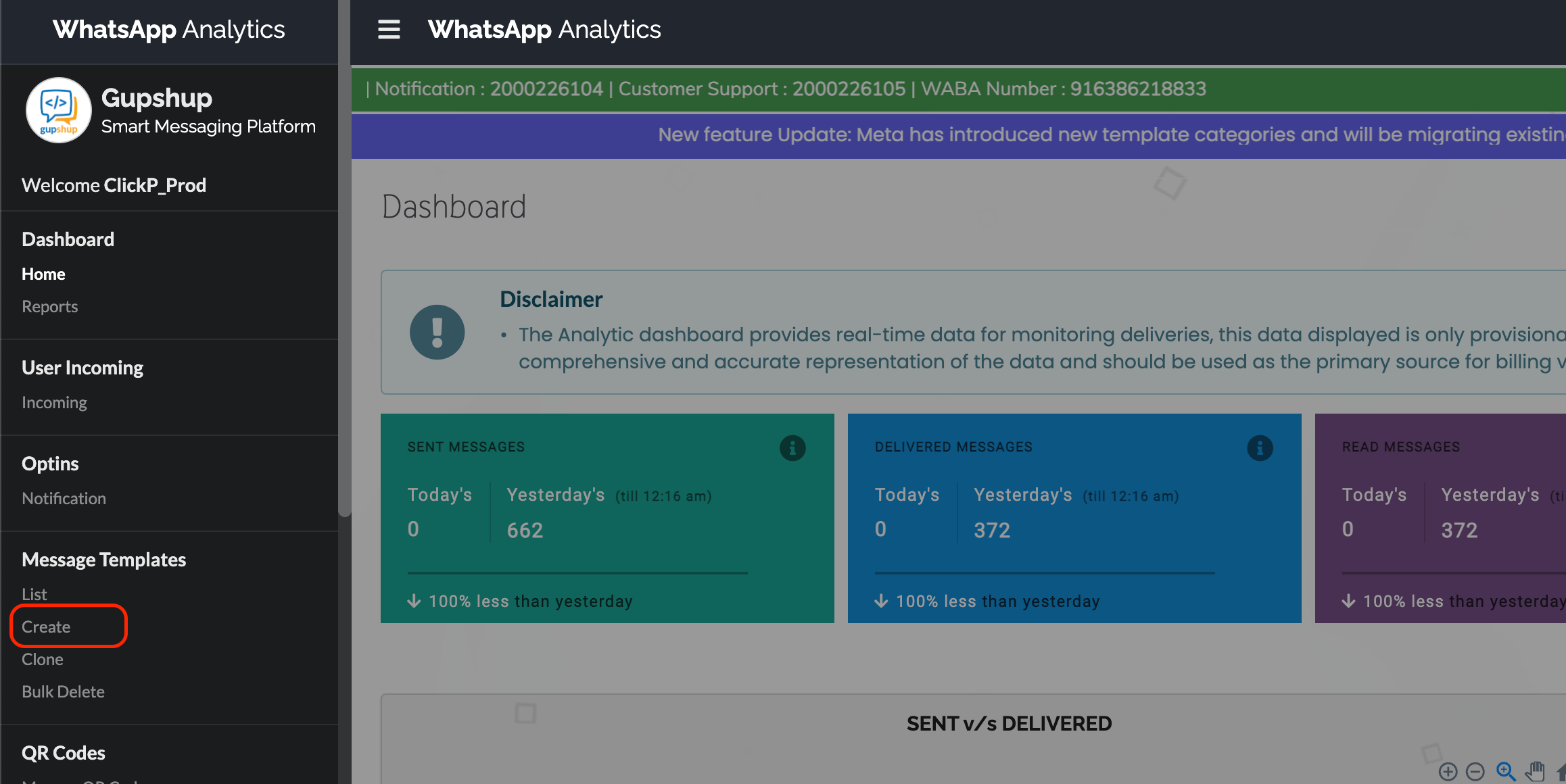
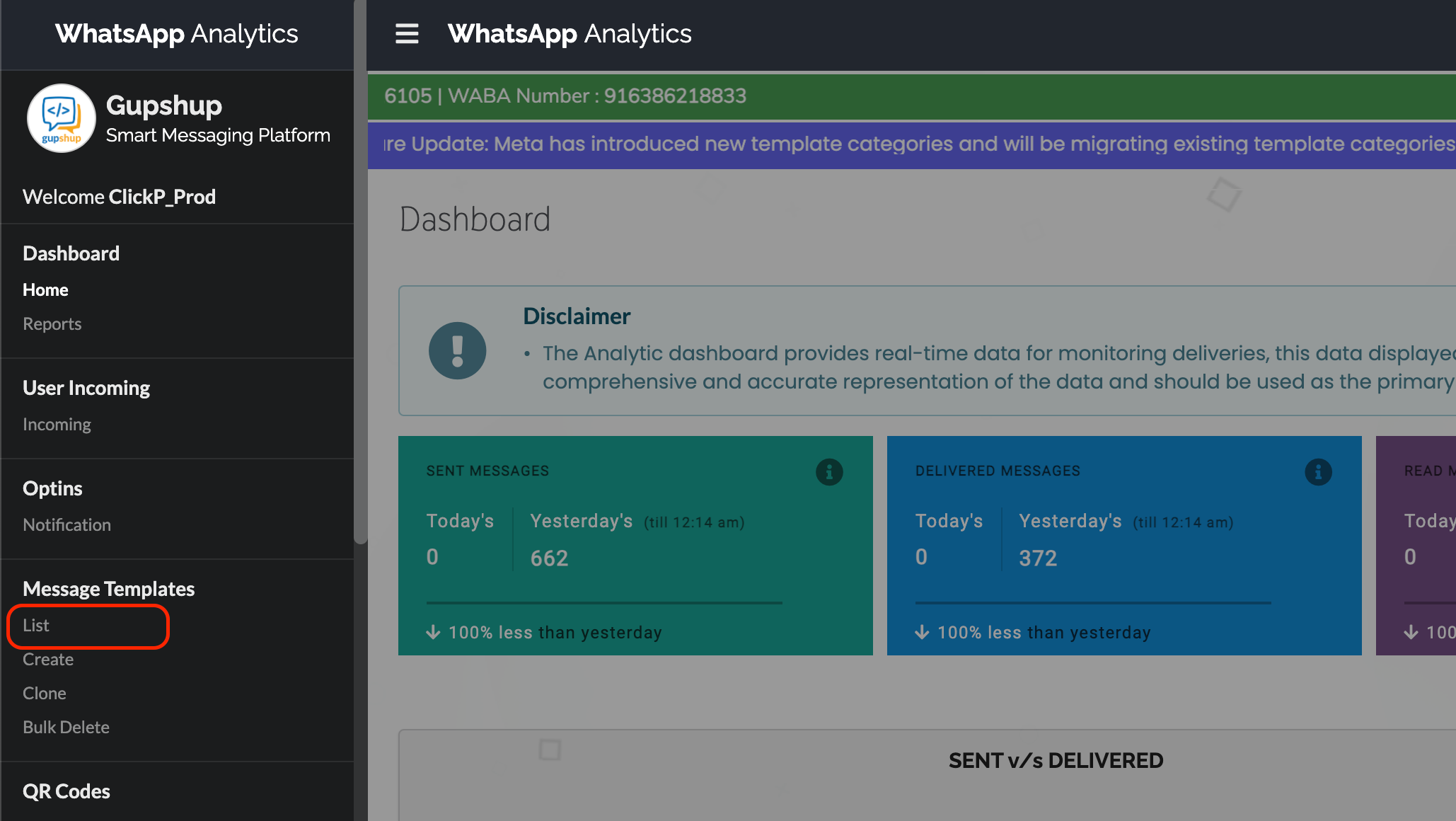
Open the navigation panel on left and click on 'Create
Select the tabs as per below screenshot
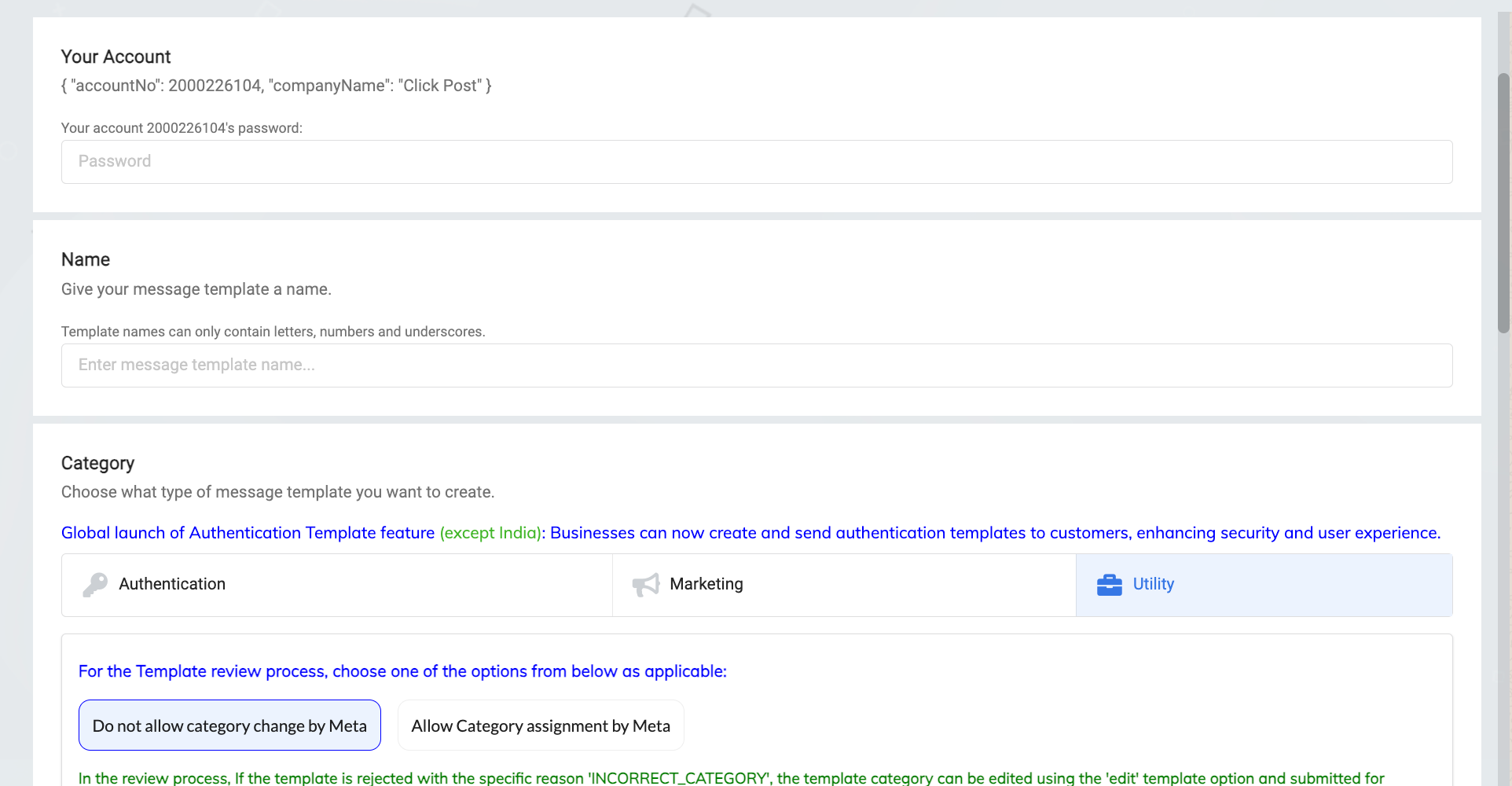
Configure the template as below:
A. Type: TEXT
B. Language: English (en)
C. Body: Message body
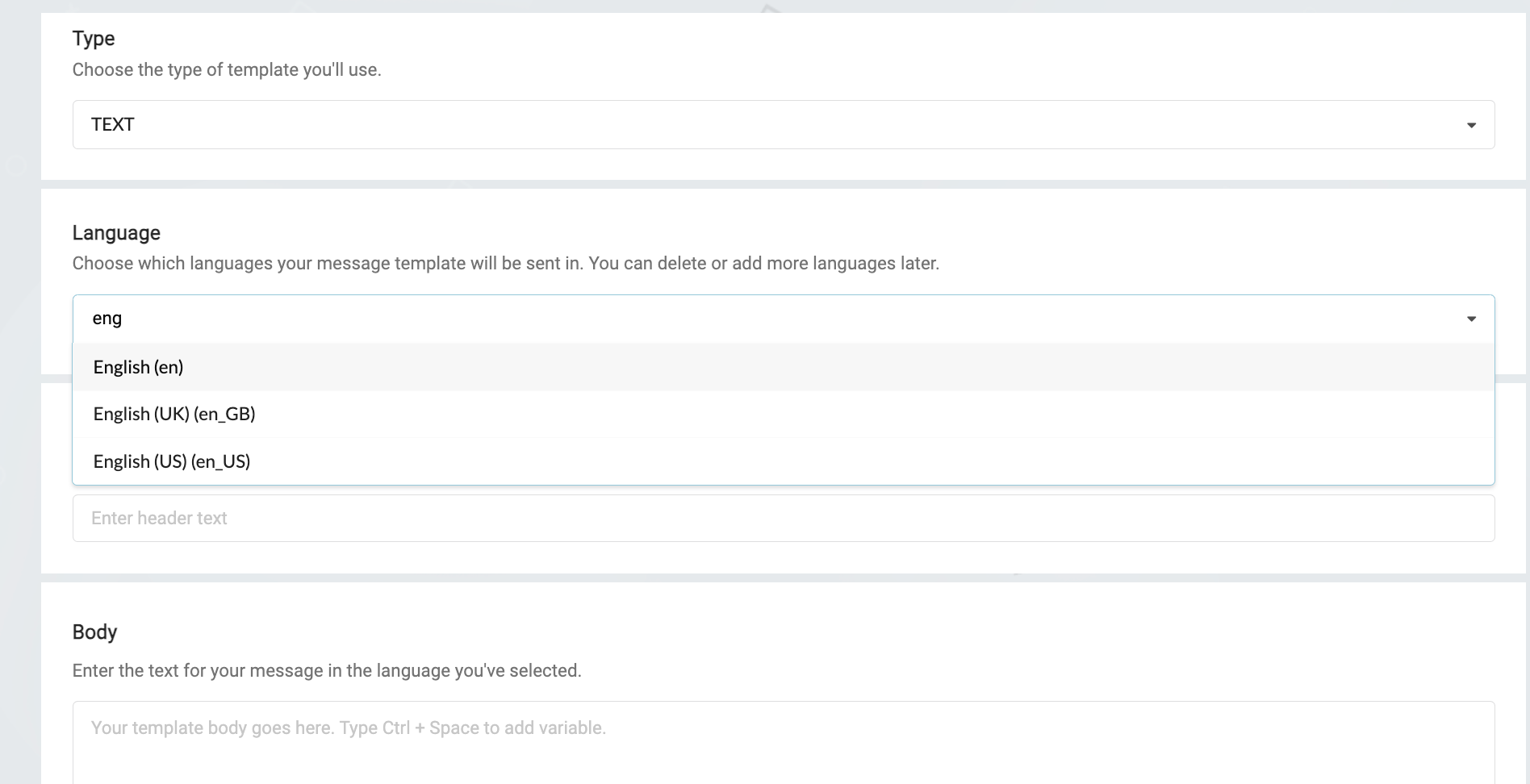
D. Header & Footer: Optional fields
E. Buttons: Optional. If the client want to provide cta button then select ‘Call to Action’ from drop down, else none.
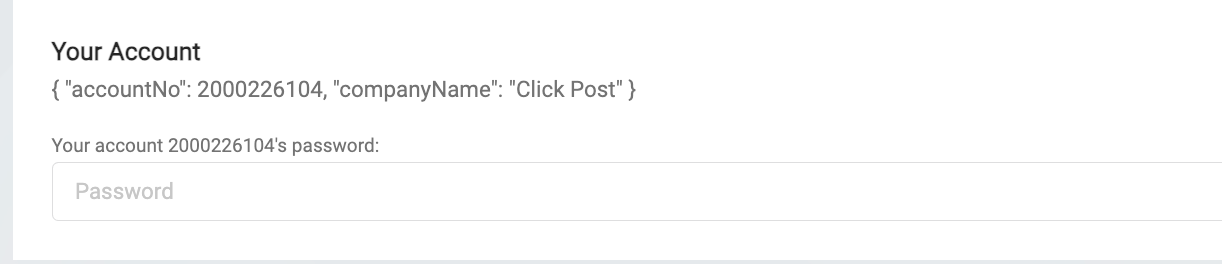
Once the template is configured, scroll up and enter the password to create the template (enter the ‘account credentials’ password provided above.

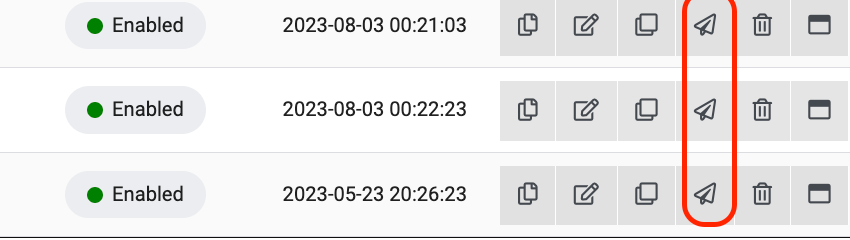
3. Once ‘Enabled’ test the template by clicking on ‘Test this template’ [Refer below screenshot]
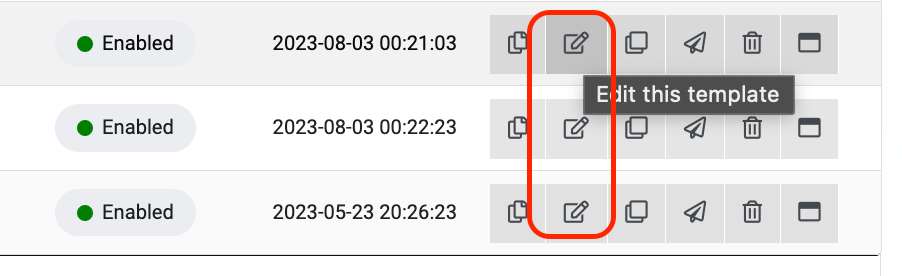
Editing a template:
Click on ‘Edit this template
Was this article helpful?
That’s Great!
Thank you for your feedback
Sorry! We couldn't be helpful
Thank you for your feedback
Feedback sent
We appreciate your effort and will try to fix the article