1. Login into ClickPost Dashboard ( Link: https://dashboard.clickpost.ai/ )
2. Go to Settings --> Notifications --> Overview
3. Go to Whatsapp ( Click View Details )
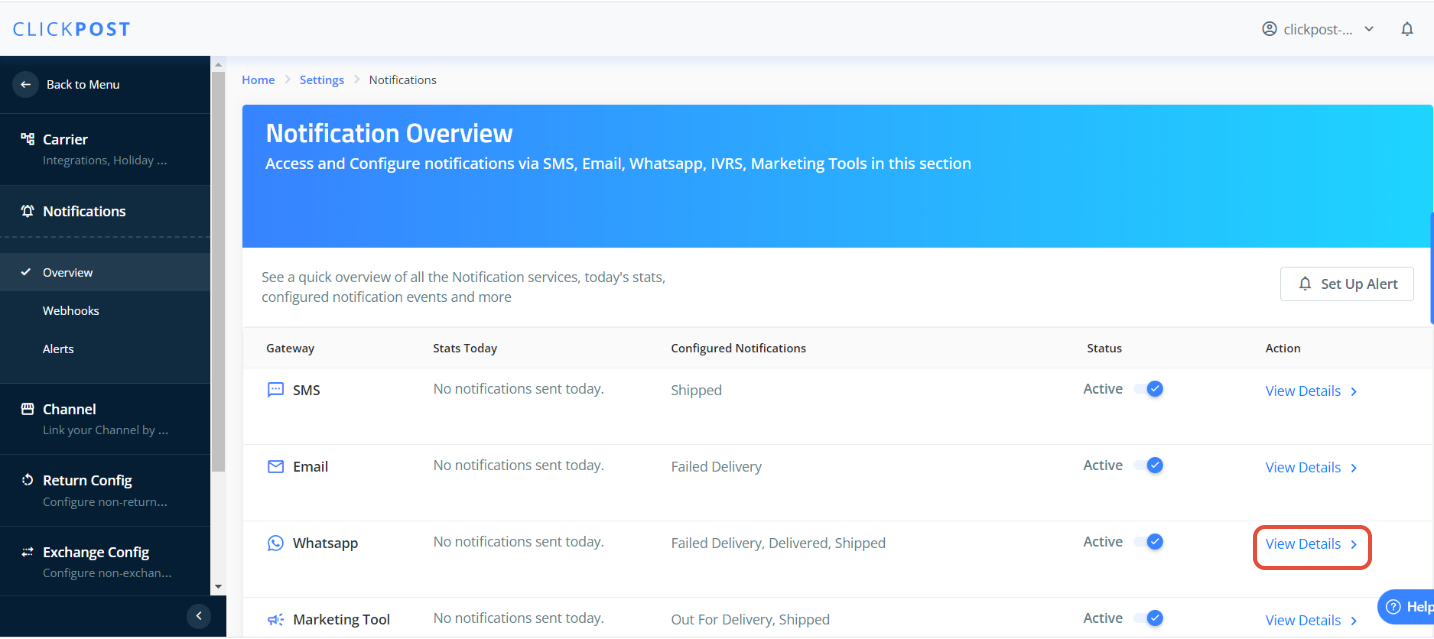
4. Go to the Order Placed Milestone to configure the template for, Click on the View Template

5. If you are configuring a template for the first time for the mentioned checkpoint:
After Clicking on View Template --> Click on Add new Notification;
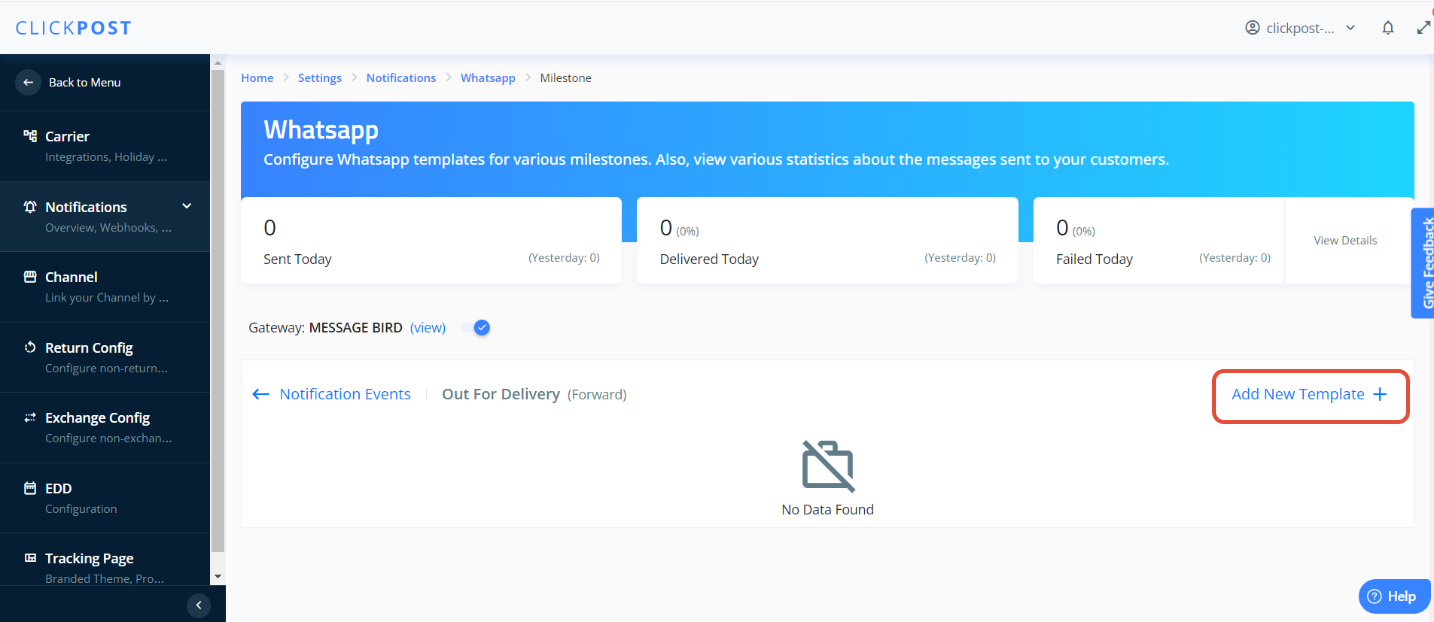
6. Fill in all the below details. Please ensure to get the template whitelisted on the GupShup panel first. Kindly get the image URL converted. You can use the following website - https://cloudinary.com/
7. If it is a media template, please configure the body under the caption field as mentioned in the snapshot below.
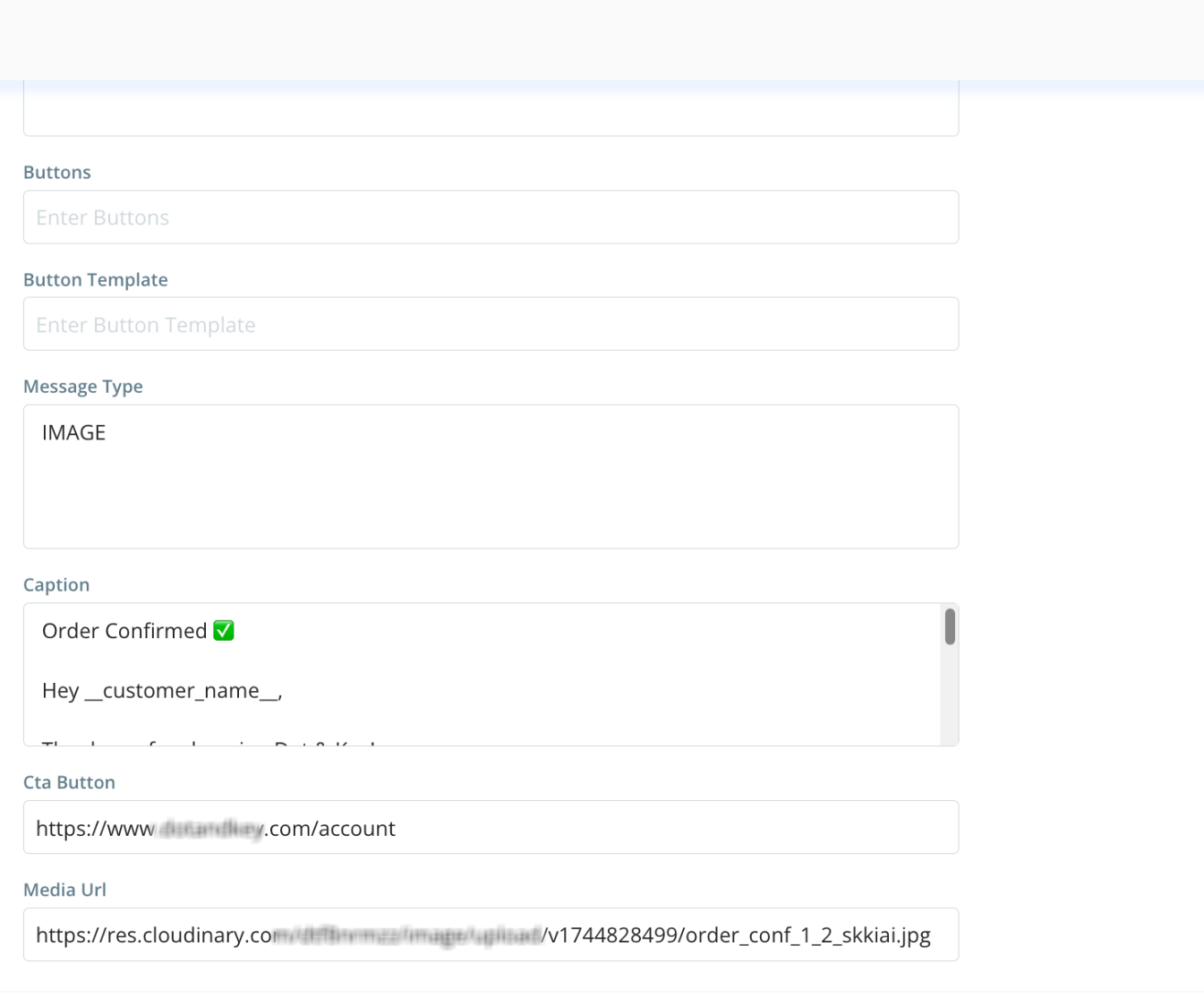
8. If there is any CTA that has been configured, please configure it under the CTA button field.
9. Once done please submit it. Please note the instant test will not work for the Order Placed checkpoint. You need to place an actual order to test out the flow.
Was this article helpful?
That’s Great!
Thank you for your feedback
Sorry! We couldn't be helpful
Thank you for your feedback
Feedback sent
We appreciate your effort and will try to fix the article