For failed delivery cases /NDR If you want to trigger IVRS calls to end customers to get a quick response for the failed delivery. Based upon the response (Reattempt / RTO) received from the end customer, we will cascade this information to the courier partner via mail (NDR reports) or NDR API.
Follow below steps to setup IVRS on Clickpost dashboard
1. IVRS gateway credentials: Please go to Notifications >> Overview >> IVRS to configure IVRS gateway on Clickpost dashboard and provide IVRS call script to Clickpost team. Please note, the script will involve the message you wish to play to your customers and how you are going to take the feedback.
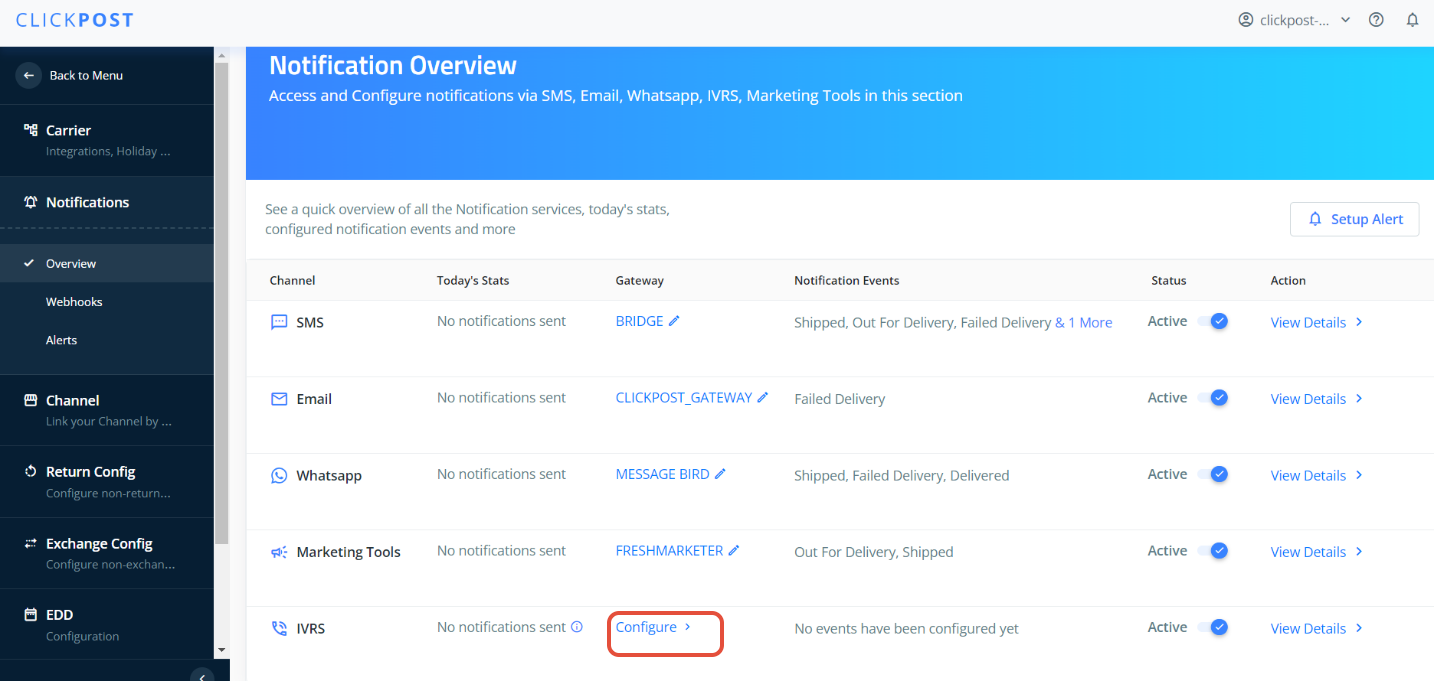
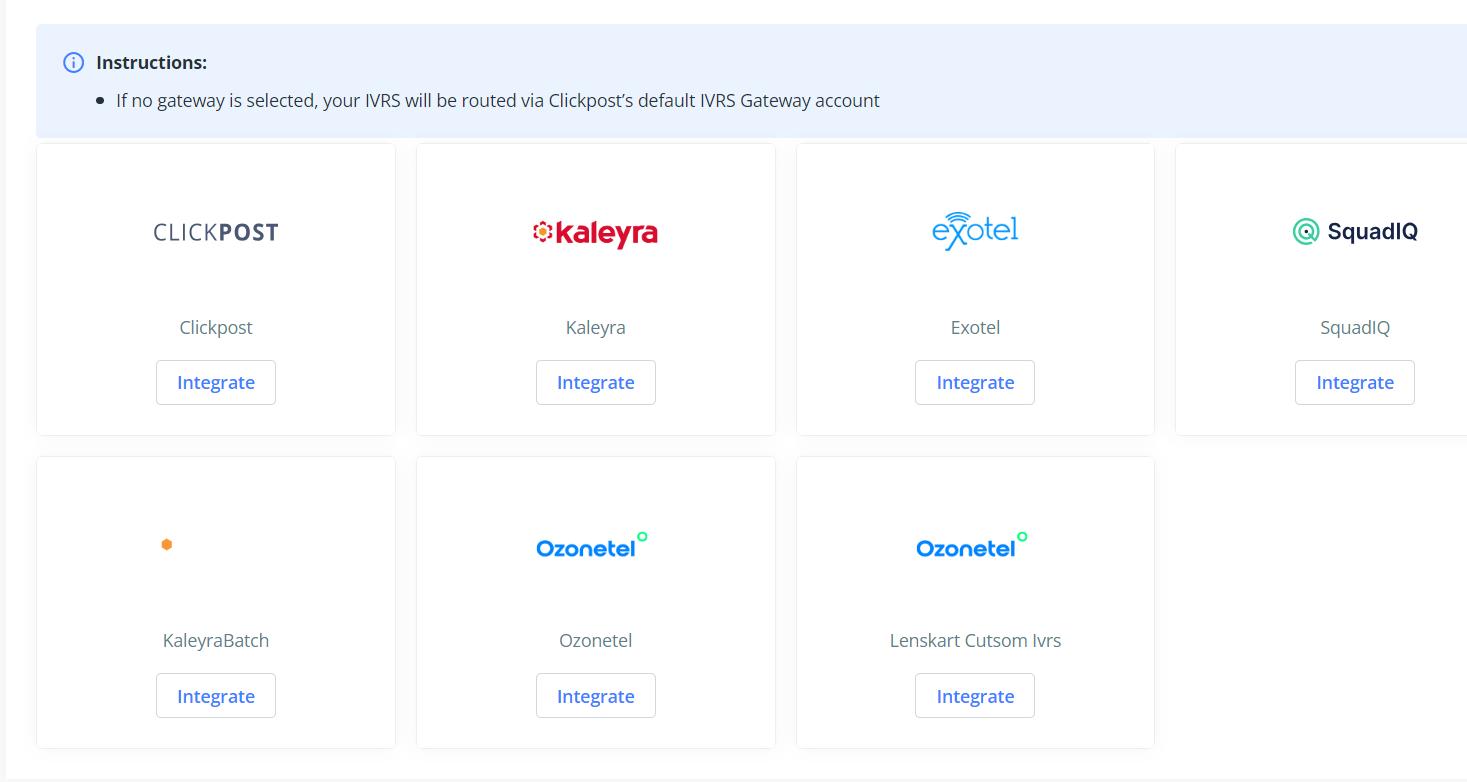
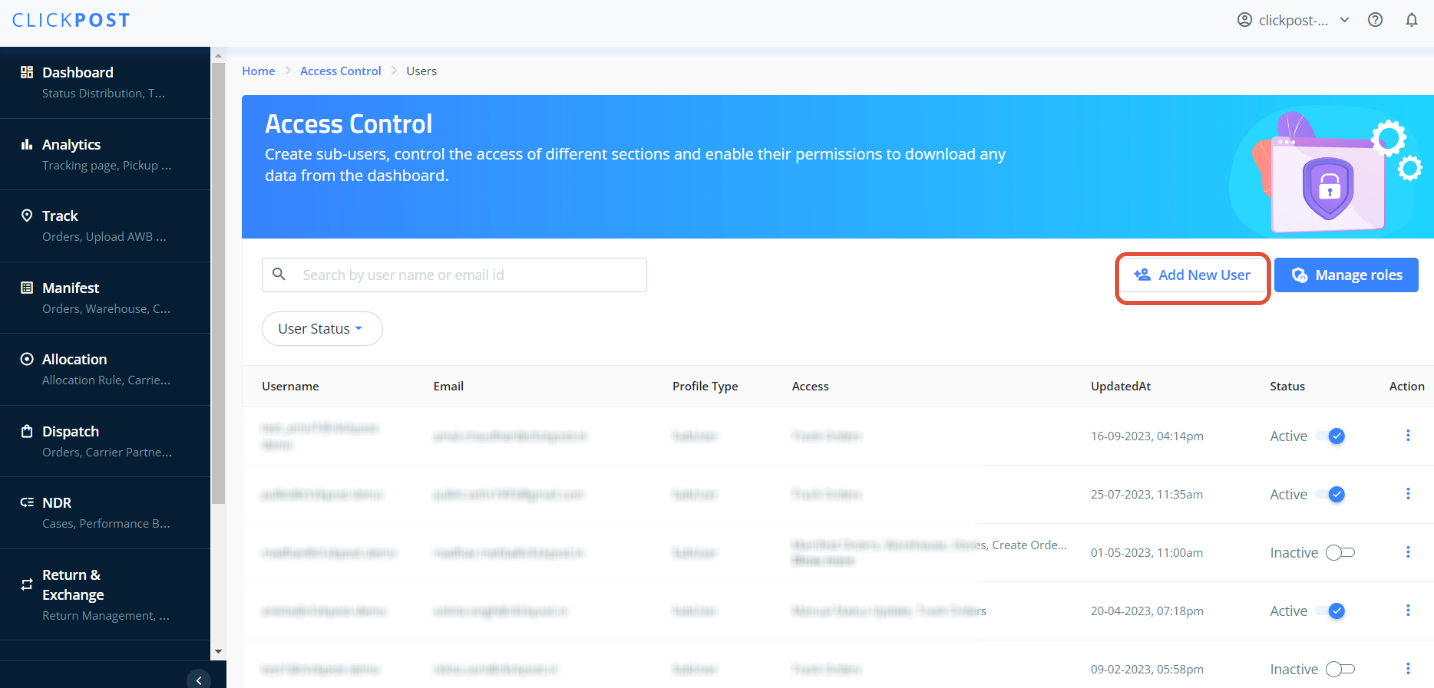
2. Add a sub-user for IVRS. To create sub-user specific for IVRS on Clickpost dashboard so that every action on the NDR case an be captured on this account. please follow the steps provided in the link below to create subuser
https://clickpost.freshdesk.com/a/solutions/articles/43000673280
3. After that please select that subuser from dropdown in the highlighted section.
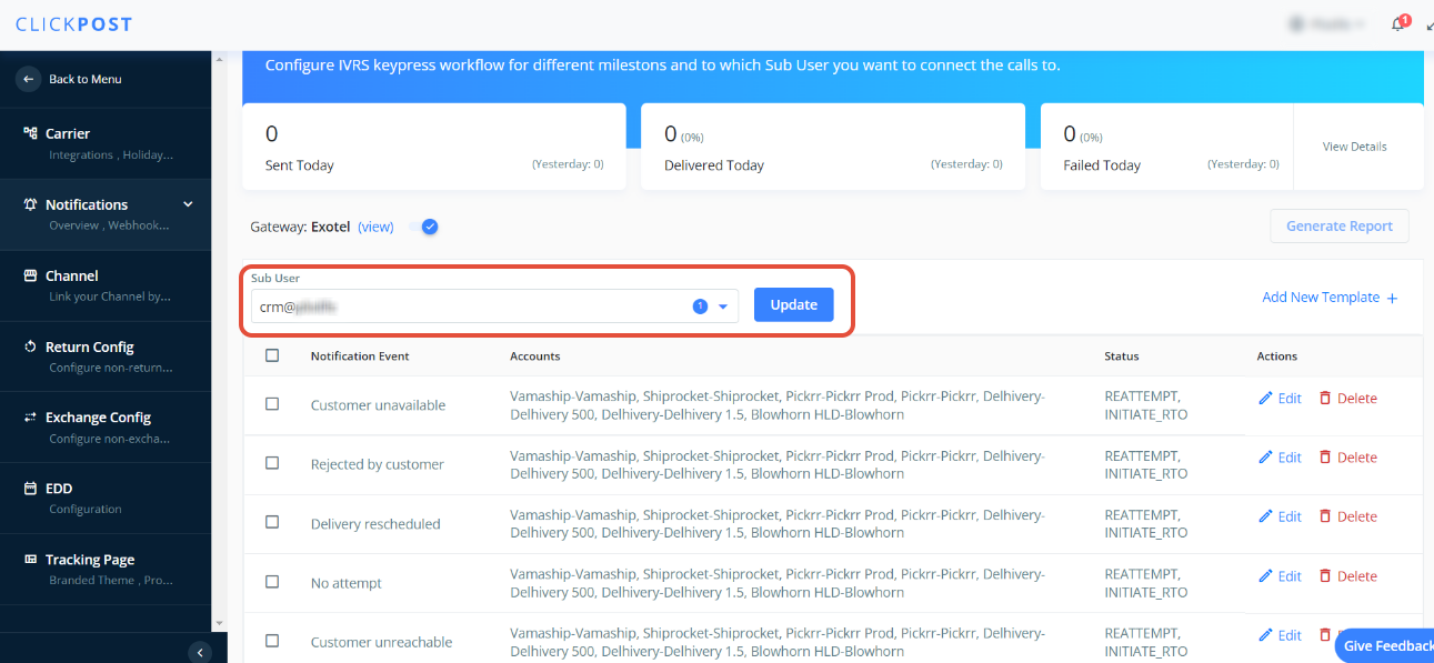
4. Post which please add templates for the required “Failed delivery reason”. Here you can select the actions (Reattempt/ RTO)based on the key press.
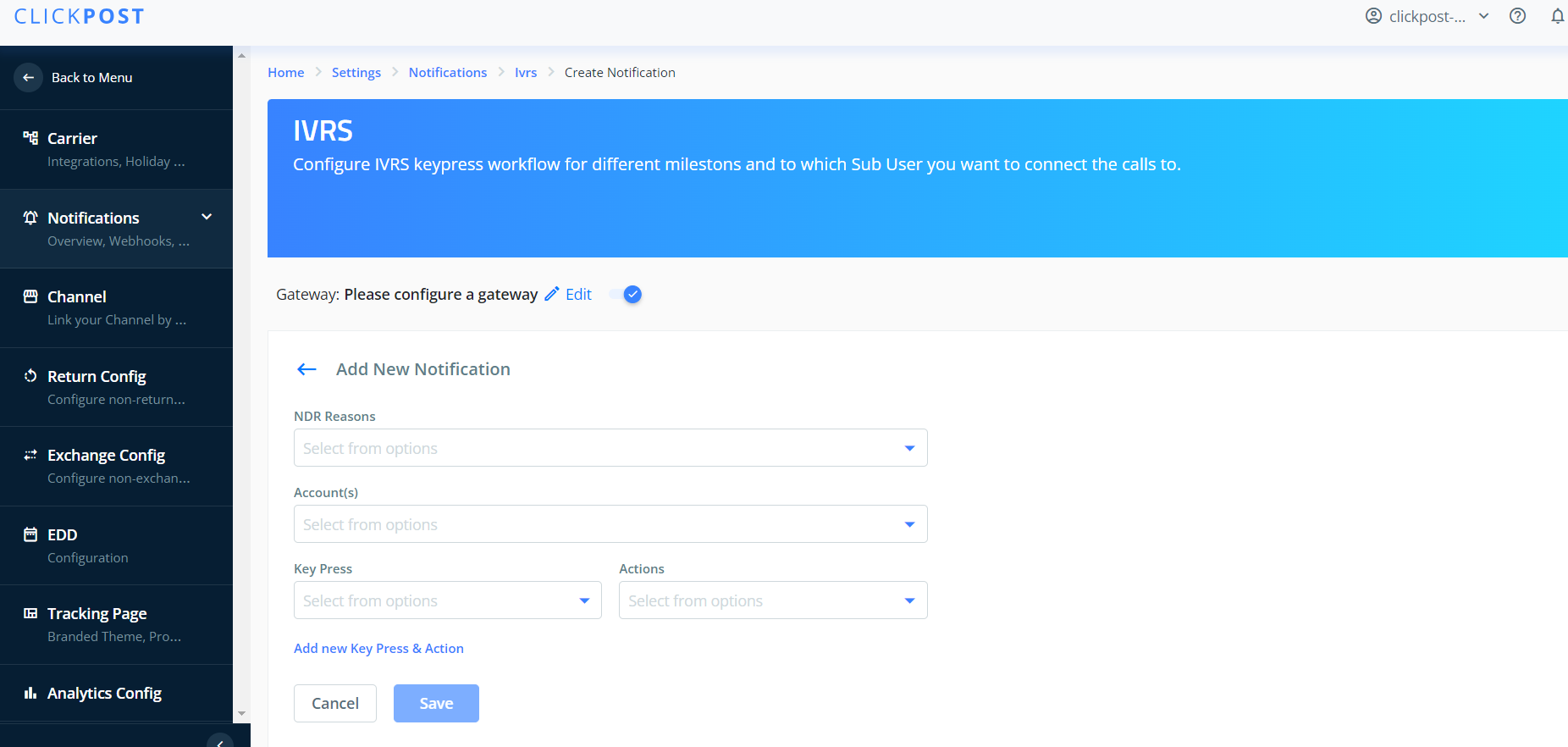
5. Please ask your IVRS gateway POC to add the following endpoint URLs at their end to trigger Keypress webhooks to Clickpost so that we can consume the response provided by end customer in realtime.
Kaleyra: https://webhook.clickpost.in/api/v1/ivrs_webhook/solutions_infini
Exotel: https://webhook.clickpost.in/api/v1/ivrs_webhook/exotel
SquadIQ: https://webhook.clickpost.in/api/v1/ivrs_webhook/squadiq
Ozonetel: https://webhook.clickpost.in/api/v1/ivrs_webhook/ozonetel
6.. Lastly ask Clickpost Support/onboarding team to add a token for this sub user, post which you are ready to go live with iVRS
Was this article helpful?
That’s Great!
Thank you for your feedback
Sorry! We couldn't be helpful
Thank you for your feedback
Feedback sent
We appreciate your effort and will try to fix the article