If your team has multiple users working on NDR cases, you can automate how these cases are distributed among them using the User Allocation Config feature.
To access this:
Go to: Dashboard → NDR → User Allocation Config
You can allocate NDR cases using one of the four methods (only one method can be active at a time):
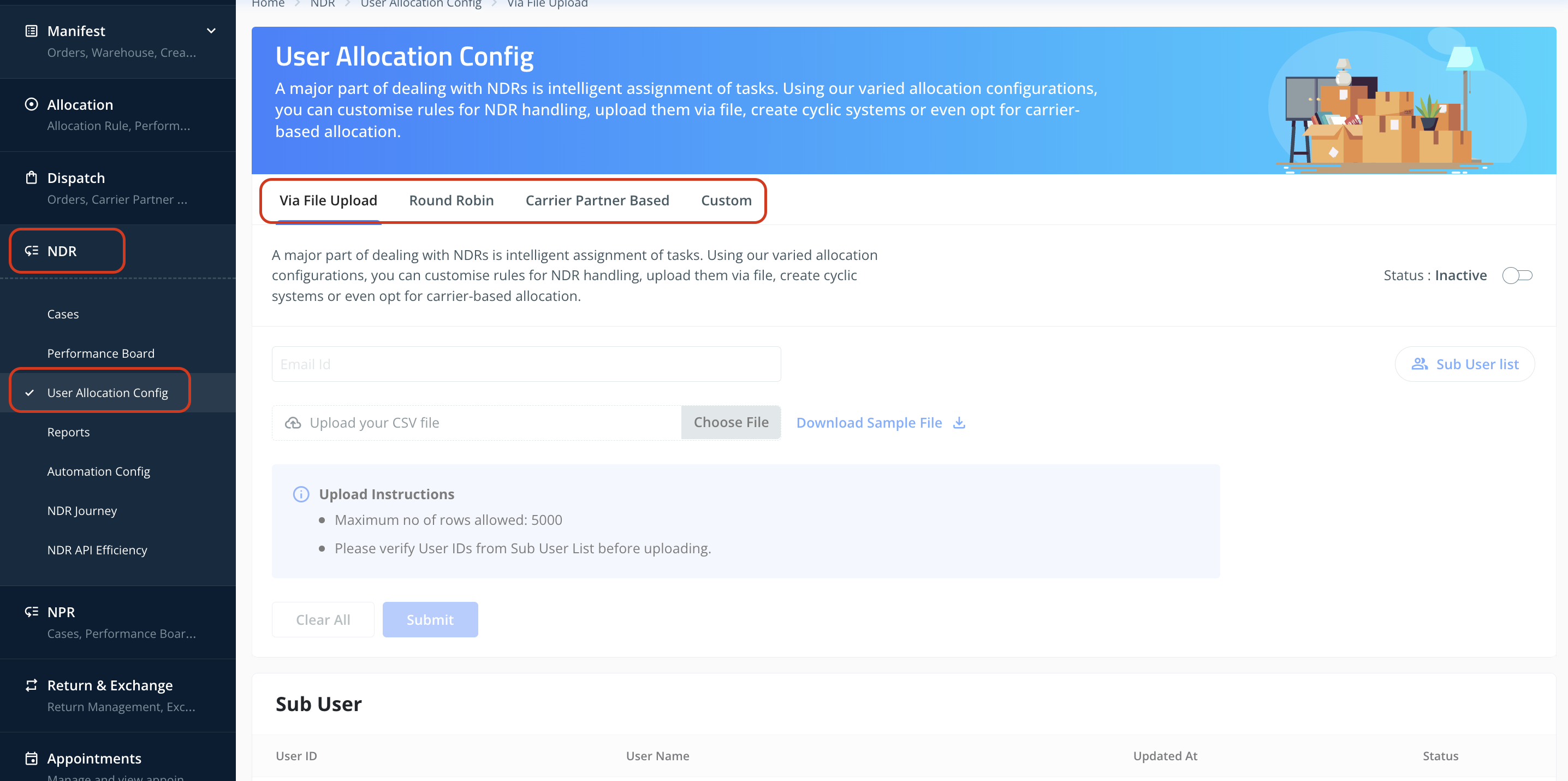
1. Via File Upload
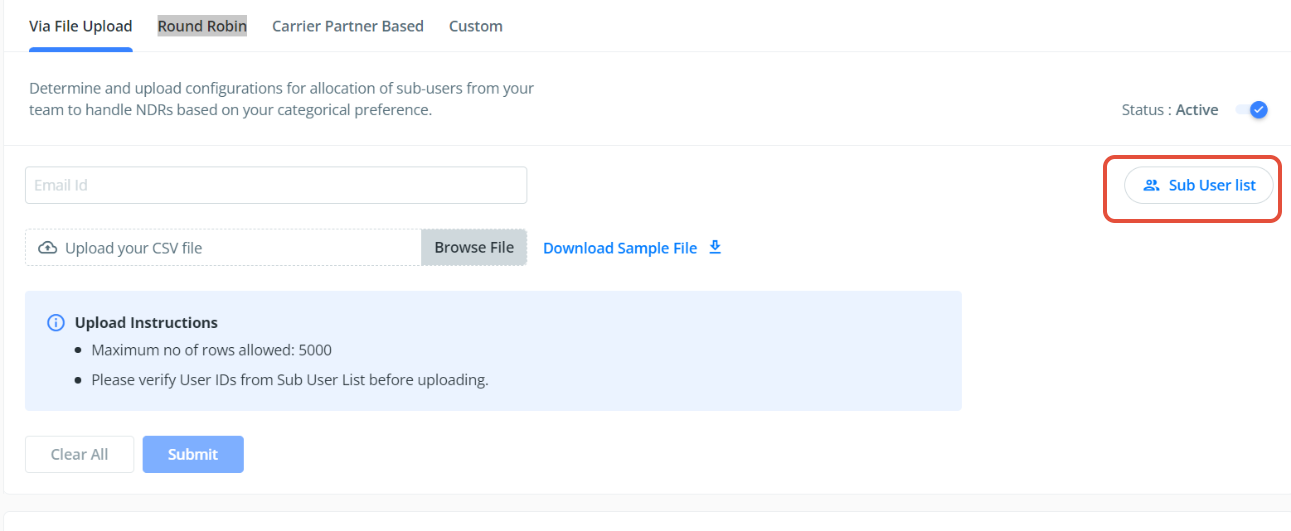
This method allows you to manually assign NDR cases to specific users for each AWB.
Download the sample file to understand the required format.
Fill in the User IDs against each failed delivery AWB.
Upload the completed file to assign cases.
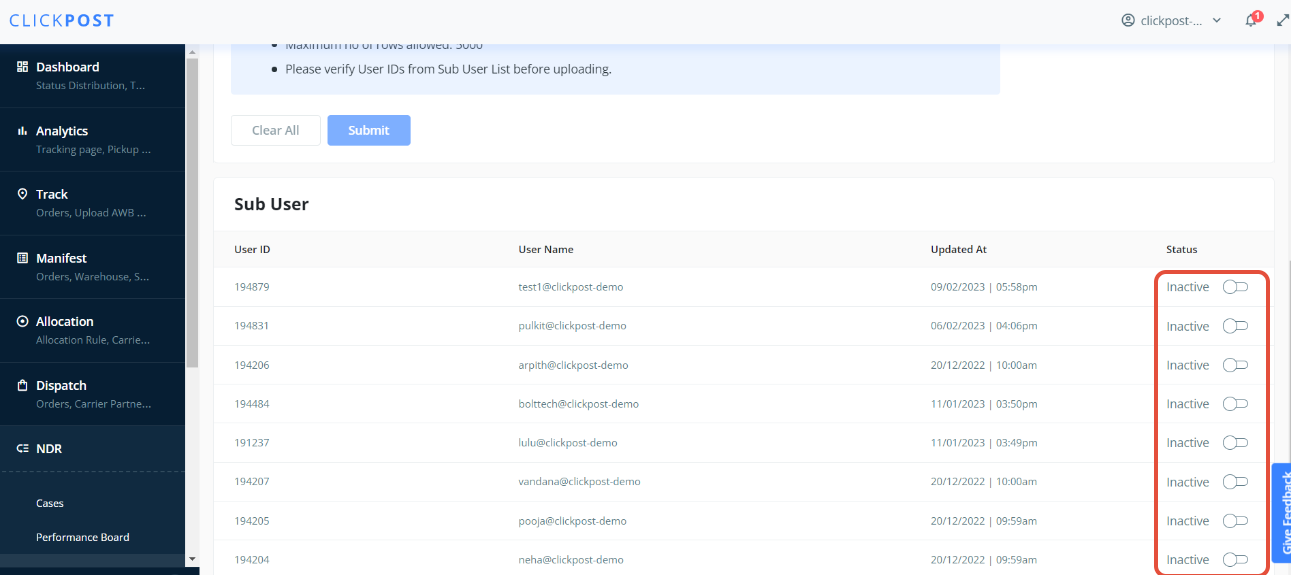
You can activate or deactivate sub-users using the toggle switch.
View currently active sub-users by clicking “Sub User List”.
2. Round Robin
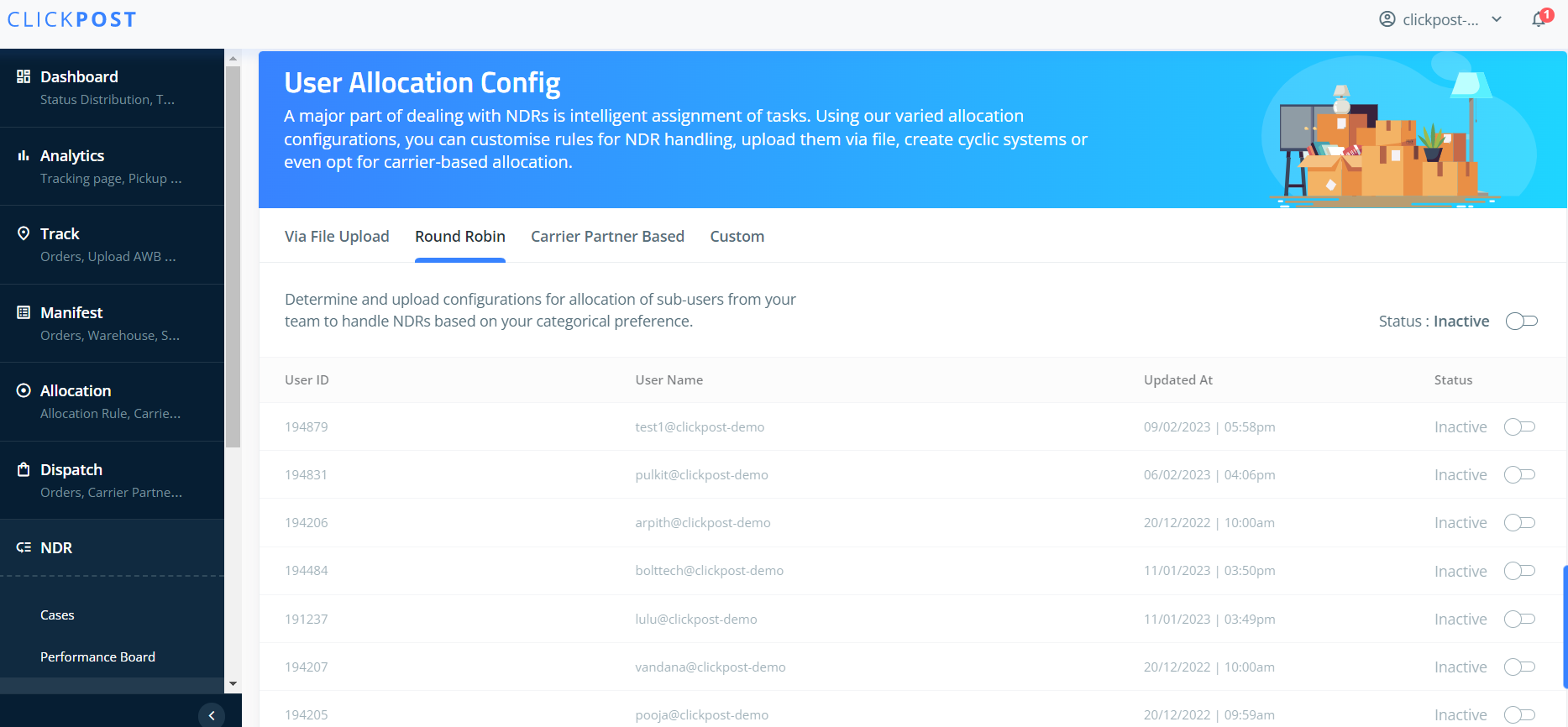
When enabled, NDR cases are automatically assigned in a round-robin sequence.
Only active sub-users will receive cases.
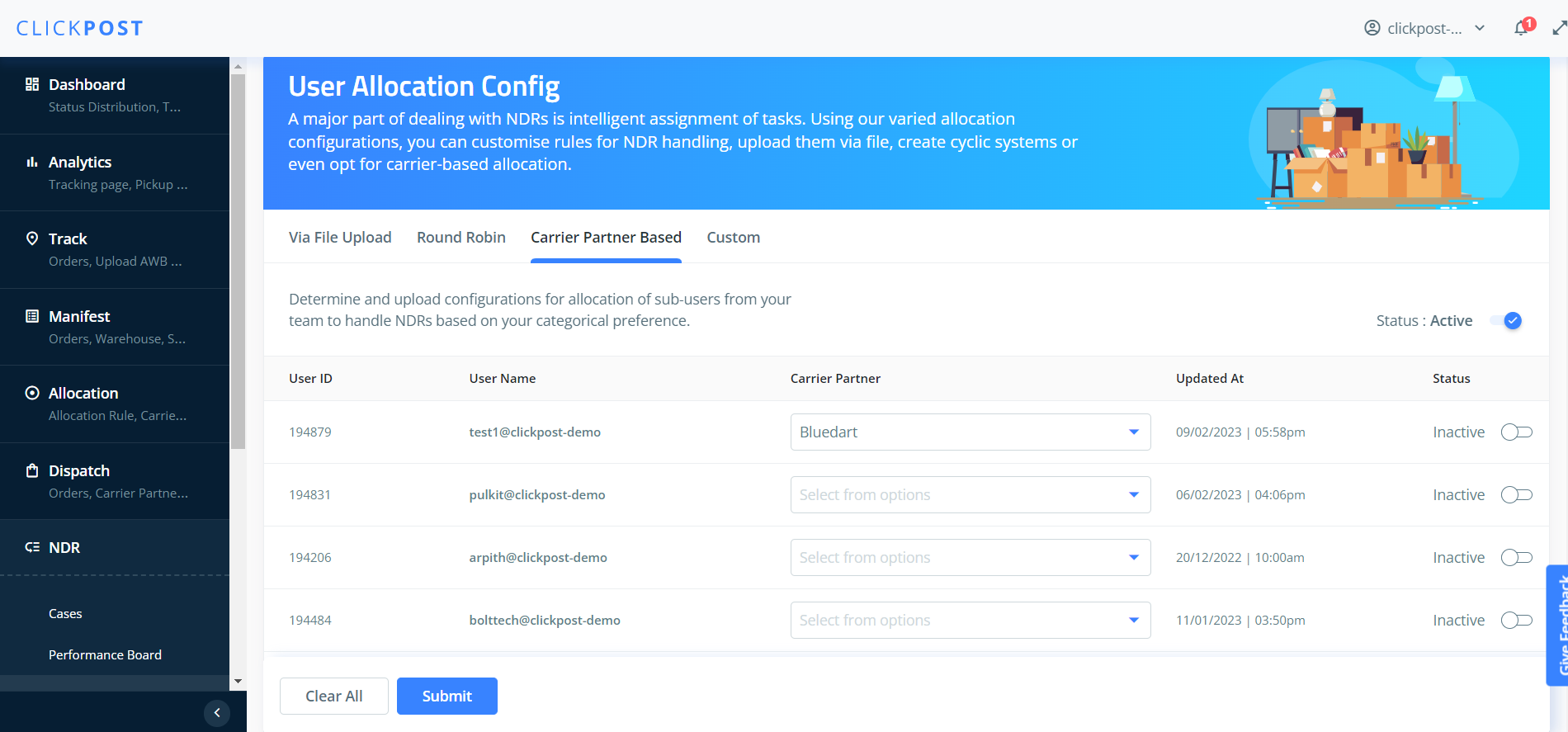
3. Carrier Partner Based
Use this method if you want to allocate NDR cases based on the courier partner.
Enable this mode
Select the courier partner for each sub-user
Cases for that courier partner will then be routed to the mapped sub-user.
4. Custom Allocation Rules
This option lets you build your own allocation logic using customizable parameters.
You can create rules based on:
NDR Reason
Payment Mode
Delivery Type
Number of Follow-ups
Number of Attempts
Courier Partner
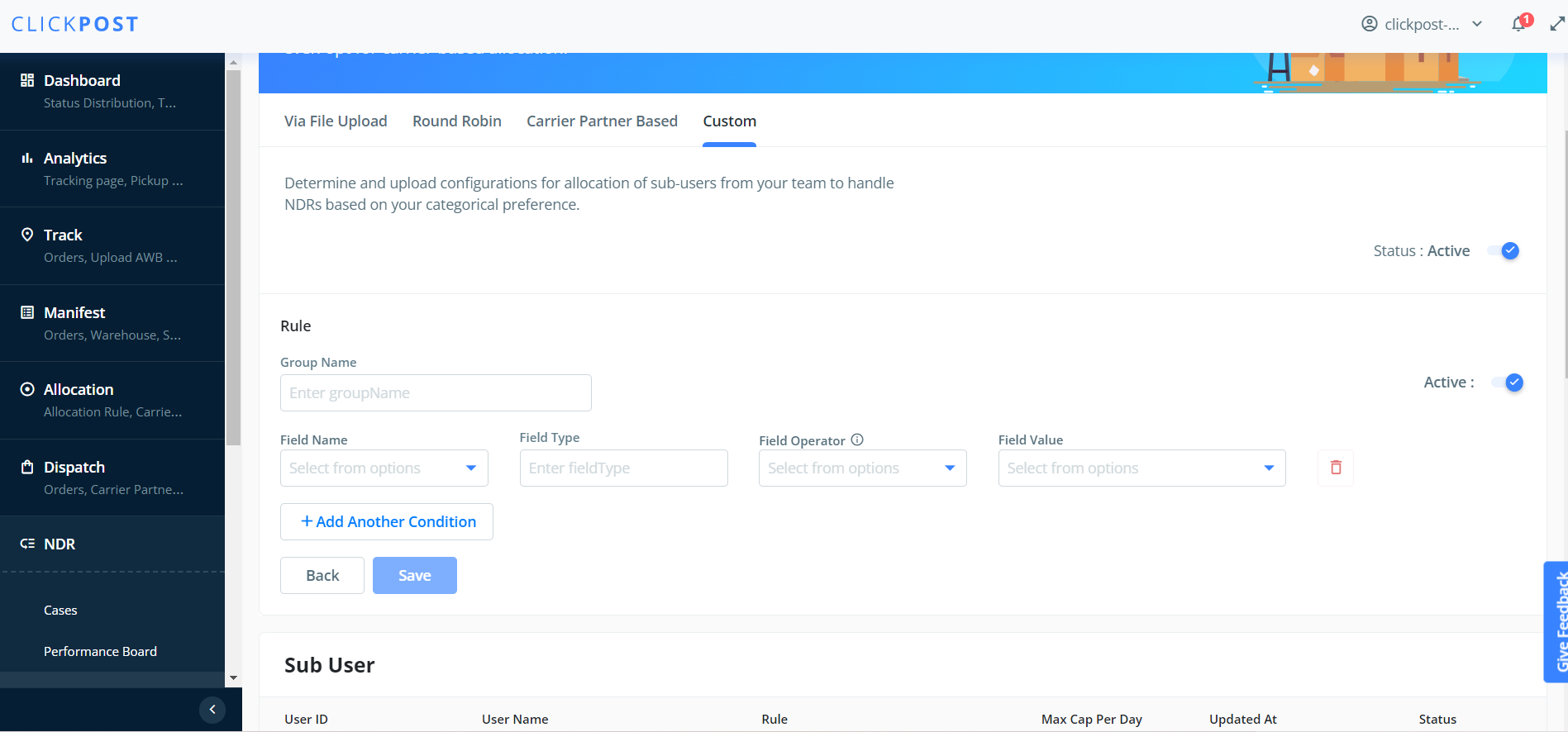
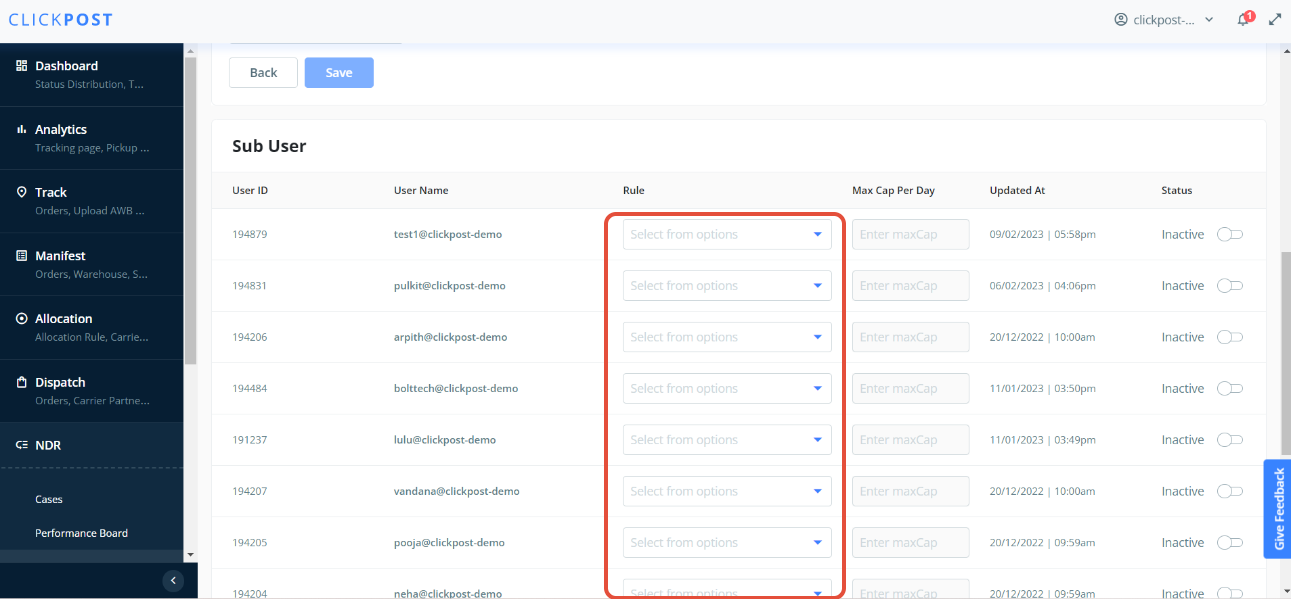
After creating rules, assign them to specific sub-users and set a Max Cap Per Day for each user.
Any NDR cases exceeding that limit will not be assigned to that user for the day.
Was this article helpful?
That’s Great!
Thank you for your feedback
Sorry! We couldn't be helpful
Thank you for your feedback
Feedback sent
We appreciate your effort and will try to fix the article