ClickPost provides a dedicated platform to help you manage failed deliveries, also known as NDRs (Non-Delivery Reports).
A failed delivery occurs when the courier attempts to deliver a shipment but is unable to complete the delivery due to various reasons — such as incorrect address, customer unavailability, or refusal to accept the package.
When you visit the NDR Management section in ClickPost Dashboard from the Menu, you’ll see the default view as shown below:
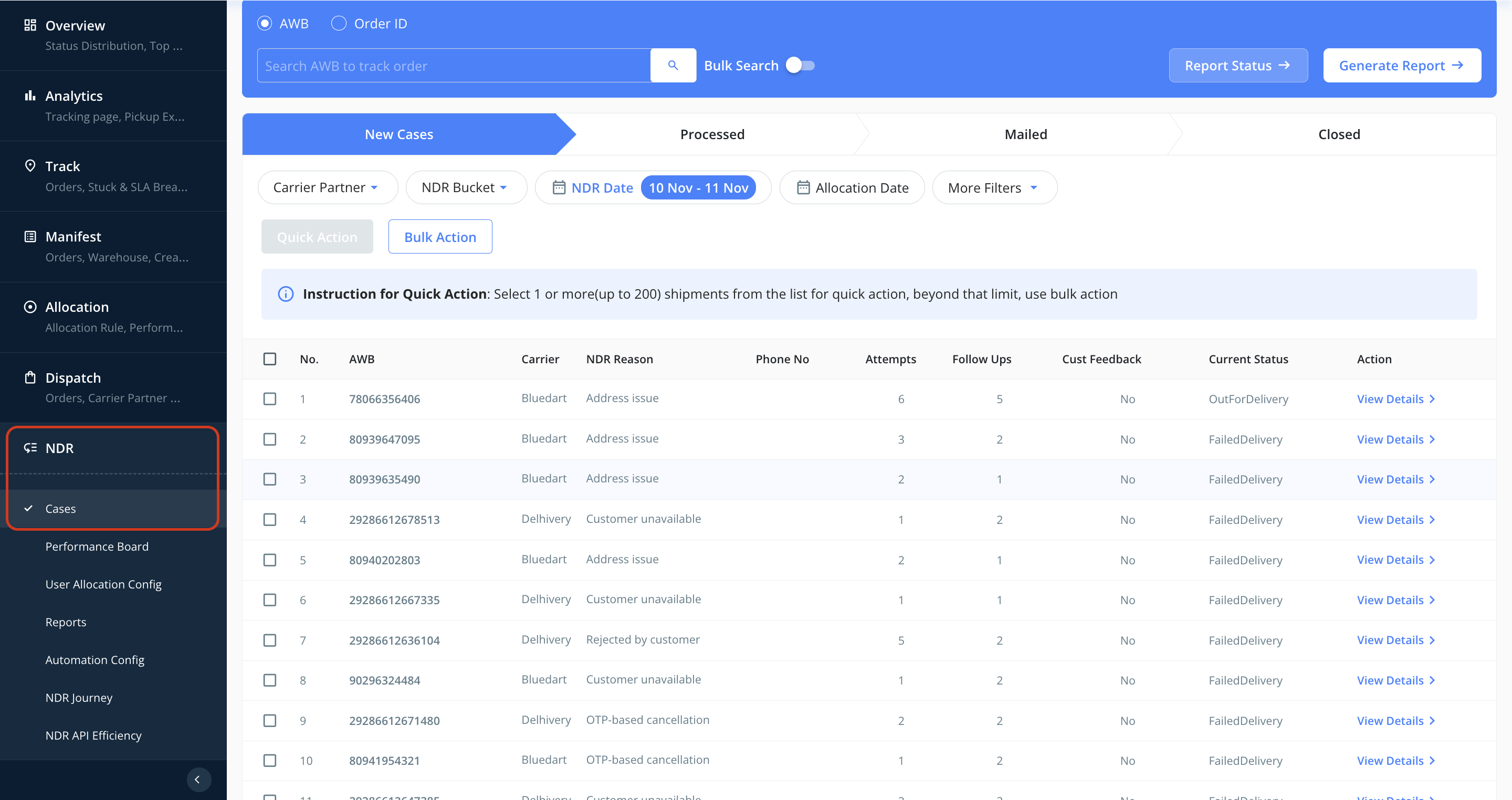
Understanding NDR (New) Cases
Whenever a delivery fails, ClickPost automatically creates an NDR case for that shipment.
All active NDR cases appear under the New Cases section.
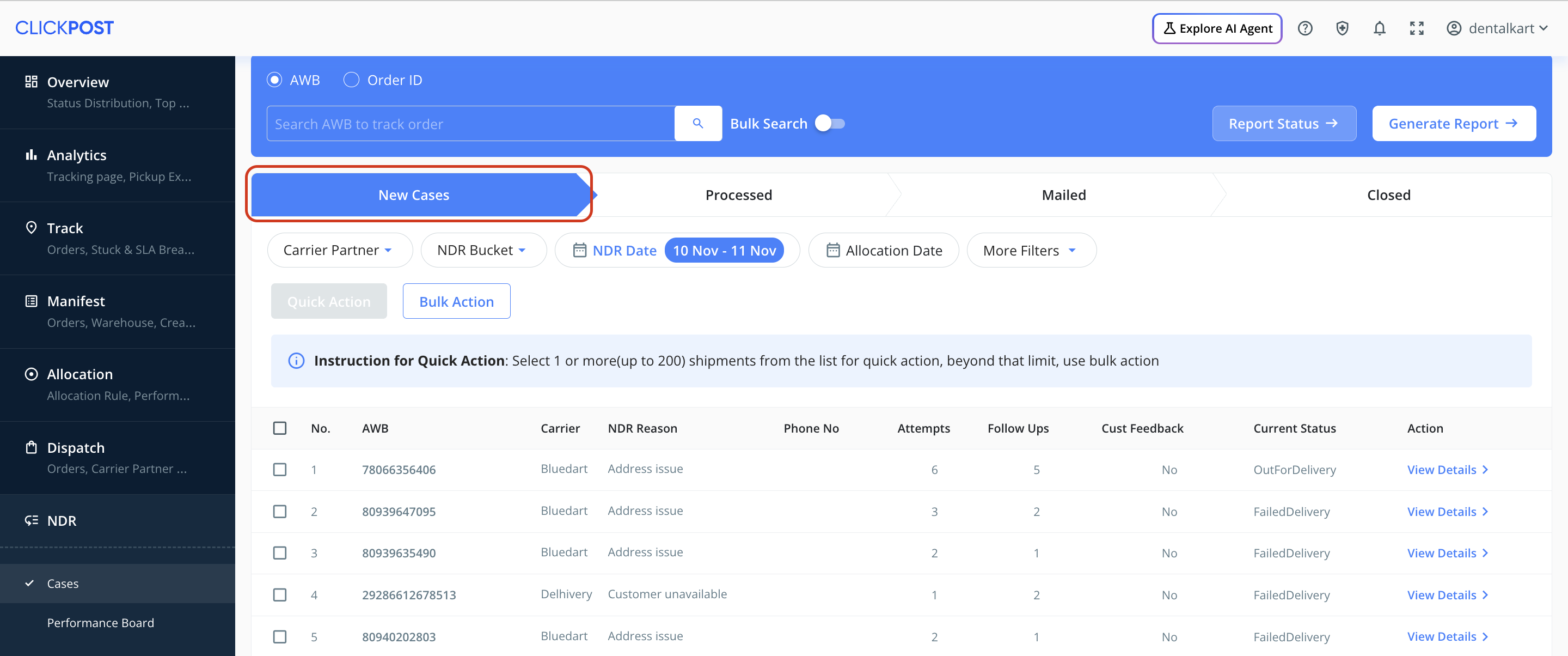
You can use the filters provided to narrow down or sort the list based on your needs:
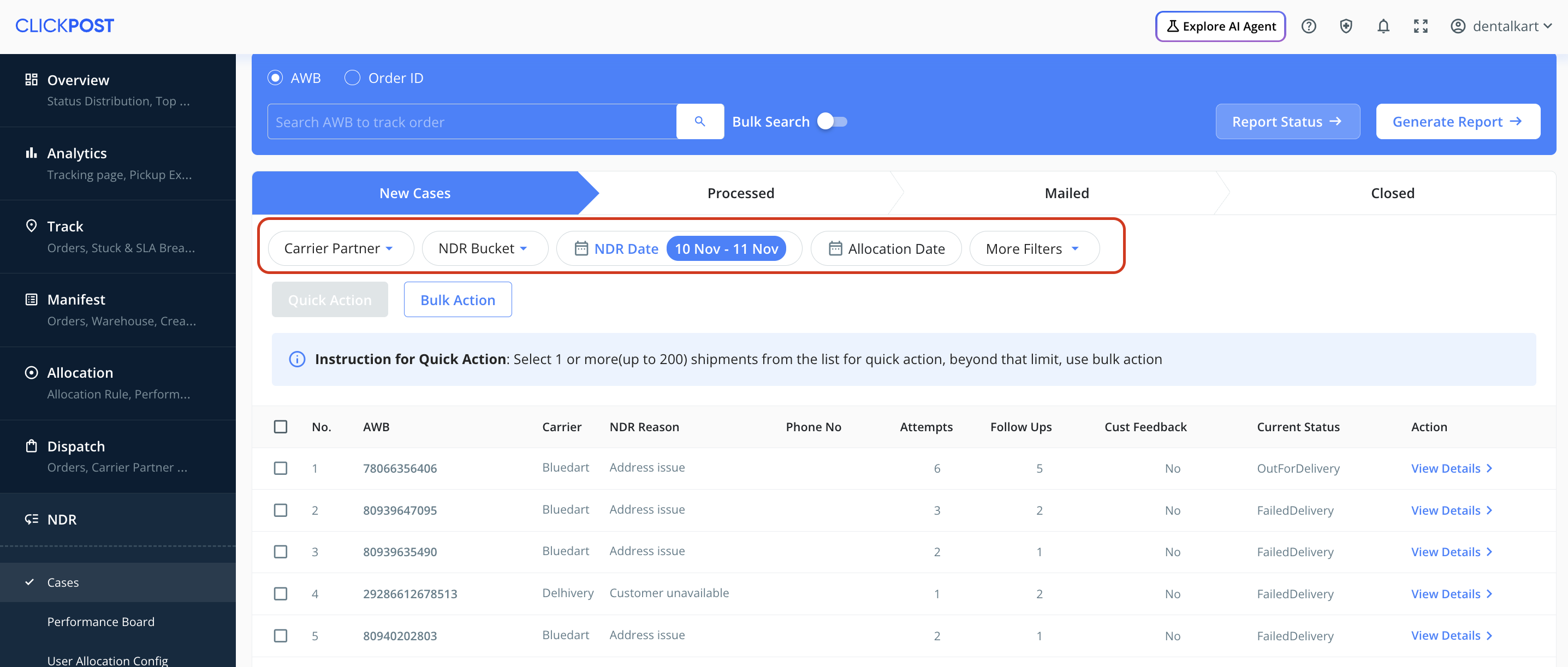
| Filter | Description |
|---|---|
| Courier Partner | Displays all courier partners configured on ClickPost. |
| NDR Bucket | Shows the reason for the failed delivery. |
| NDR Date | Indicates when the failed delivery occurred. |
| Allocation Date | Tracks when a case was assigned to a specific user (if user allocation is enabled). |
More Filters: | Description |
| Delivery Attempts | Shows how many times delivery was attempted. |
| Customer Feedback Present | Identifies if the customer provided feedback directly via the tracking page. |
| Operation Feedback Present | Highlights if any feedback or action was taken manually or through automation settings. |
| Payment Mode | Filters shipments based on payment type — Prepaid or COD. |
| Tracking Status | Displays the current shipment status (In Transit, Out for Delivery, Failed Delivery, RTO). |
| Order Value | Filters shipments within a specific value range. |
| No. of Follow-ups | Displays how many customer follow-ups have been completed for that shipment. |
Taking Action on a Shipment
To act on a specific shipment, click “View Details” in the Action column.
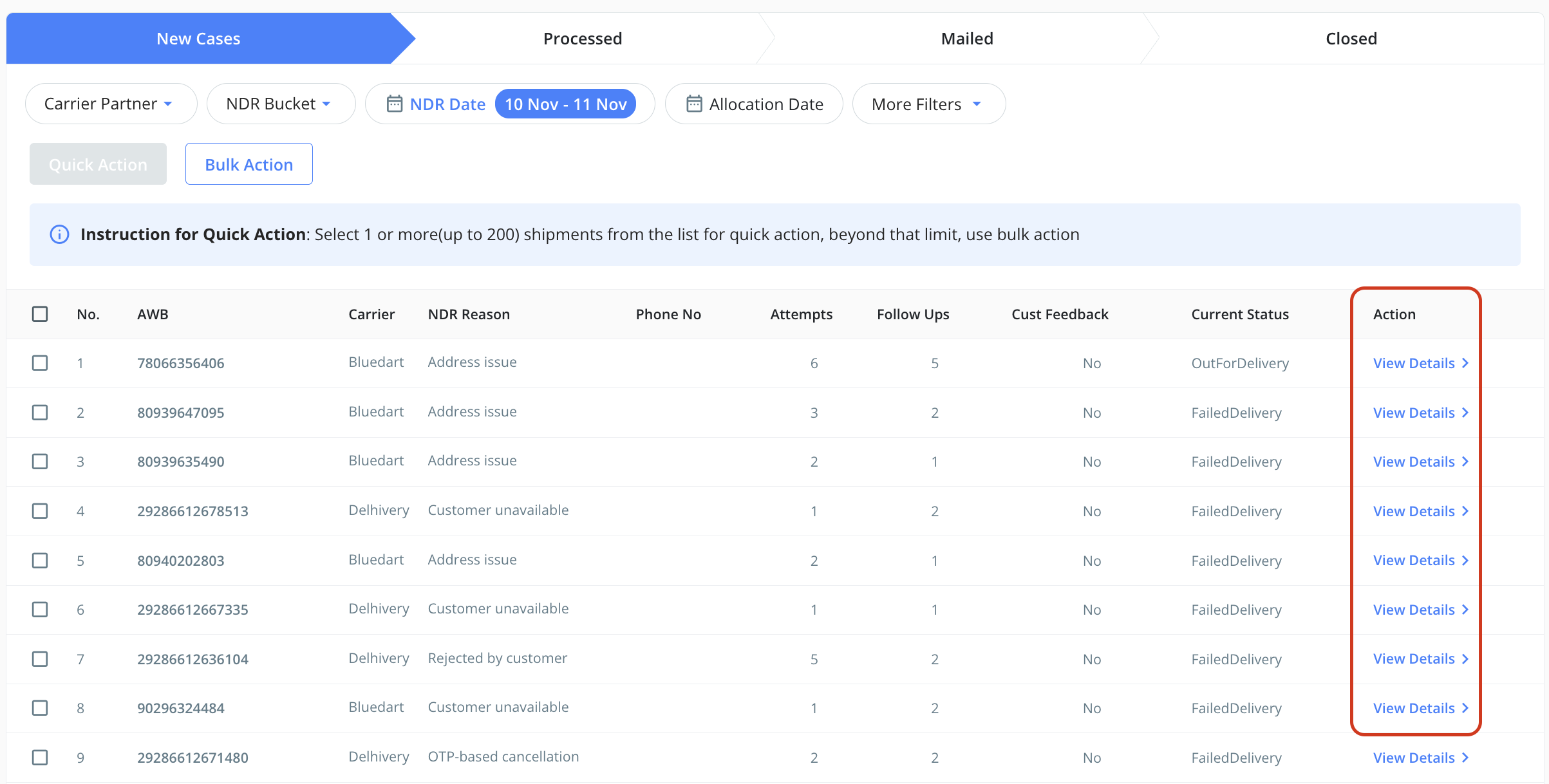
You’ll see a detailed view divided into two sections:
Right Panel:
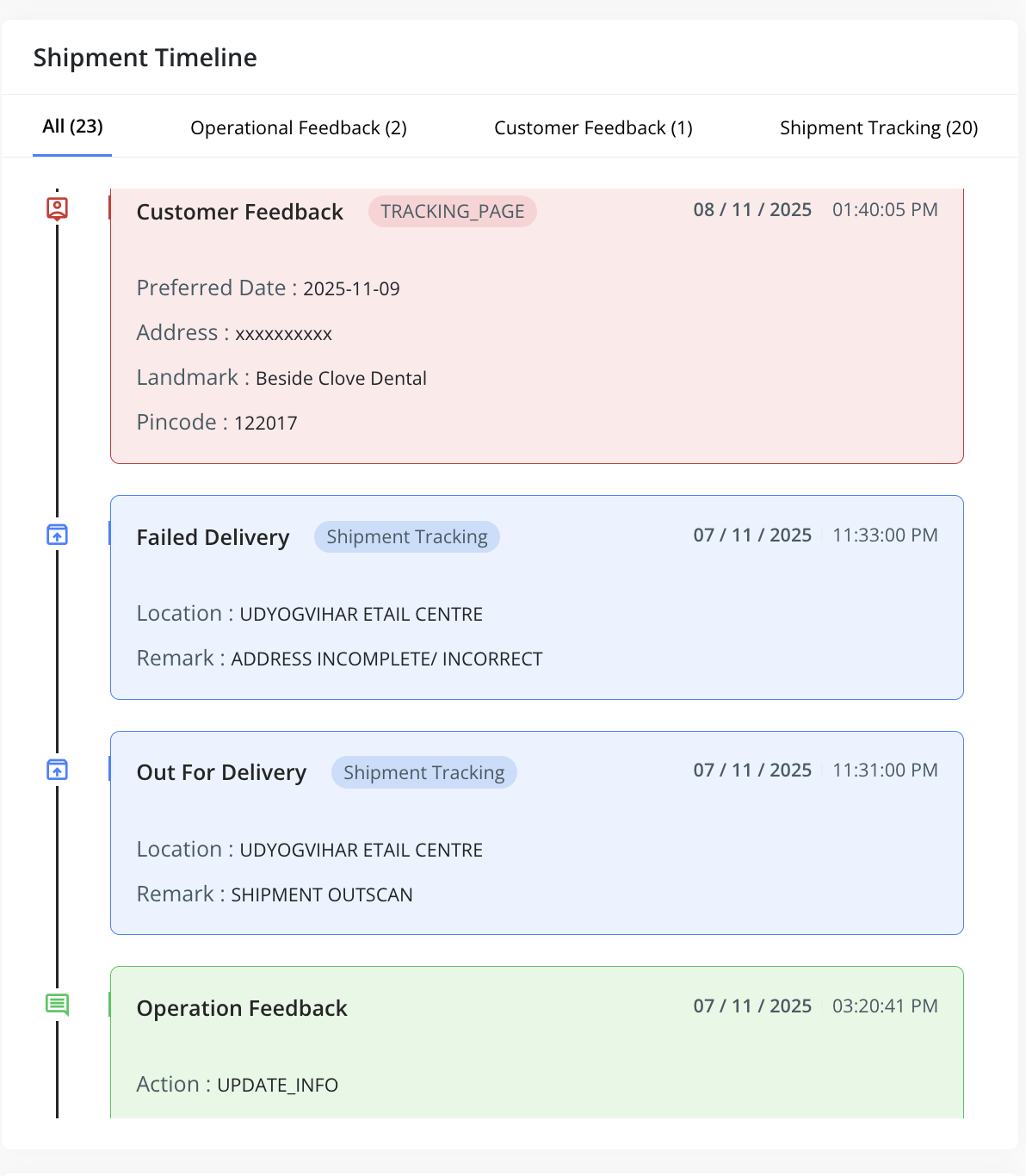
Displays the shipment’s full tracking history received from couriers (in blue).
Customer feedback appears in red.
Operations team input appears in green.
Left Panel:
Contains the available actions you can take for the shipment:
Action Description Reattempt Update customer details and preferred delivery date to request another delivery attempt from the courier. RTO (Return to Origin) If the customer has rejected the order, mark it for return to the warehouse. Mark as Delivered Use this if the order is already delivered but not yet updated in the courier’s tracking API. 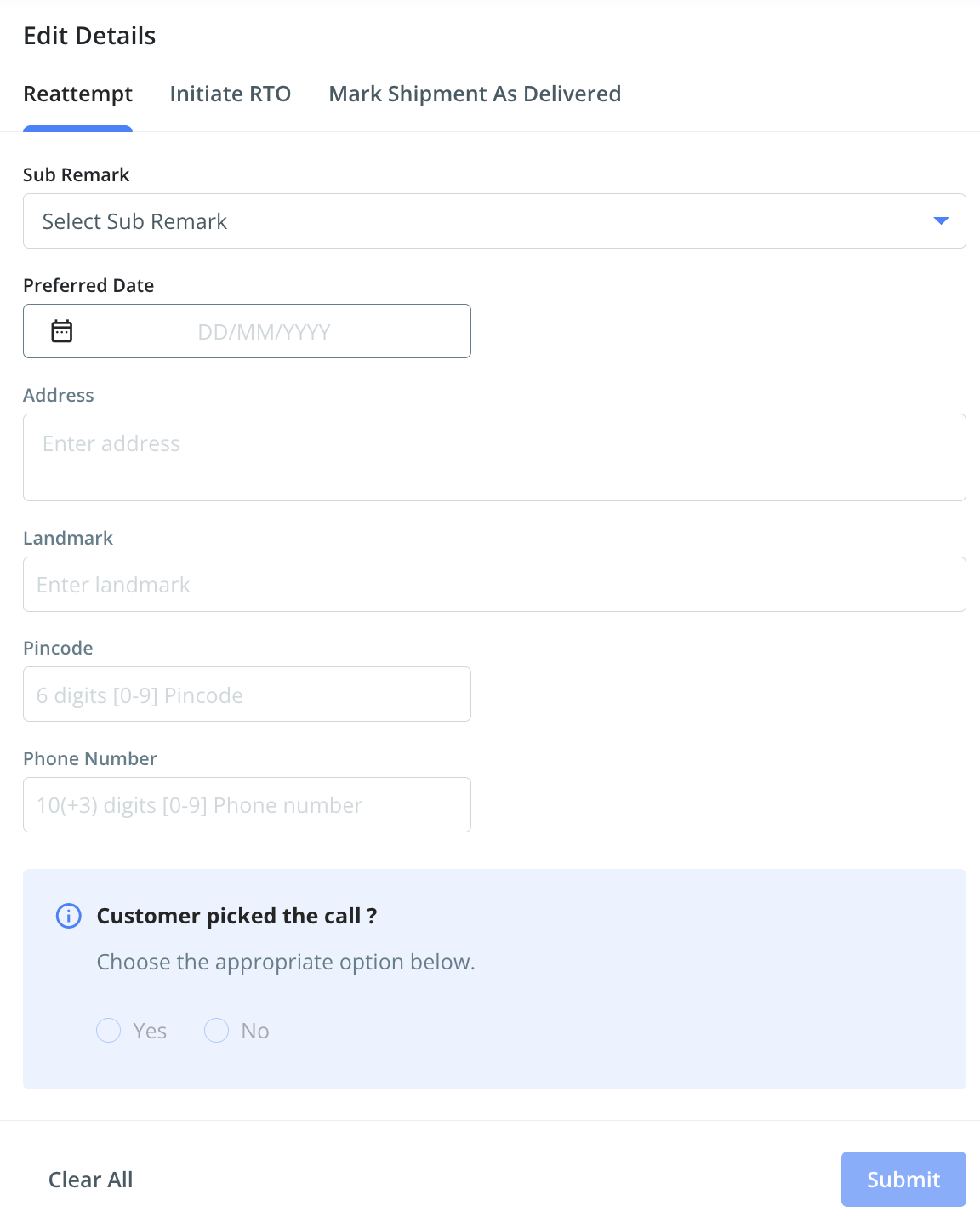
Handling Customer Follow-ups
a. When the customer picks up the call:
Mark Customer Picked Call: Yes.
Add any internal remarks for future reference.
Choose the appropriate action (Reattempt or Initiate RTO).
These instructions (along with phone number updates, reattempt date, or address changes) will be automatically shared with the courier partner.
b. When the customer doesn’t pick up the call:
Add a follow-up remark (e.g., “Phone Ringing”, “Busy Tone”, etc.).
These shipments remain in New Cases, with the follow-up count updated (e.g., 1/2/3 attempts).
Shipment Lifecycle in NDR Management

| Stage | Description |
|---|---|
| New Cases → Processed | When an action is taken and the feedback is shared either by the operations team or the customer, the AWB moves to Processed until the same is shared further with the courier. |
| Processed → Mailed | Once actions are shared with courier partners, cases move from Processed to Mailed. Further actions cannot be added until courier feedback is received. |
| Mailed → Closed | If the courier successfully reattempts and delivers the shipment, it moves to the Closed section. |
| Mailed → New Cases | If delivery fails again, the case returns to New Cases for another follow-up cycle. |
Managing Multiple Shipments for the Same Customer
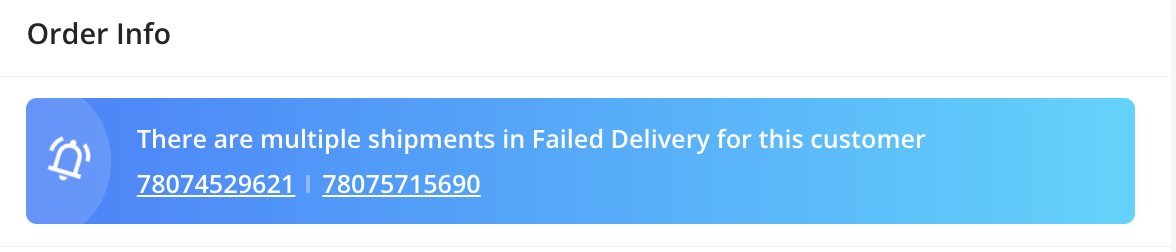
If a customer has multiple failed deliveries, all related shipments are grouped together in a single detailed view.
This helps agents contact the customer once and take inputs for all shipments at once — improving efficiency and avoiding repeated calls.
Customer Feedback on Tracking Page
When a shipment experiences a failed delivery, the ClickPost Tracking Page automatically transforms into a feedback form for the customer.
Through this form, the end customer can:
Update their contact details or address, if required.
Indicate a preferred date or time for reattempt.
Choose to reject the delivery, prompting the case to be marked for RTO (Return to Origin).
All responses submitted by the customer are instantly captured in the ClickPost system and reflected in red on the NDR case timeline for the respective shipment.
Was this article helpful?
That’s Great!
Thank you for your feedback
Sorry! We couldn't be helpful
Thank you for your feedback
Feedback sent
We appreciate your effort and will try to fix the article