Kindly follow the below steps to integrate via. New Gateway for sending SMSs & Whatsapp Notifications :
- Go to New Dashboard (Link : https://dashboard.clickpost.ai/ )
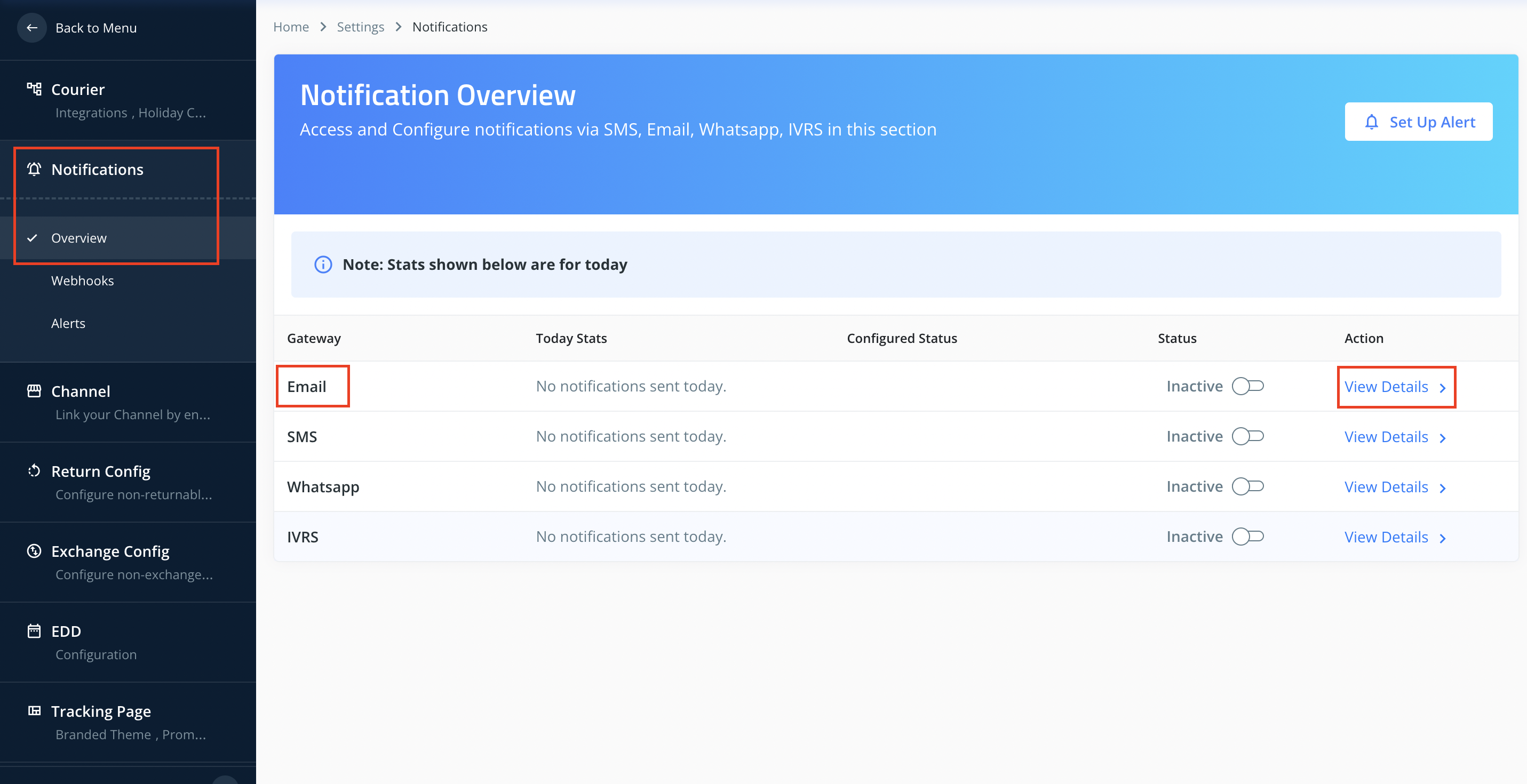
- Settings --> Notifications --> Overview --> Click on Email --> Click on View Details
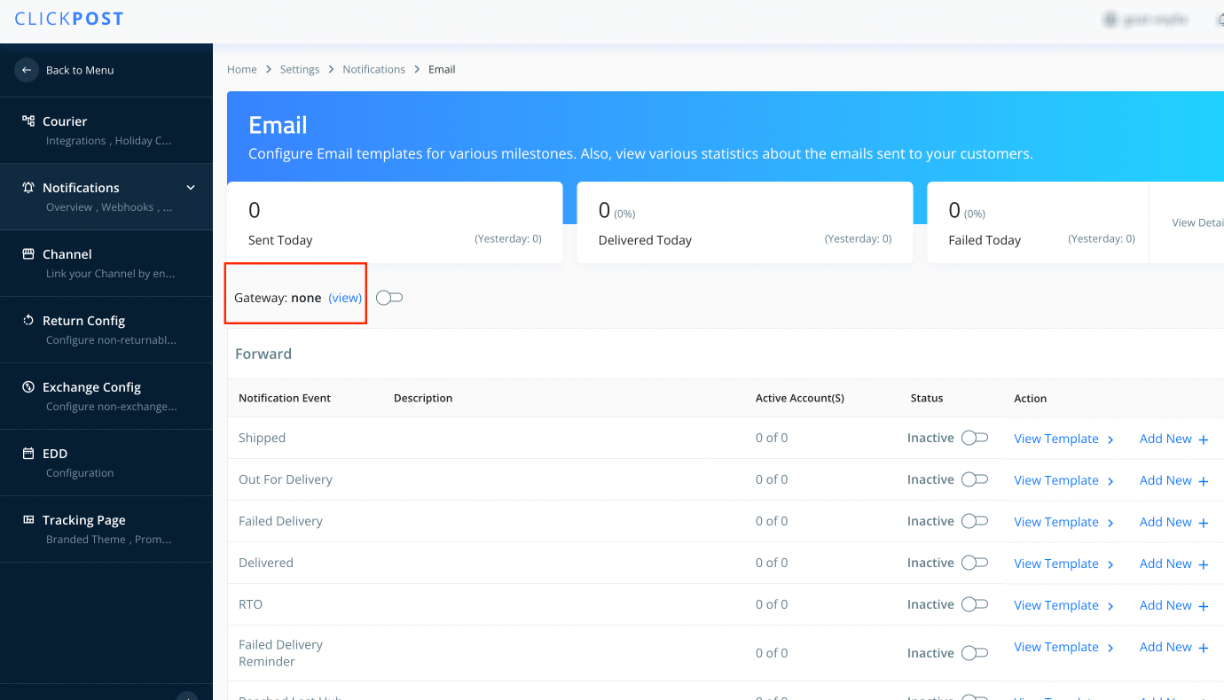
- Gateway --> Click on view
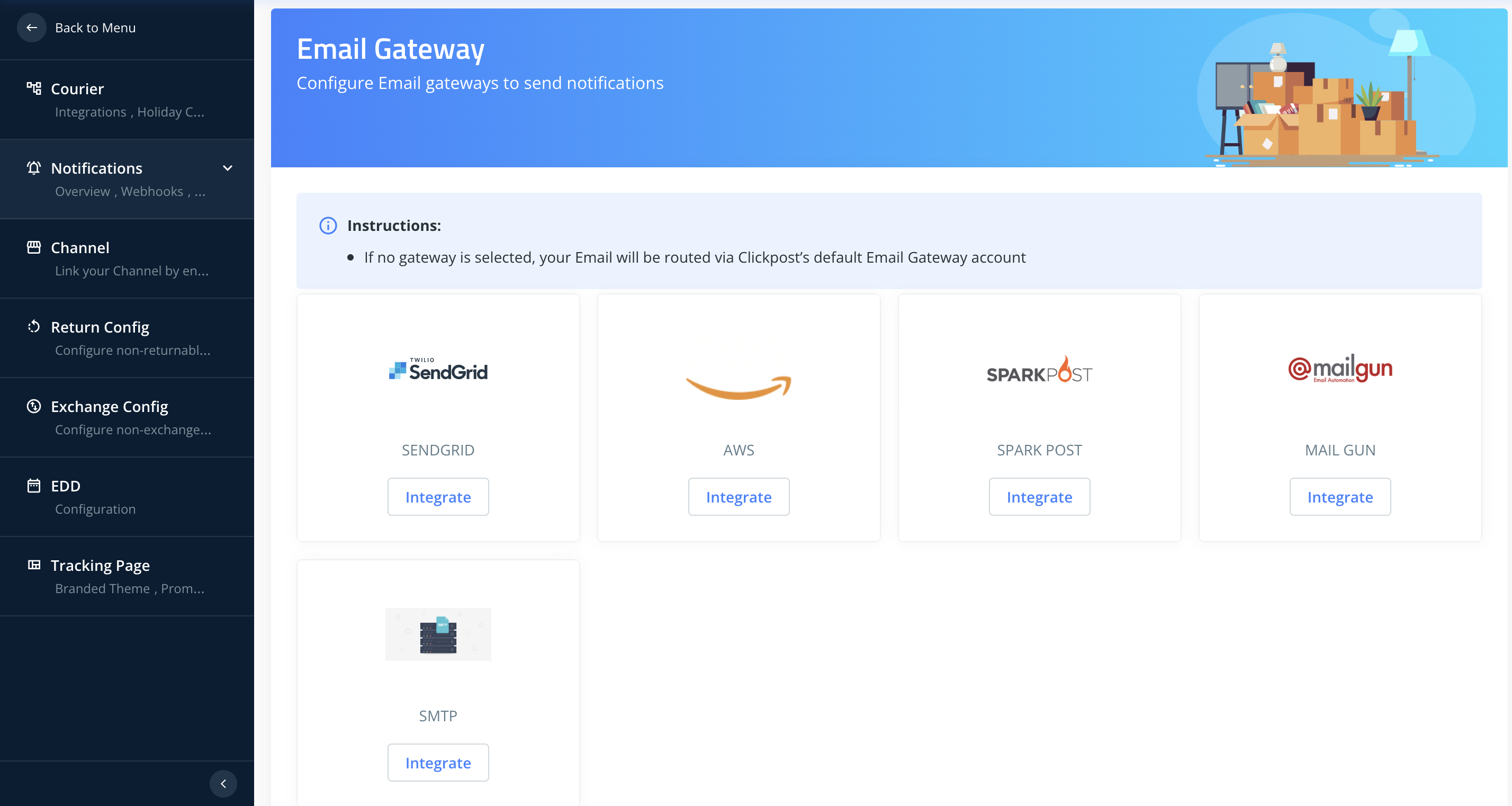
- Choose the Gateway --> Click on Integrate --> Enter the credentials (shared by Gateway)
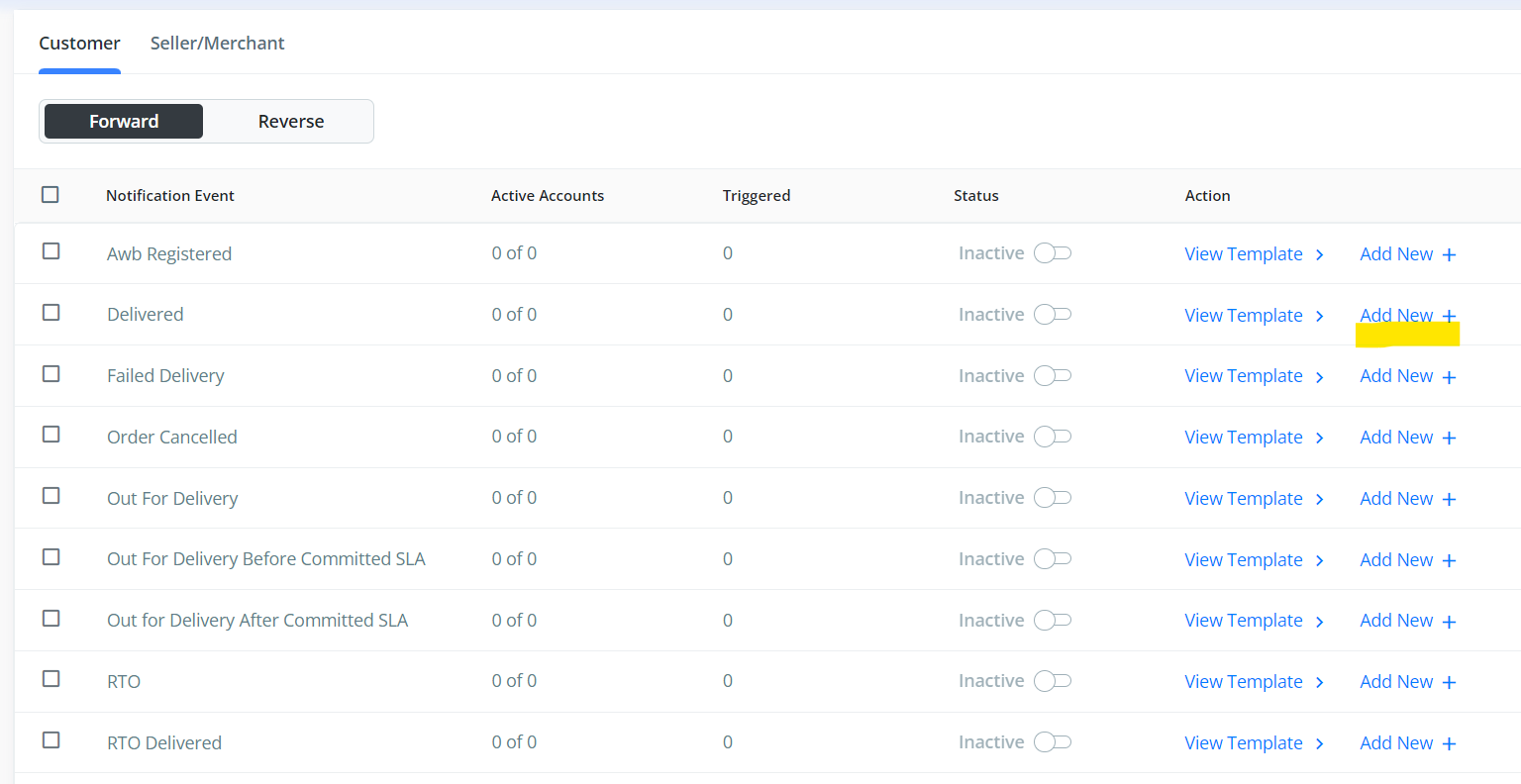
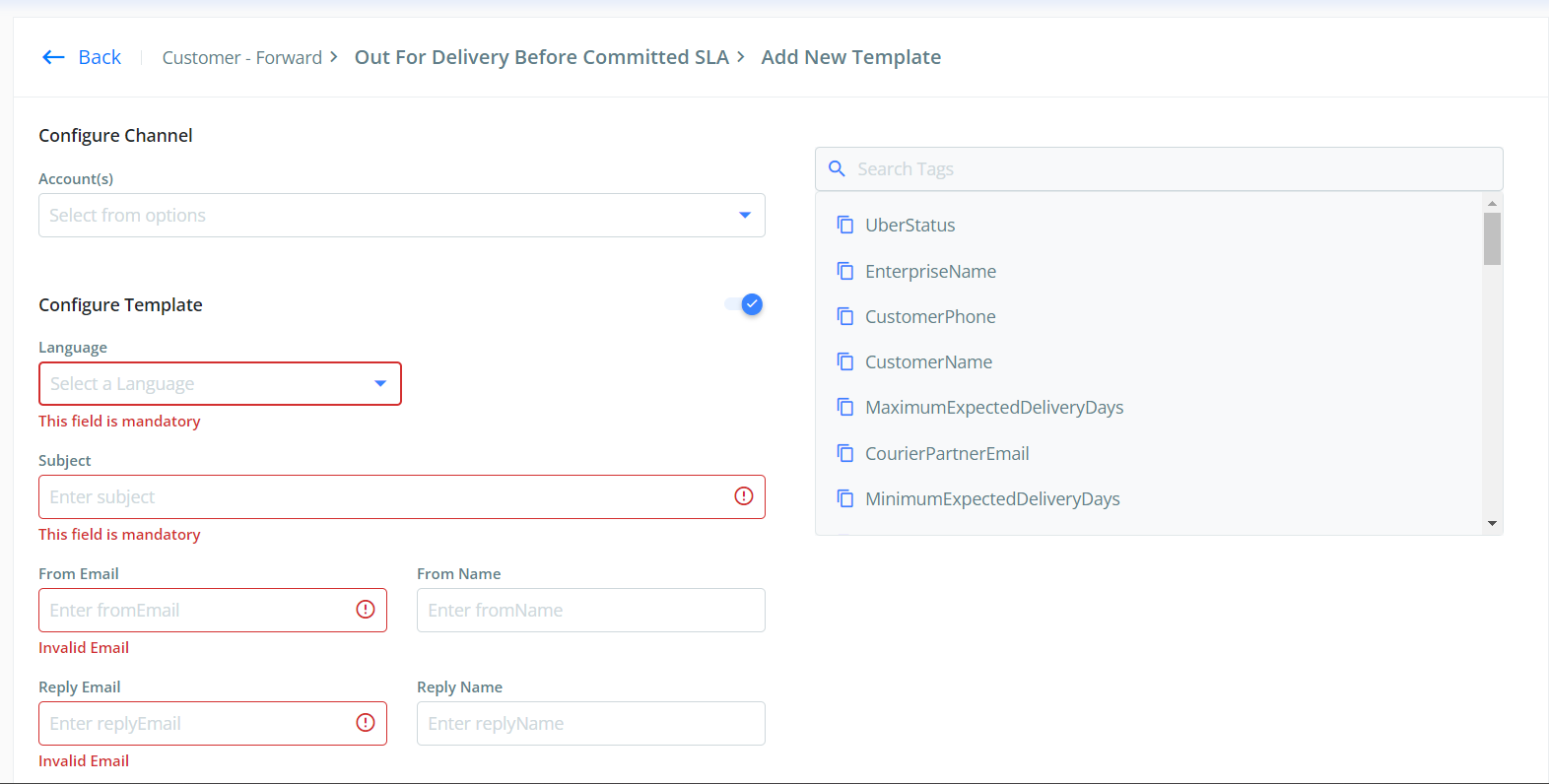
- To configure a new template, you can click on the "Add New" CTA, under Forward or Reverse sections, please note that now we have segregated the Forward and Reverse notification to ensure you have a better experience
After clicking on "Add New", you will see the following screen to enter the details and configure your email template
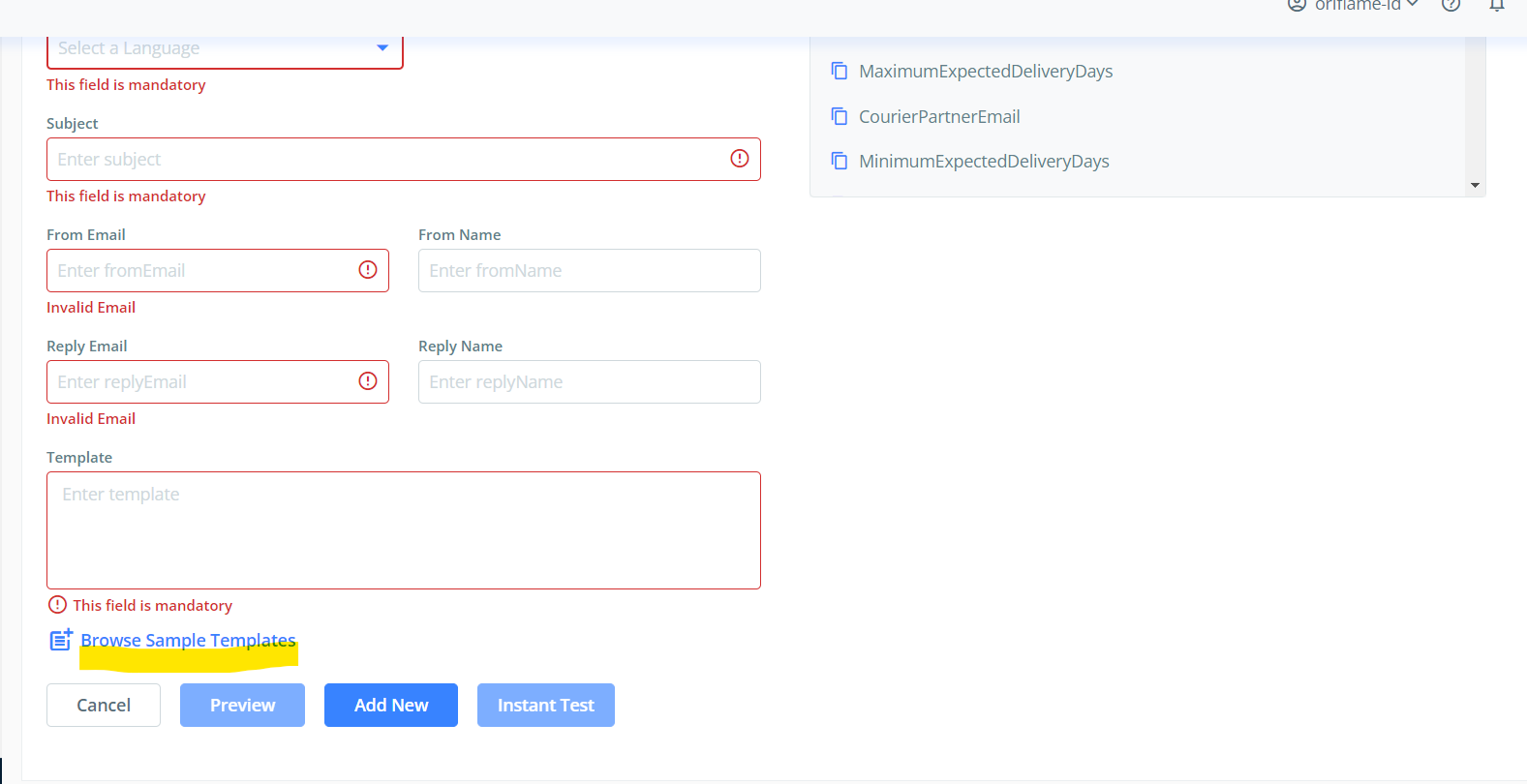
- Click on "Browse Sample Templates" to configure the rpe defined templates
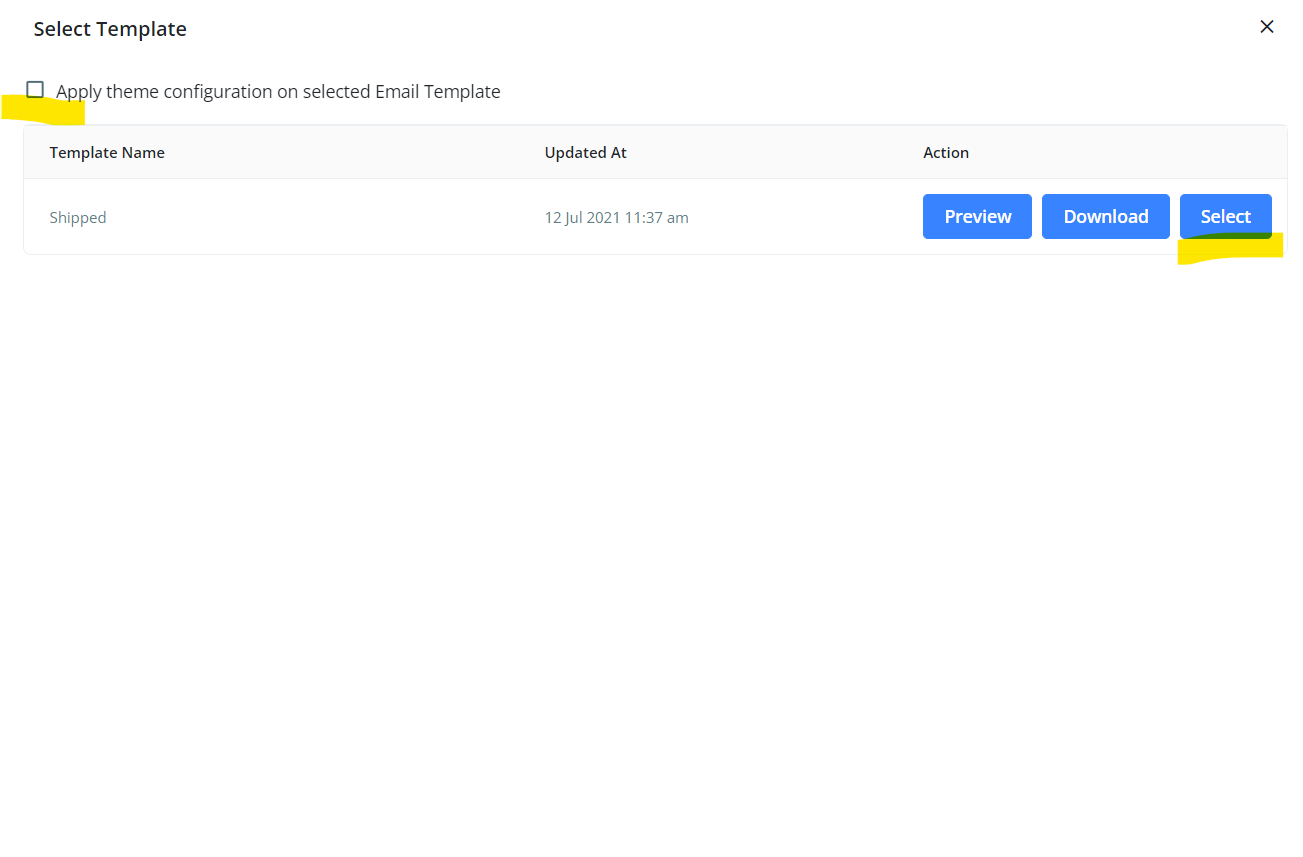
- Click on "Apply theme configuration on selected Email Template" and click on Select
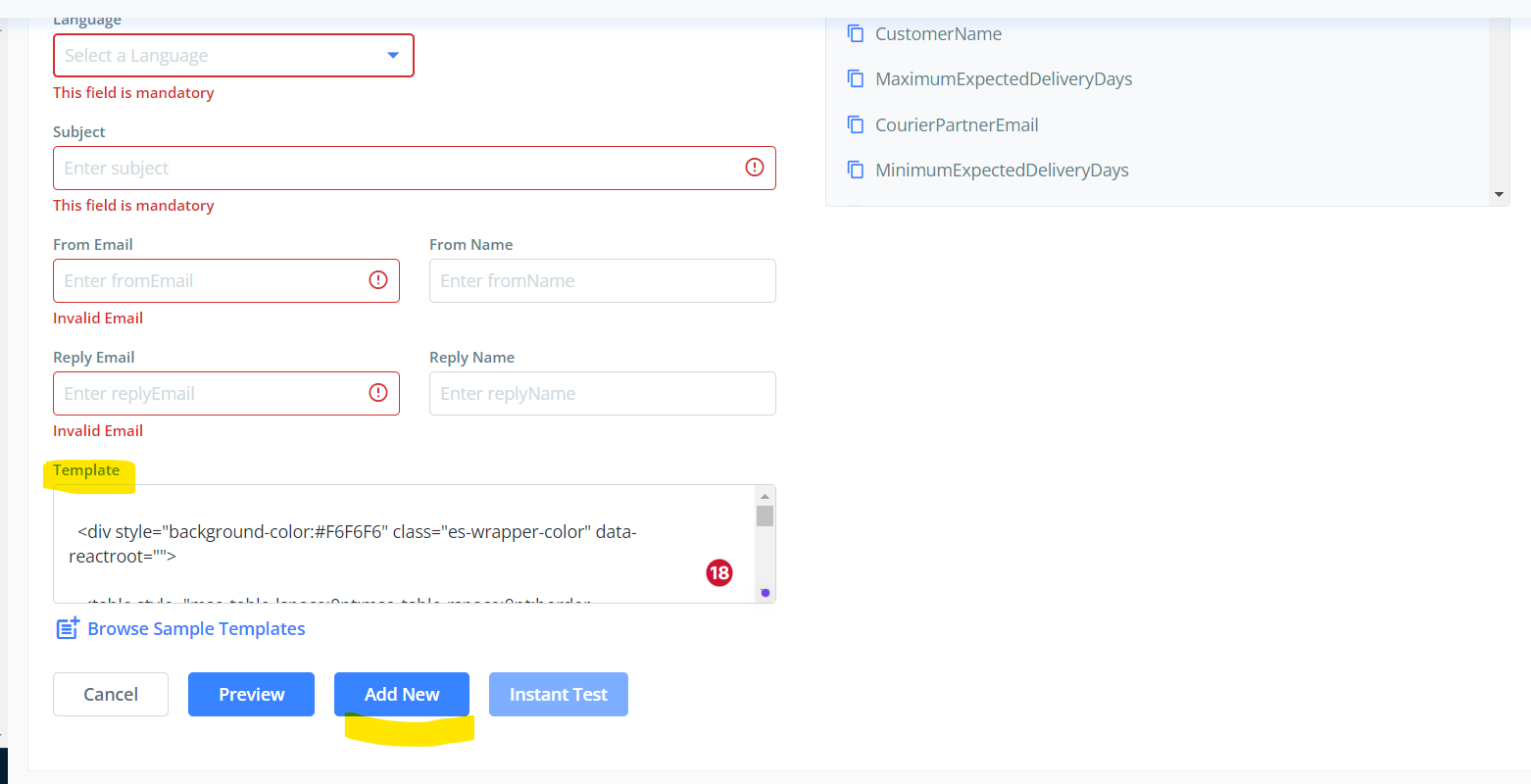
- Or you can add custom HTML file in "Template" section and Click on "Add new" button
Please reach out to support@clickpost.in for any further assistance
Was this article helpful?
That’s Great!
Thank you for your feedback
Sorry! We couldn't be helpful
Thank you for your feedback
Feedback sent
We appreciate your effort and will try to fix the article