Overview: Steps to add whitelisted templates and create workflows on Clickpost dashboard to enable chatbot
Pre-requisites:
- Bot is enabled from Gupshup end (if not then please reach out to Gupshup team for the same).
- NDR bucketwise templates are whitelisted on Gupshup. For sample templates, refer the attached document.
Gateway configuration for Chatbot:
1. Go to NDR> NDR Notifications Workflow> Notification Templates> Whatsapp> 'Edit' in 'Please configure a gateway'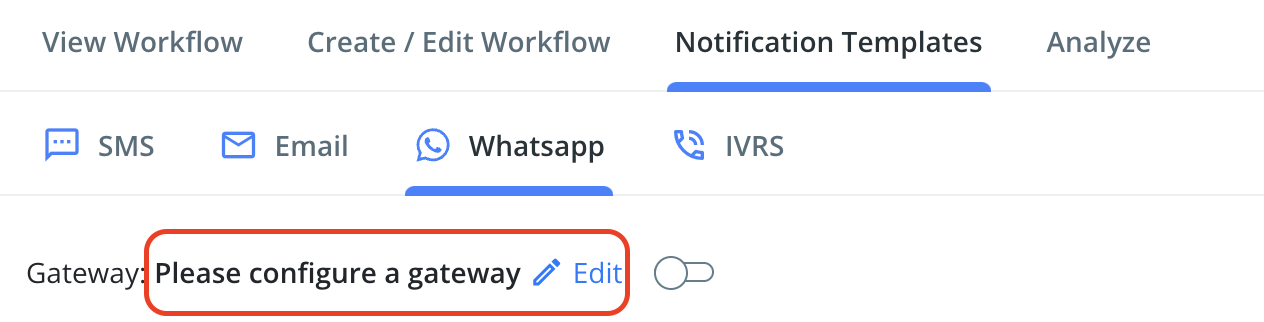
2. Search for 'Gupshup' among the available gateways and click on 'Integrate'.
3. Configure the HSM credentials (Username format - 2000xxxxxx)
Templates configuration on Clickpost dashboard:
1. 'Add New Template' for every template addition. Follow below steps to add
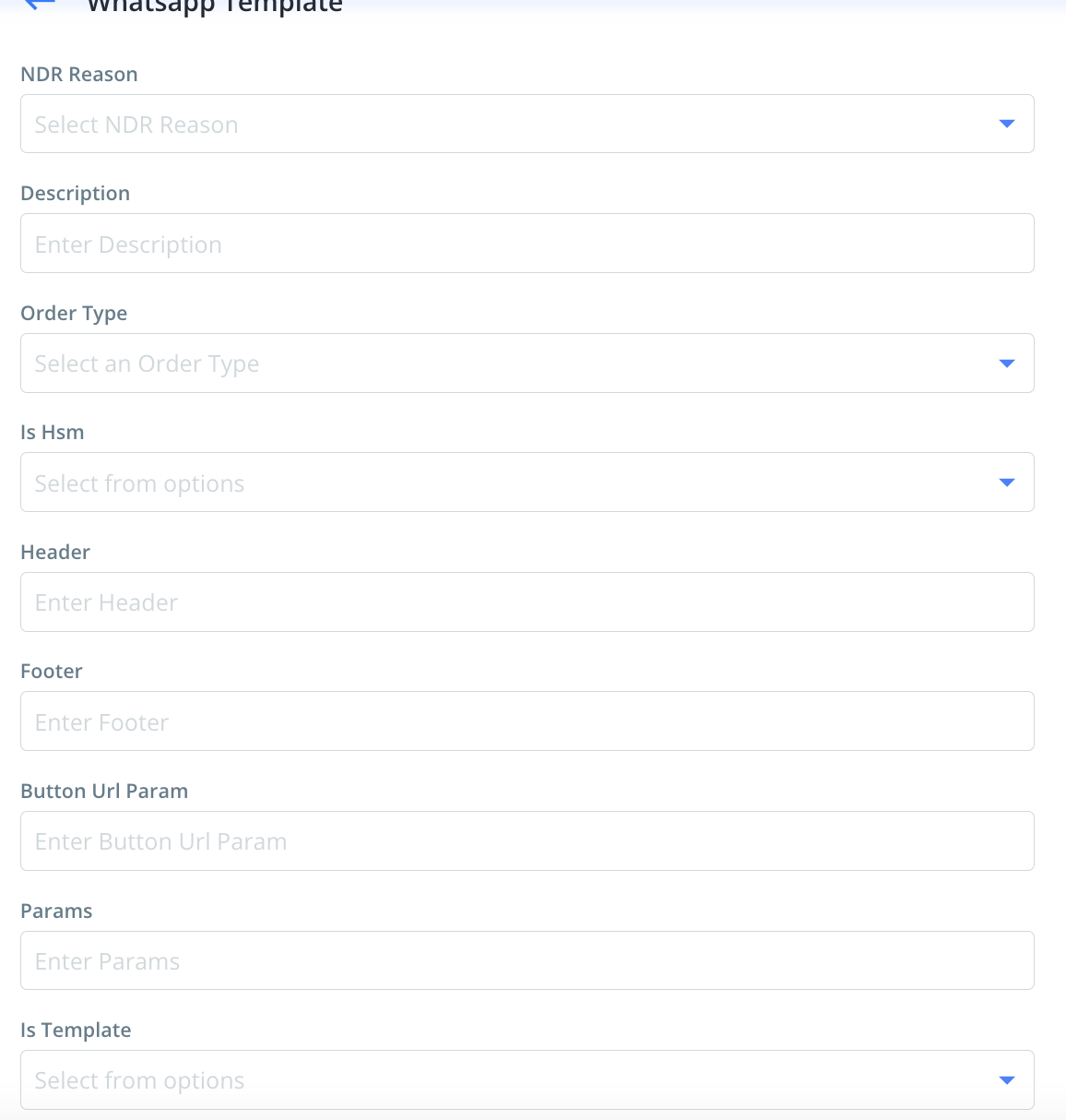
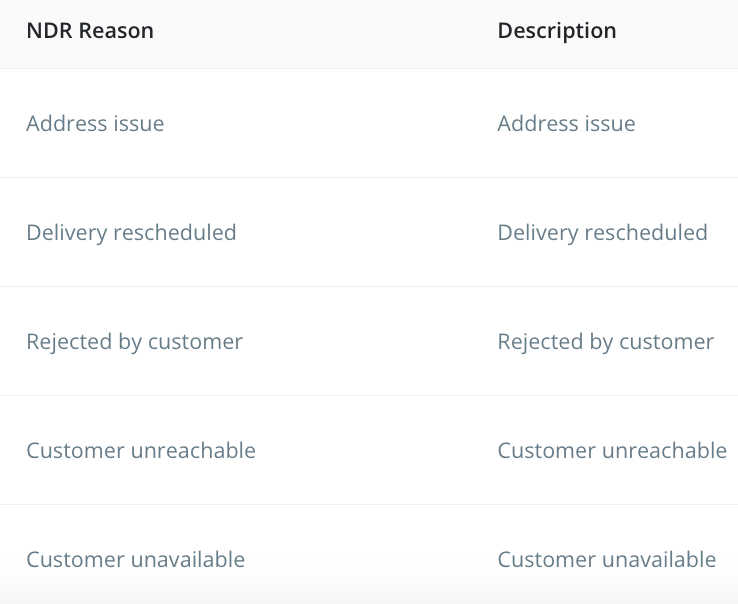
NDR Reason: Reason for which the template is to be configured
Description: Eg -
Order Type: COD/ Prepaid/ All based on your requirement
Is HSM: Will be True always
Header (optional): If the whitelisted template has the Header, paste the same text in this field (Note: this field is character specific and so the template should be as it is on the Gupshup account)
Footer (optional): If the whitelisted template has the Header, paste the same text in this field (Note: this field is character specific and so the template should be as it is on the Gupshup account)
Button URL Param: Will be blank if the template doesnt have any button. If button is present then copy the respective tag from 'Search tags' and paste here. Eg.: if Button is redirecting to tracking link then select 'TrackingLink' (__tracking_link__) from the tags.
Params: Variables added in the template. example:

Is Template: True
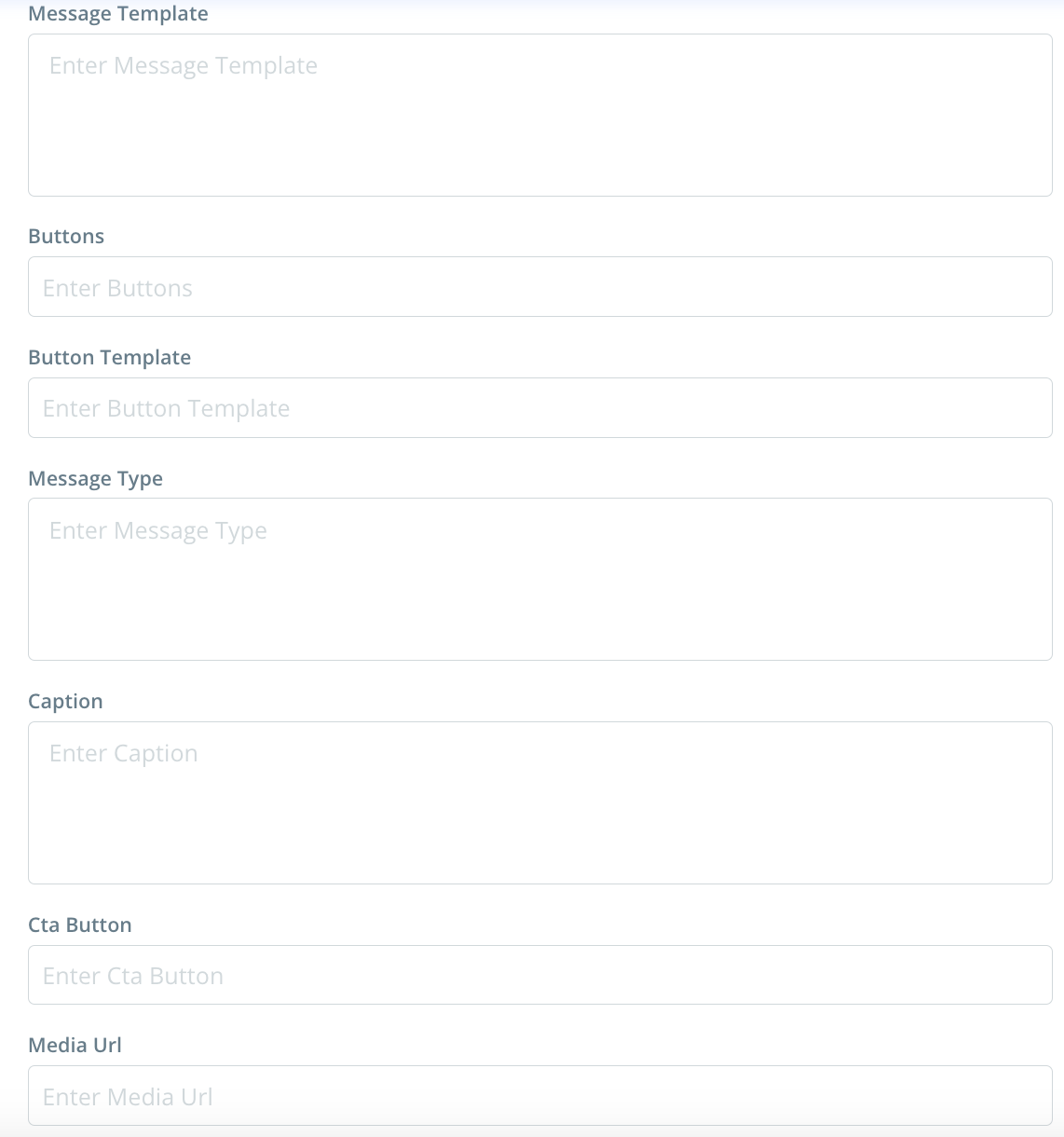
Message Template: Paste the message body here. Once done, replace the variables ({{1}}, {{2}},...) with the respective tags. (Note: this field is character specific and so the template should be as it is on the Gupshup account)
Buttons & Button Template: Blank
Message Type: TEXT
Caption: All the 'Quick Reply' options setup in the Gupshup template (comma separated and without any spaces)
Cta Button & Media Url: Blank
2. Once all above are done, click on 'Submit'
Was this article helpful?
That’s Great!
Thank you for your feedback
Sorry! We couldn't be helpful
Thank you for your feedback
Feedback sent
We appreciate your effort and will try to fix the article