Access to the Analytics section is controlled through user-level permissions. Since the Analytics module contains multiple dashboards and sections, users may not be able to view all of them unless full access is granted.
To allow a user to view all dashboards and pages under the Analytics section, the account admin can enable complete access by following the steps below.
Navigation Steps:
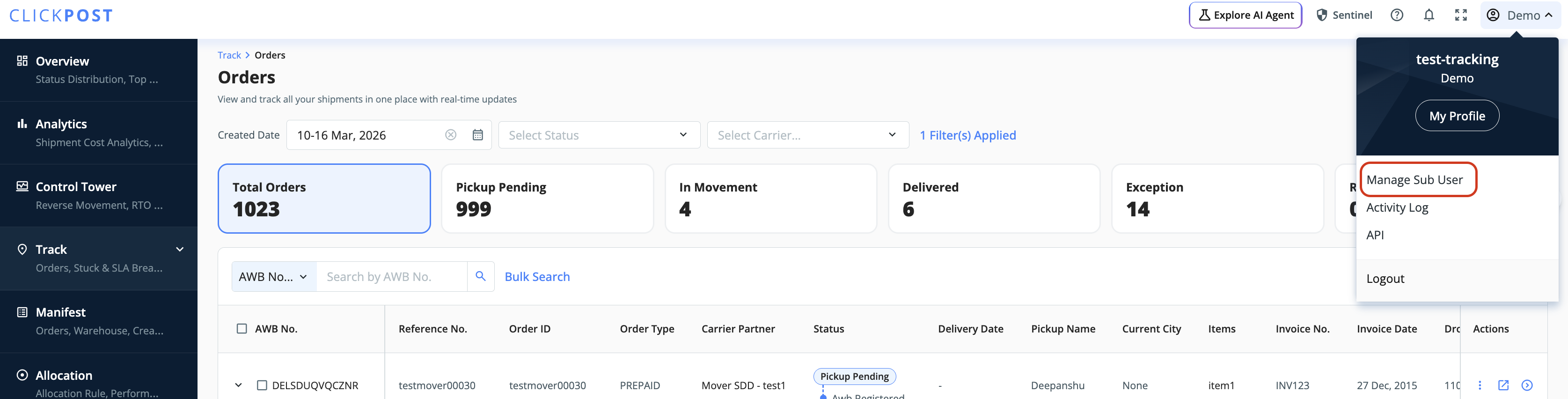
Click on your profile dropdown.
Go to Manage Sub Users.
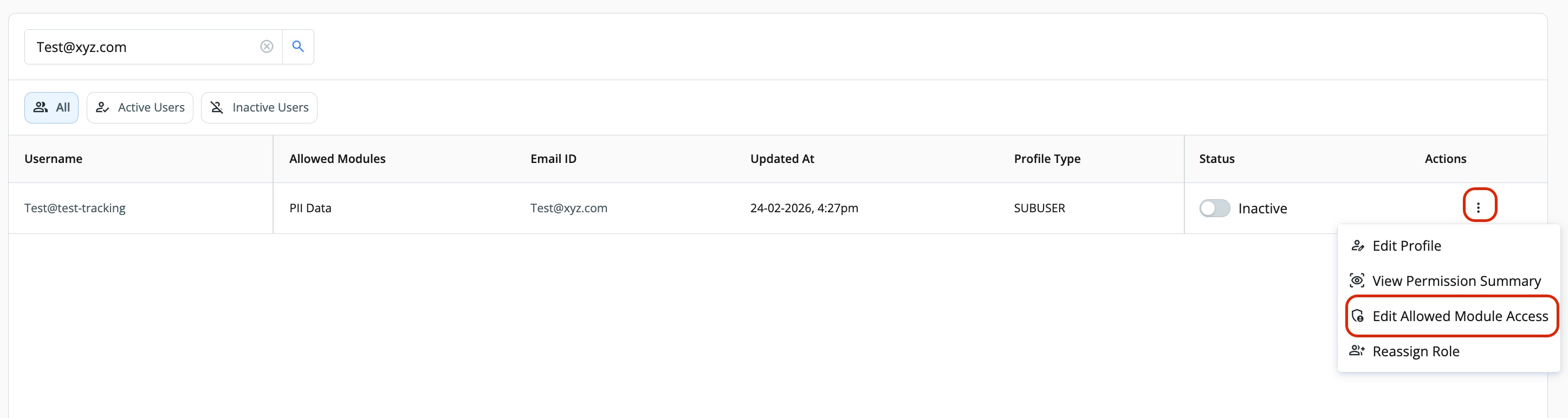
Select the user for whom access needs to be updated.
Click on the three dots (⋮) on the right side under Actions.
Select Edit Allowed Module Access.
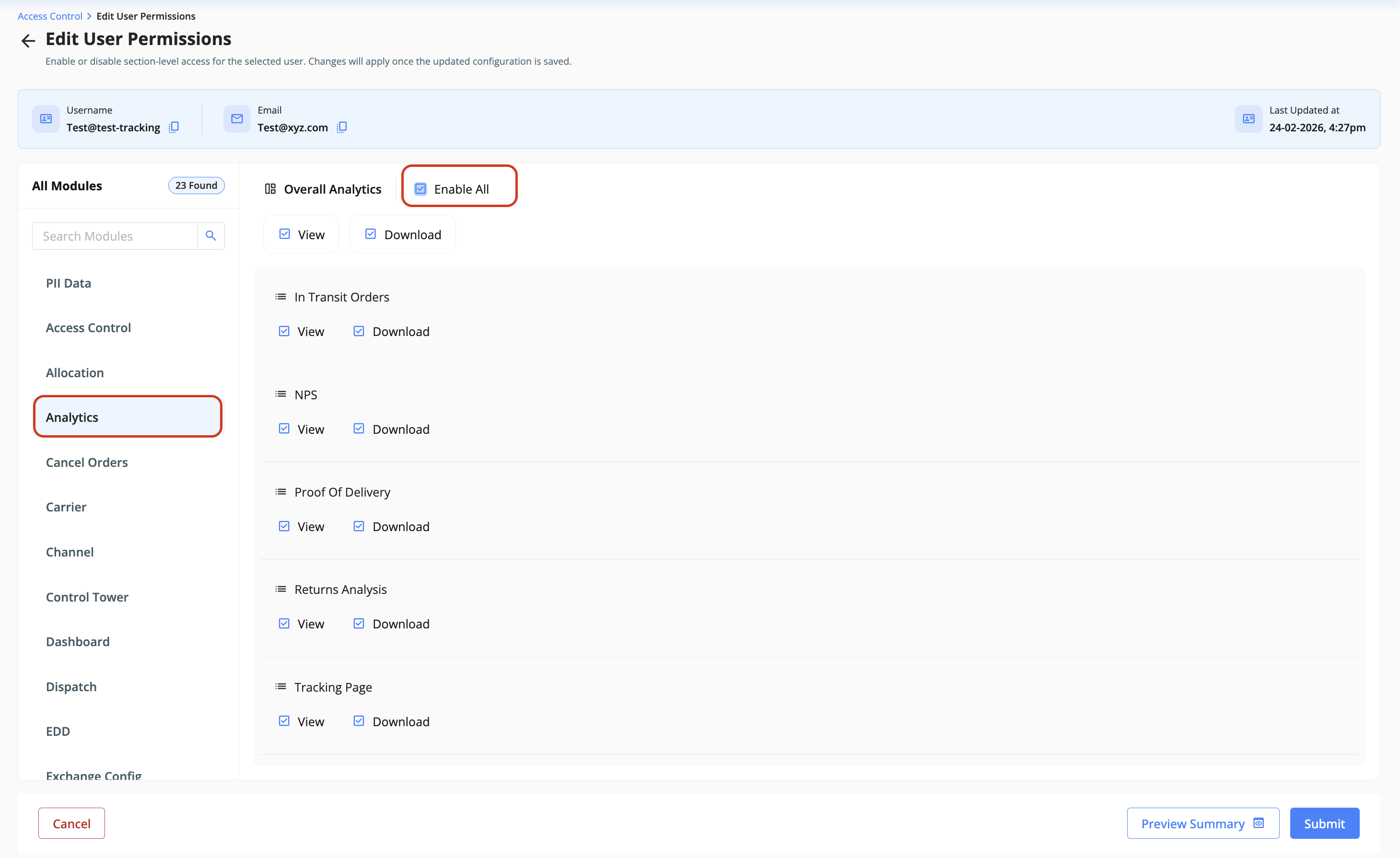
Under All Modules, locate the Analytics section.
Click “Enable All” at the top to grant full access to all Analytics dashboards and pages.
Save/submit the changes.
Once enabled, the user will be able to view the complete Analytics section and leverage the dashboards for further analysis and decision-making.
Was this article helpful?
That’s Great!
Thank you for your feedback
Sorry! We couldn't be helpful
Thank you for your feedback
Feedback sent
We appreciate your effort and will try to fix the article