The Zone Analysis feature helps brands understand status distribution across different zones tagged against each shipment.
Accessing Zone Analytics
Navigate to:
Menu → Analytics → Zone Analytics
Here, you can apply multiple filters to refine the data: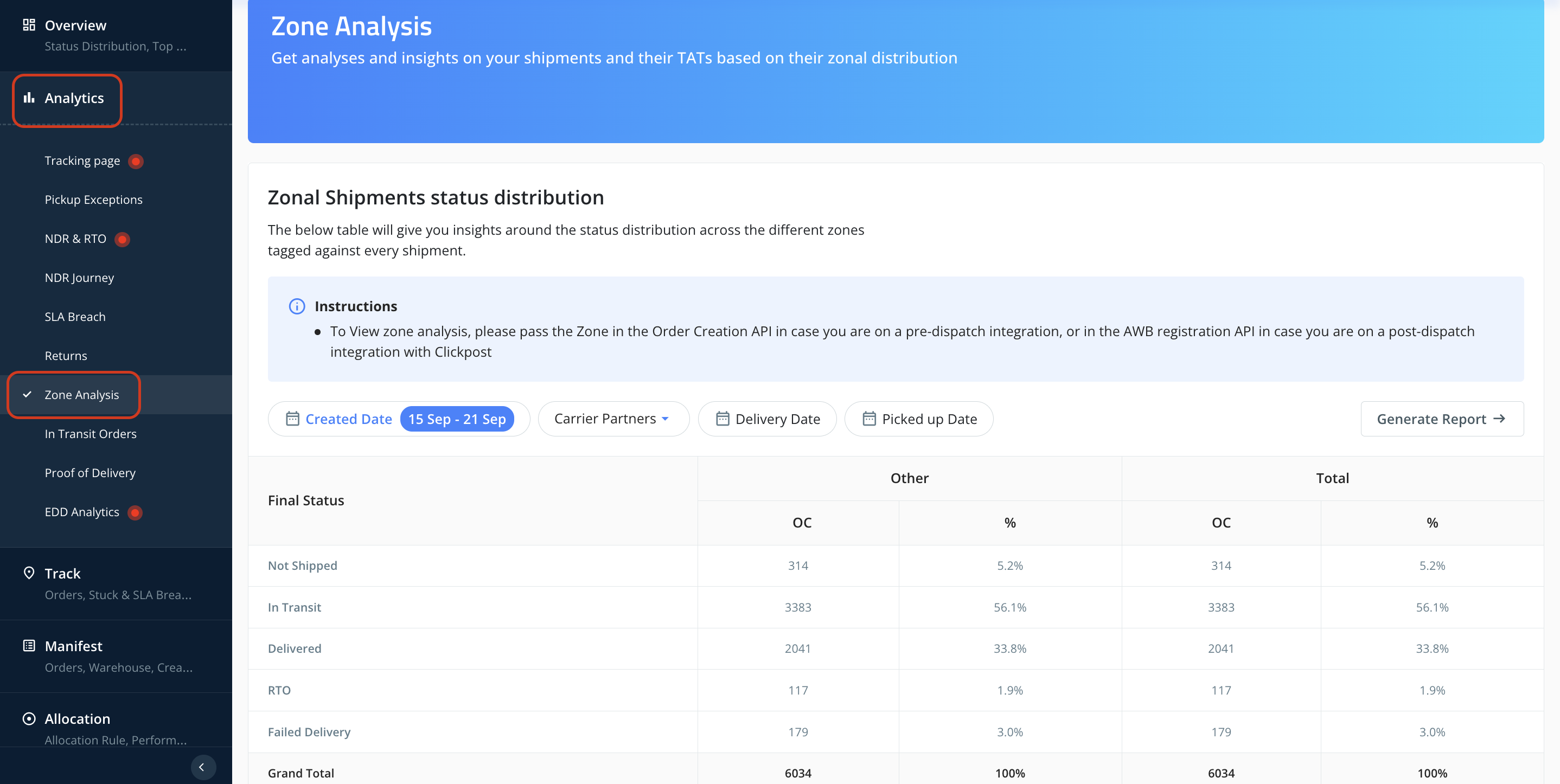
Created Date → Date when the AWB was synced/registered on Clickpost dashboard.
Carrier Partner → Filter data by courier partner.
Delivery Date → View orders delivered within a specific date range.
Pickup Date → View orders picked up within a specific date range.
Defining & Configuring Zones
To configure zones, you first need to decide the data source for zone mapping.
Navigate to: Menu → Settings → Analytics Config
You will see three configuration options:
Via API
Zones can be sent directly to Clickpost systems against an order through the Order Creation API or the AWB Generation API.
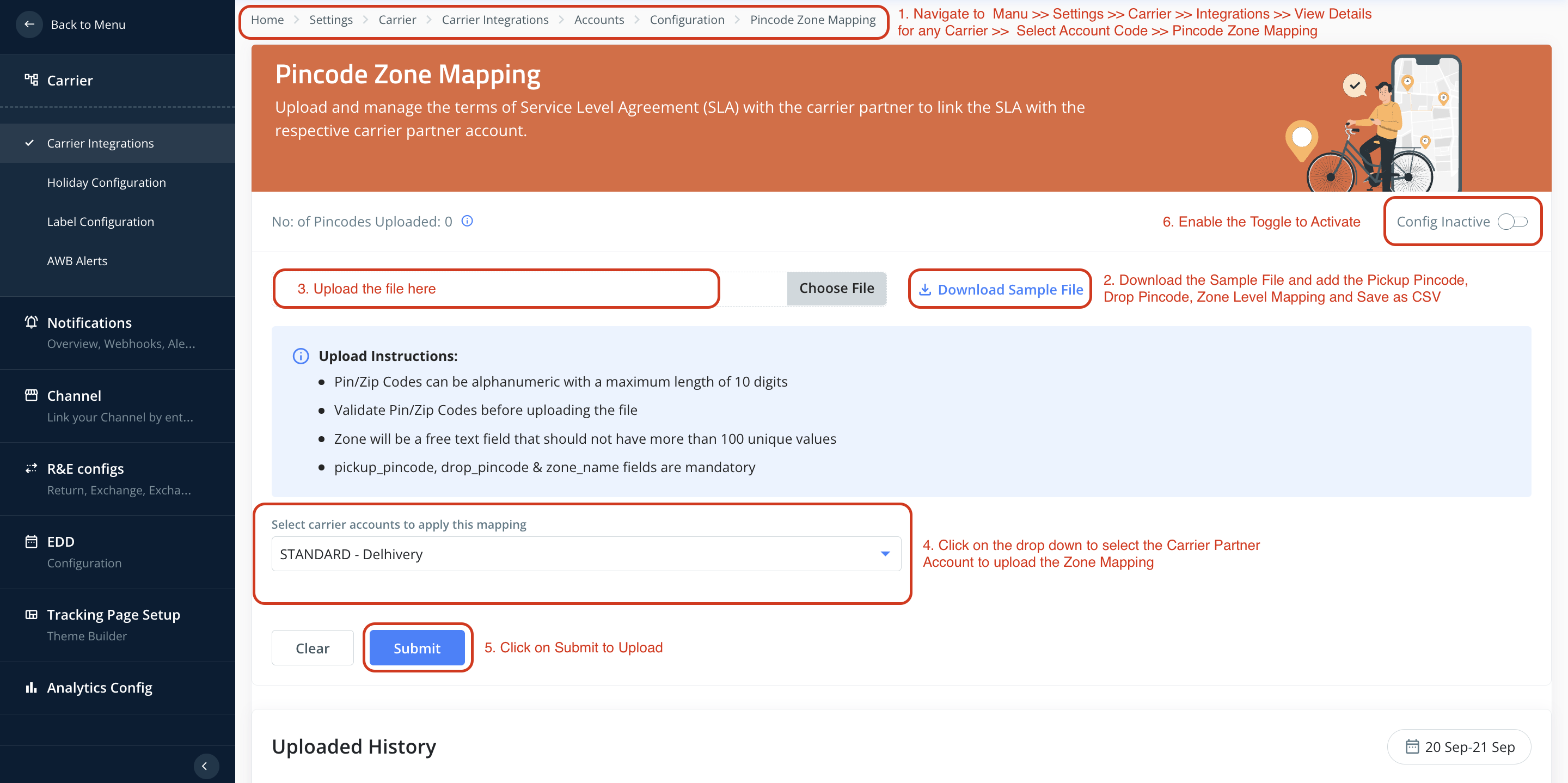
Via Upload
Zones can be uploaded at the pincode level in the carrier account section under Pincode Zone Mapping.
Clickpost Default Zones
By default, Clickpost maintains a pincode–zone mapping with standard values: North, South, West, East, Central.
If no custom mapping is provided, these values will be displayed by default.
With Zone Analysis, you can break down shipment performance geographically and gain deeper insights into where your operations are thriving and where they need improvement
Was this article helpful?
That’s Great!
Thank you for your feedback
Sorry! We couldn't be helpful
Thank you for your feedback
Feedback sent
We appreciate your effort and will try to fix the article