We have a dedicated section on the ClickPost dashboard's Analytics page where you can quickly review all the information pertaining to your In Transit Orders.
You can follow the below steps to access the In Transit Orders on the ClickPost dashboard.
ClickPost dashboard login>>Analytics>>In Transit Orders
Following is the screenshot of the default view when you visit the In Transit section under Analytics.
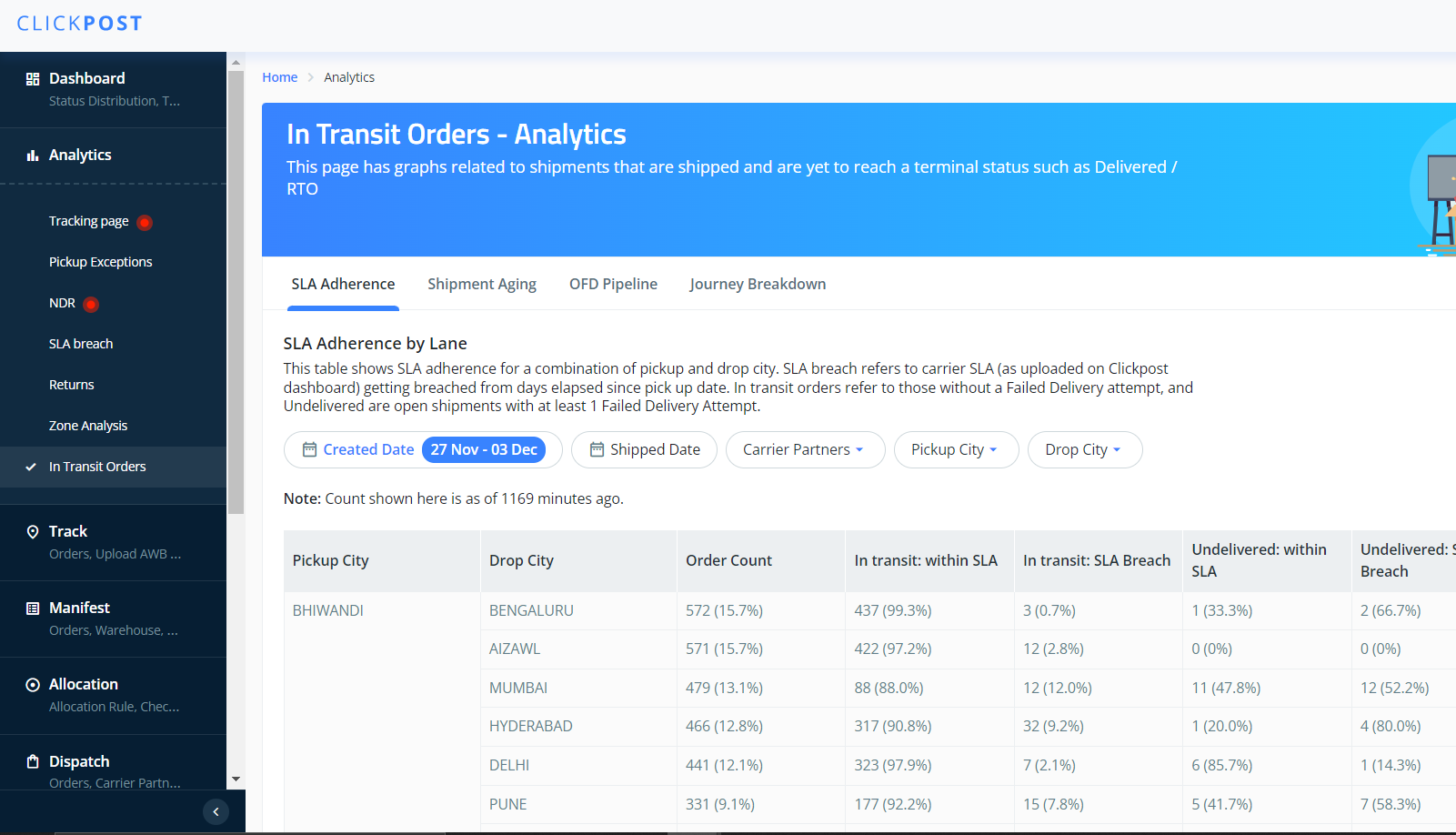
- SLA Adherence by Lane: This table displays the adherence to Service Level Agreements (SLA) based on the combination of pickup and drop cities. SLA breach occurs when the carrier's SLA (as uploaded on the Clickpost dashboard) is exceeded by the days elapsed since the pickup date. In-transit orders are those without a failed delivery attempt, while undelivered orders are open shipments with at least one failed delivery attempt.
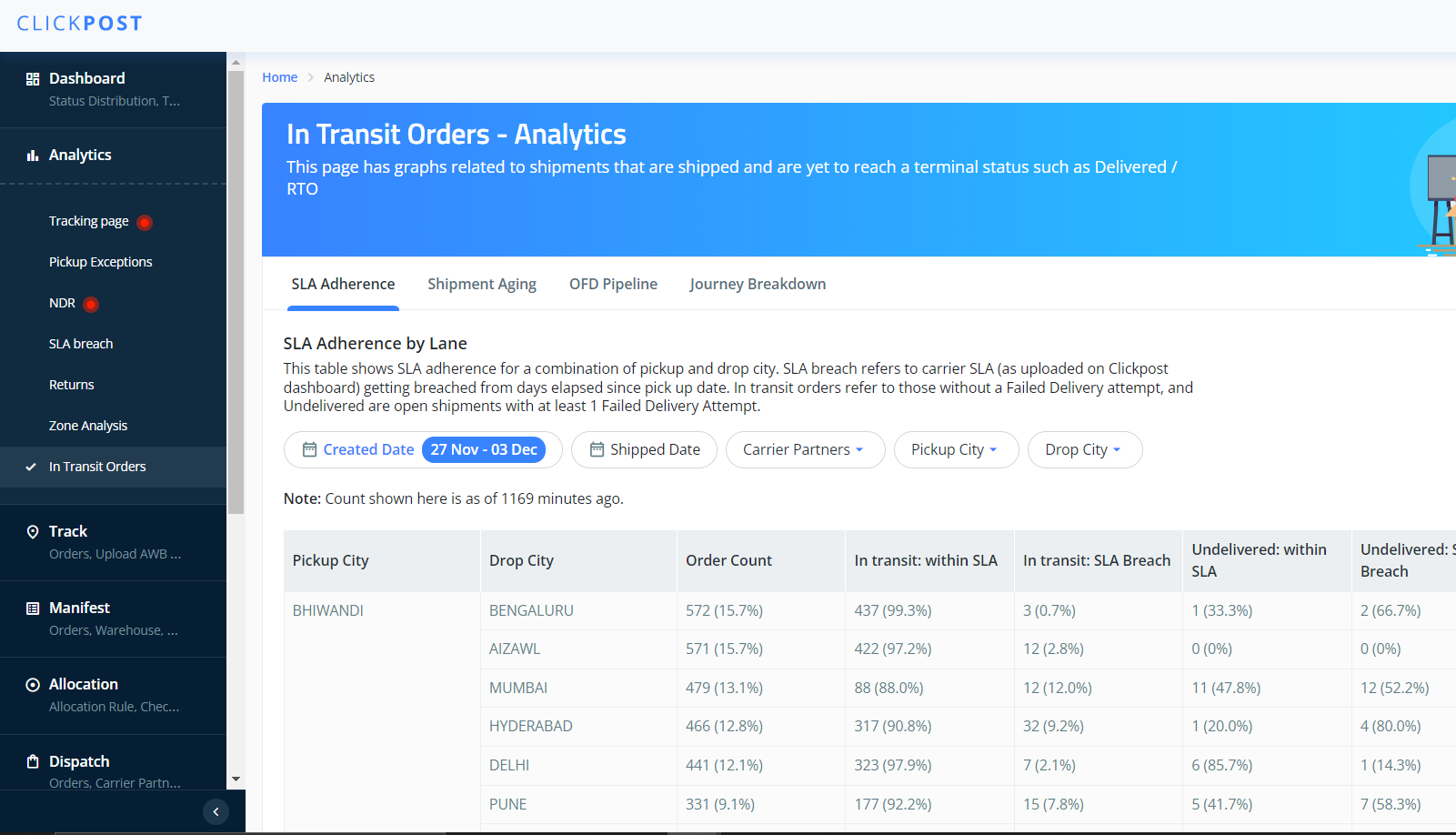
- Shipment Aging: Briefing the sub-option that provides more visibility for the shipments.
- Aging from Carrier SLA: This table presents the number of orders categorized by the variance between the SLA committed by carriers (as uploaded on the Clickpost dashboard) and the days elapsed since the order was picked up. Negative values indicate the remaining days before the SLA is breached. This includes all open orders in the forward journey.
You can filter out the data based on AWB generated date, pick up date, Destination Hub, Carrier Partner, and Pick Up City.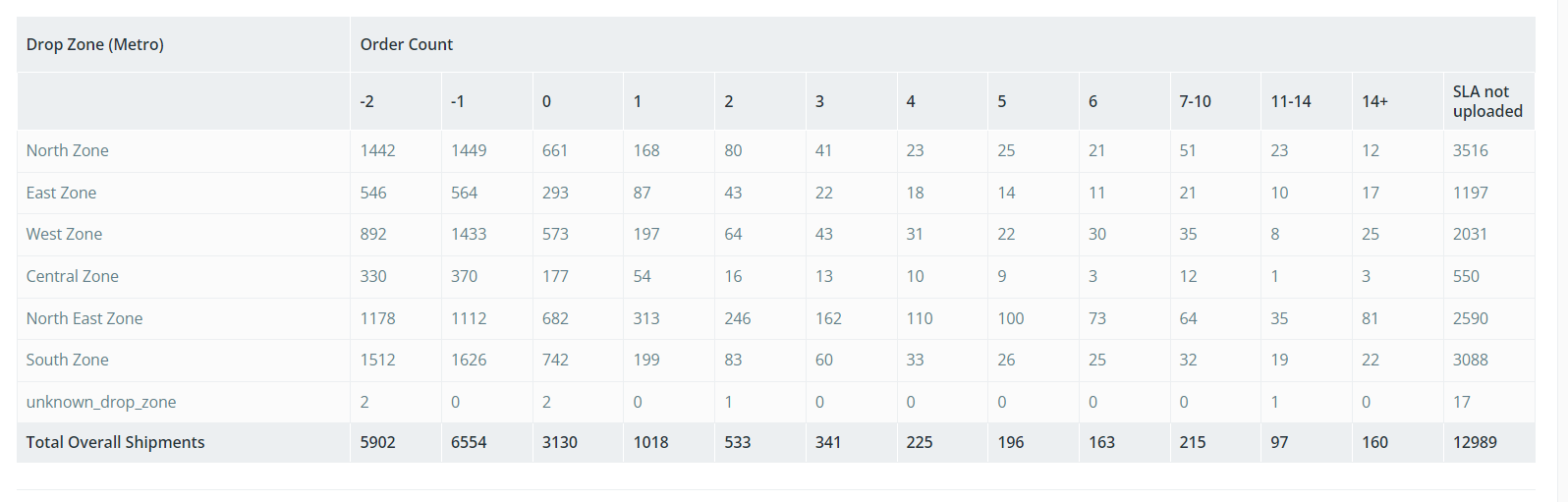
- Aging from Picked-up Date: The Aging Start Threshold denotes the minimum number of days that have passed since the order pickup for the analysis scope. Please adjust it according to your business requirements.
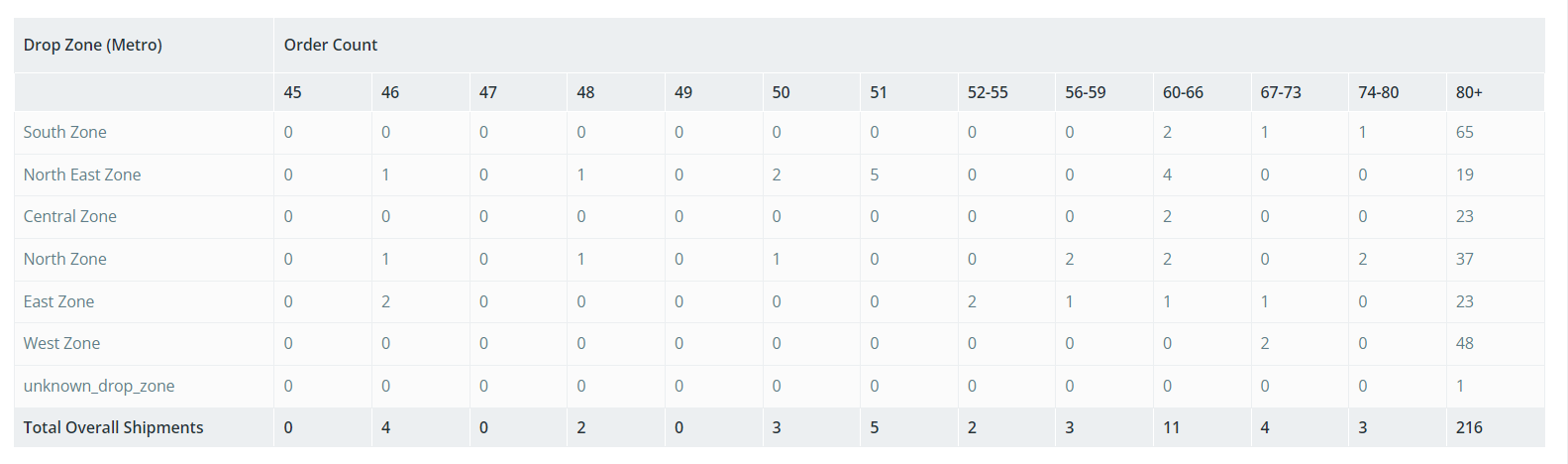
OFD Pipeline: This table shows order count by status buckets for all orders that went into OFD status on a given date/date range.
Journey Breakdown: This section gives the visibility of the breakdown of the shipments.
Pendency in Order Pickup: This table illustrates the delay in AWB generation to order pickup. The hourly buckets represent the time difference between AWB generation and the time the order was picked up by the respective carrier. "Not picked shipments" refers to shipments created in the specified interval that have not yet been picked up by the carrier.
You can filter out the data based on AWB generated date, pick up date, Destination Hub, Carrier Partner, and Pick Up City.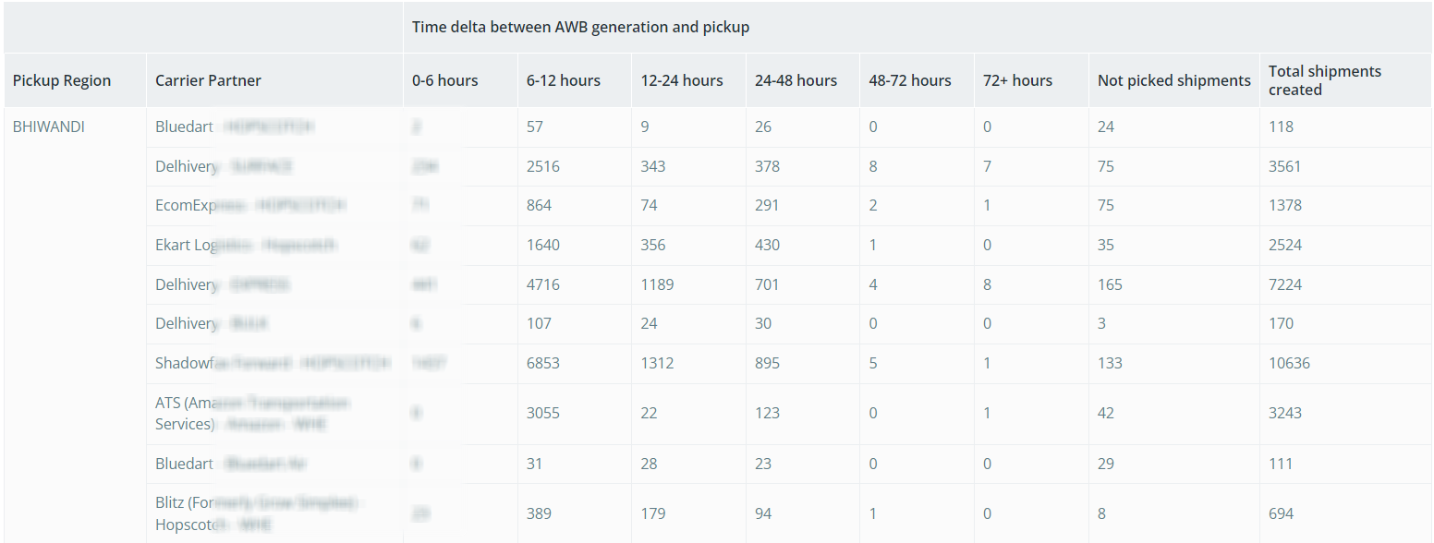
Addition to Line Haul: A shipment is deemed "Added to Line Haul" when it departs from the Origin Hub. The hourly buckets depict the time difference between the shipment entering the Origin Hub and being added to Line Haul. "Stuck at Origin Hub" pertains to shipments that have not shown any movement since entering the Origin Hub.
You can filter out the data based on AWB generated date, pick up date, Destination Hub, Carrier Partner, and Pick Up City.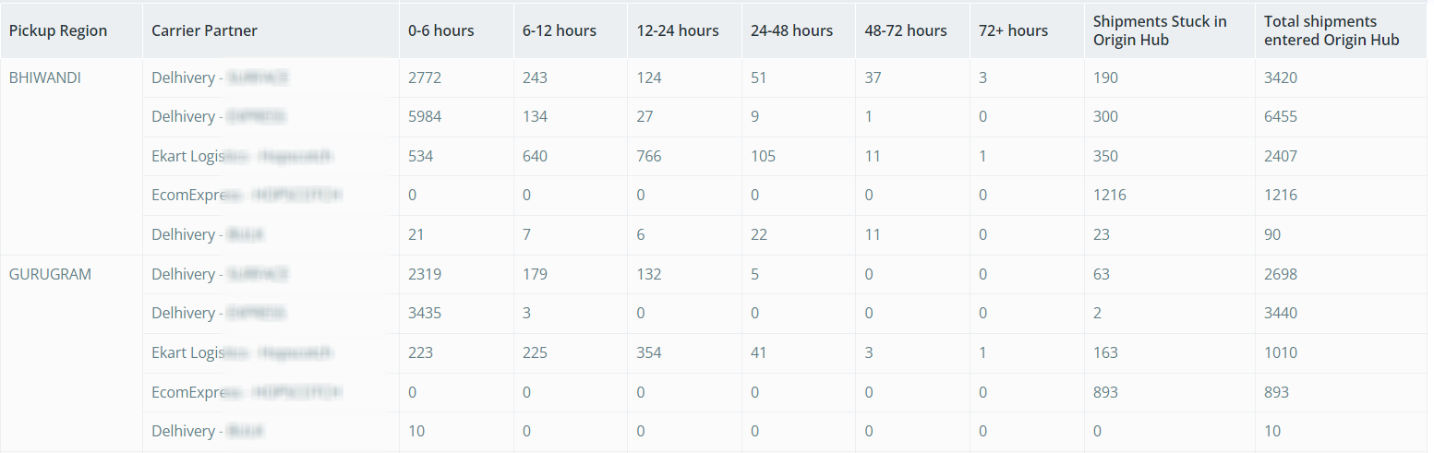
Stuck in Destination Hub: This table displays the duration that shipments spend at the Destination Hub. The hourly buckets illustrate the time difference between a shipment entering the Destination Hub and being marked as "Out for Delivery." "Stuck at Destination Hub" pertains to shipments that have not experienced any movement since entering the Destination Hub.
You can filter out the data based on AWB generated date, pick up date, Destination Hub, Carrier Partner, and Pick Up City.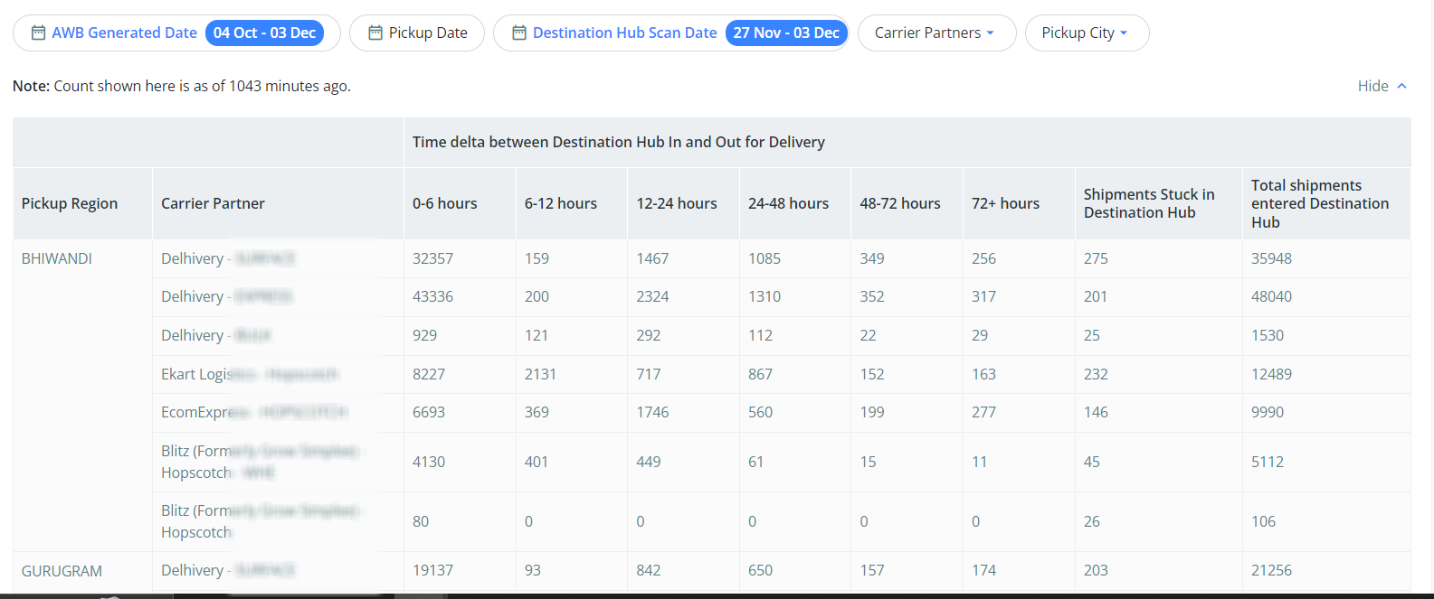
- Aging from Carrier SLA: This table presents the number of orders categorized by the variance between the SLA committed by carriers (as uploaded on the Clickpost dashboard) and the days elapsed since the order was picked up. Negative values indicate the remaining days before the SLA is breached. This includes all open orders in the forward journey.
Was this article helpful?
That’s Great!
Thank you for your feedback
Sorry! We couldn't be helpful
Thank you for your feedback
Feedback sent
We appreciate your effort and will try to fix the article