The Simple Mail Transfer Protocol (SMTP) is an Internet standard communication protocol for electronic mail transmission.
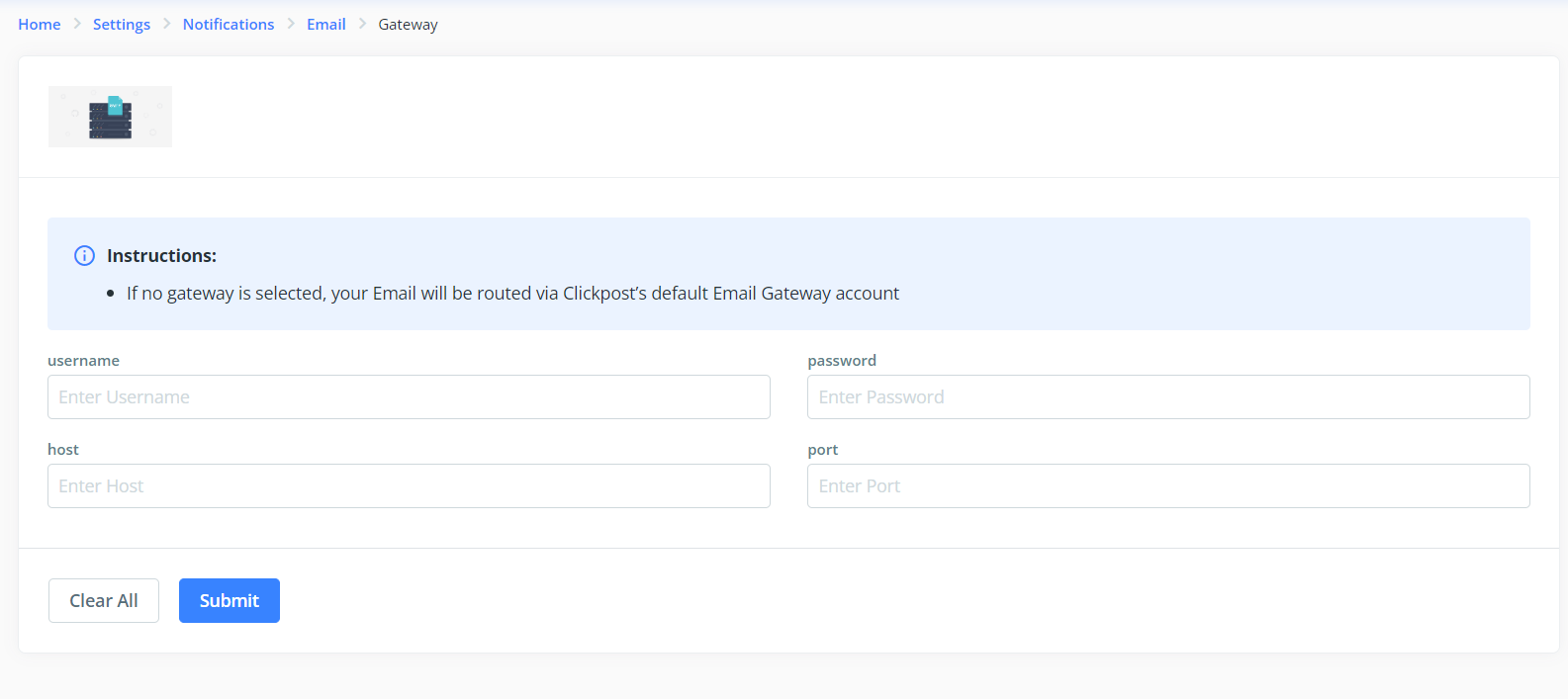
To configure the same on Clickpost dashboard we would require following details.
- Username
- Password
- Host
- Port
- From email
You can configure the same on Clickpost dashboard, please follow the below steps for the same.Notifictions
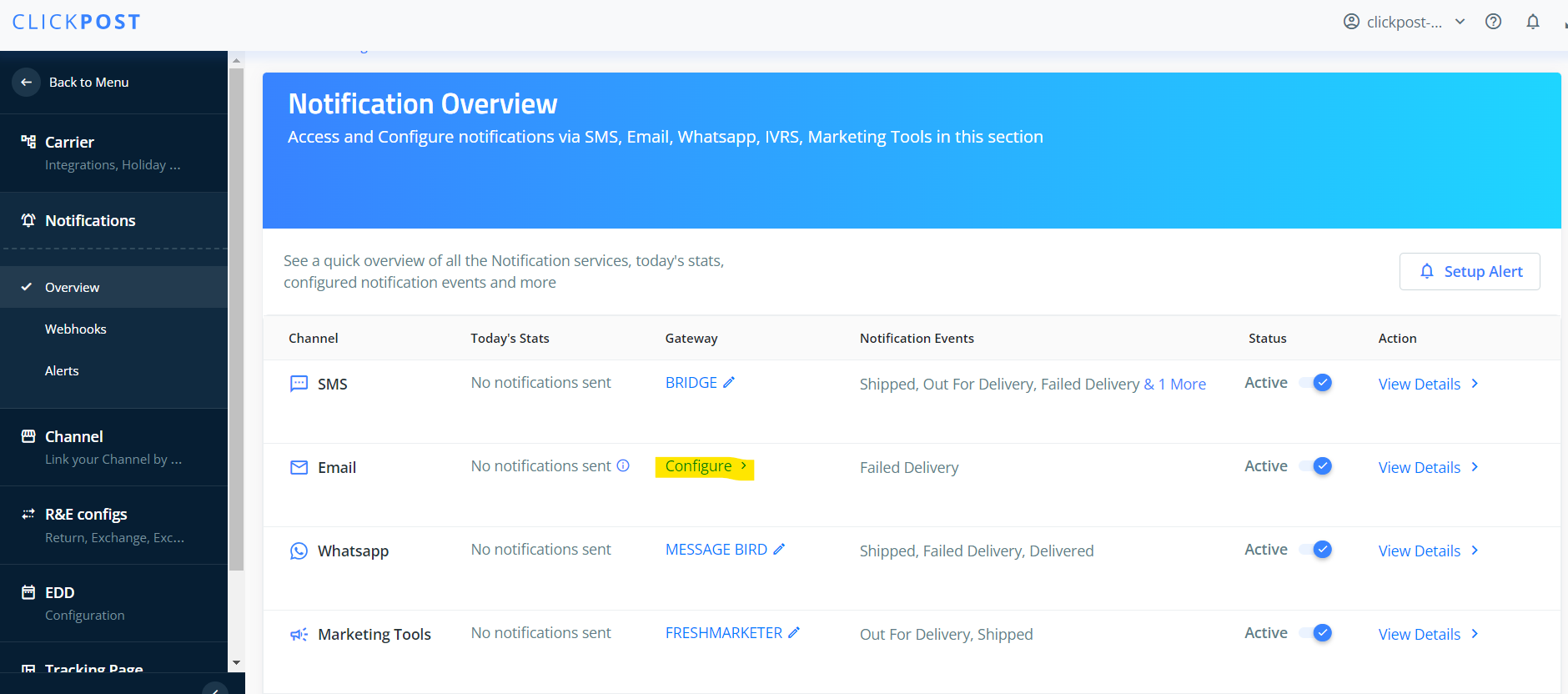
1. Click on Notifications >> Overview >> Configure
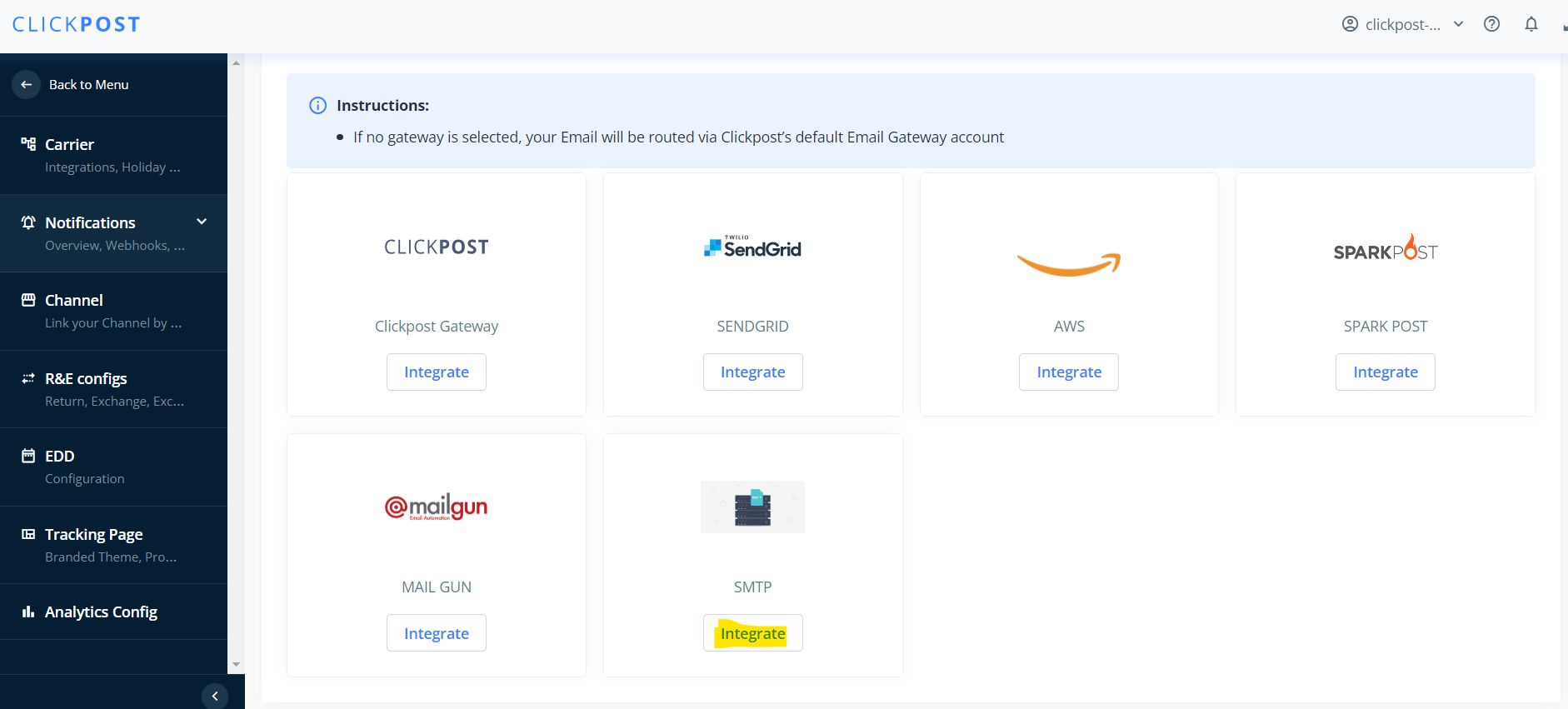
2. Click on integrate
3. Add credentails here
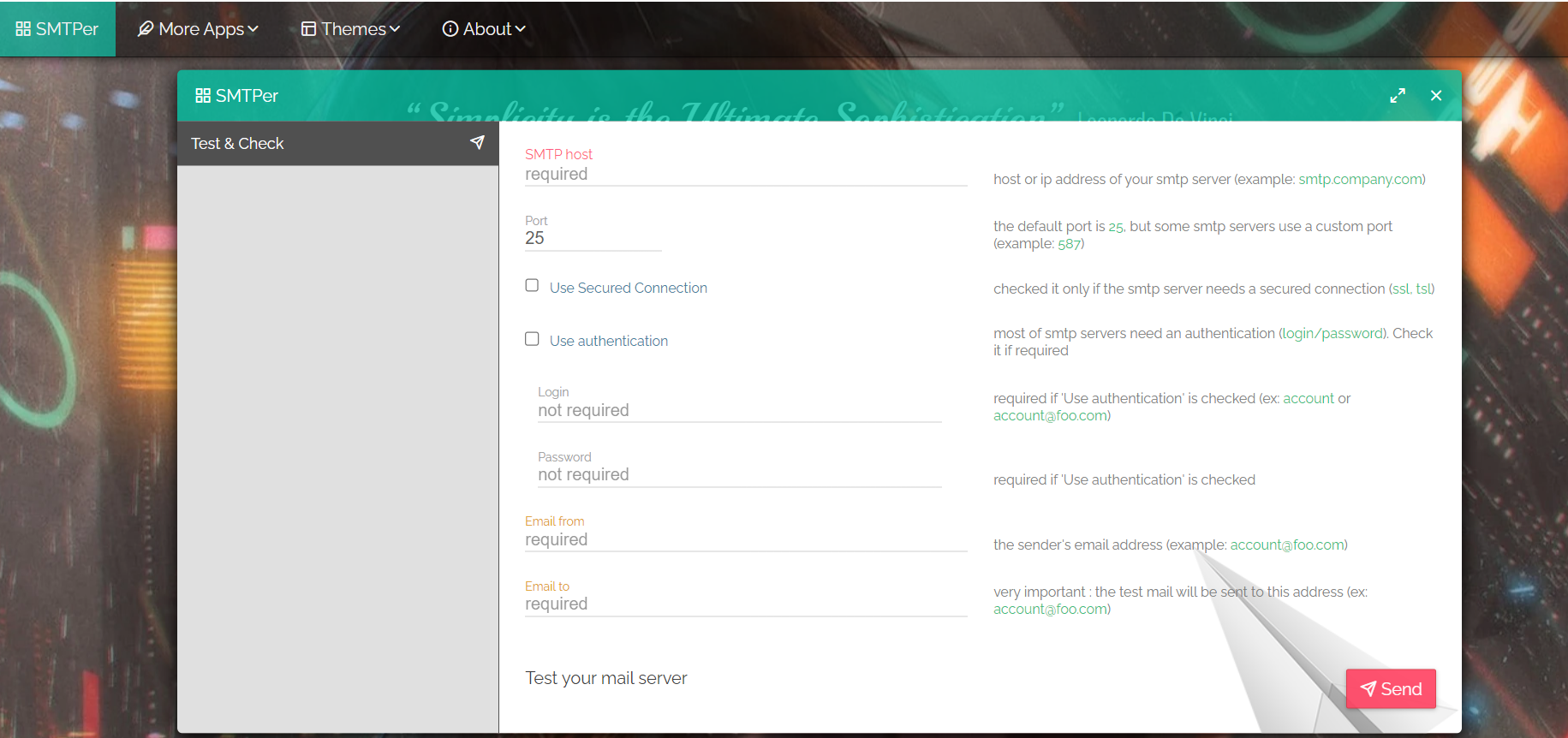
To check if creds are correct or not
Click on this link : https://www.smtper.net/
In case of an error received: "Username and Password not accepted", it could be because Google no longer supports the "Less Secure App Access" option, which previously allowed older apps to bypass security restrictions.
As a result, you may encounter the following error: "SMTP Exception: b'5.7.8 Username and Password not accepted" while triggering emails via SMTP when the host is "smtp.gmail.com".
How to resolve this:
1. Enable 2-Step Verification:
Go to your Google Account and enable 2-Step Verification.
Follow the prompts to complete the setup.
2. Generate an App Password:
After enabling 2-Step Verification, go to your Google Account > Security > App Passwords.
Select "Other (Custom name)" and name it (e.g., "Clickpost Email").
Click Generate and copy the generated app password.
Add this app password on the Clickpost dashboard SMTP section to successfully authenticate and trigger emails.
Was this article helpful?
That’s Great!
Thank you for your feedback
Sorry! We couldn't be helpful
Thank you for your feedback
Feedback sent
We appreciate your effort and will try to fix the article