You may utilize the Clickpost dashboard to submit Return/Exchange requests on behalf of your end customers.
Steps:
1. Navigate to Home -> To Access the Return & Exchange Option
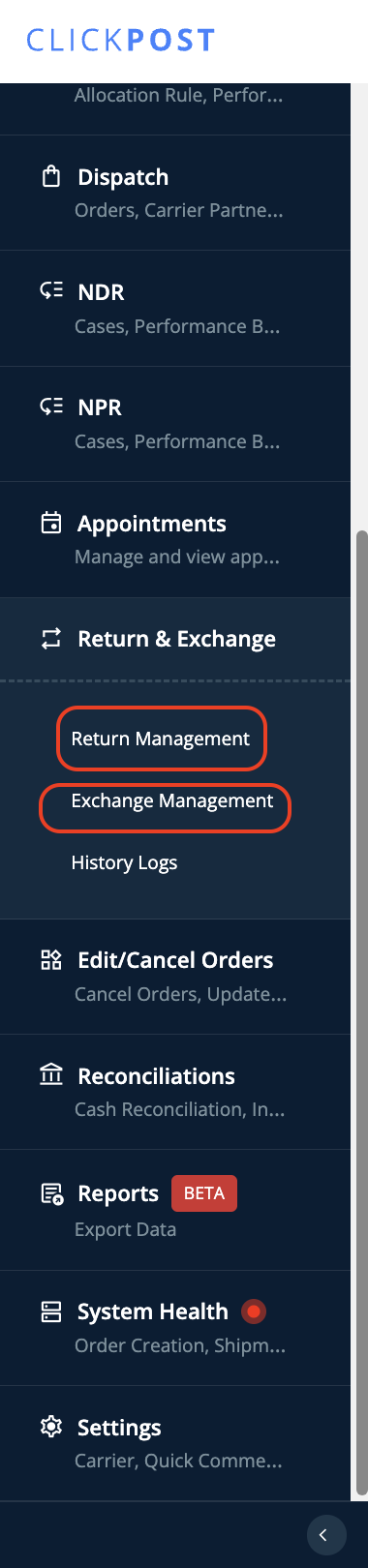
2. From the Dropdown Menu, choose "Return Management" if you wish to create a Return for a specific order, and "Exchange Management" if you're looking to initiate an Exchange request for an order.
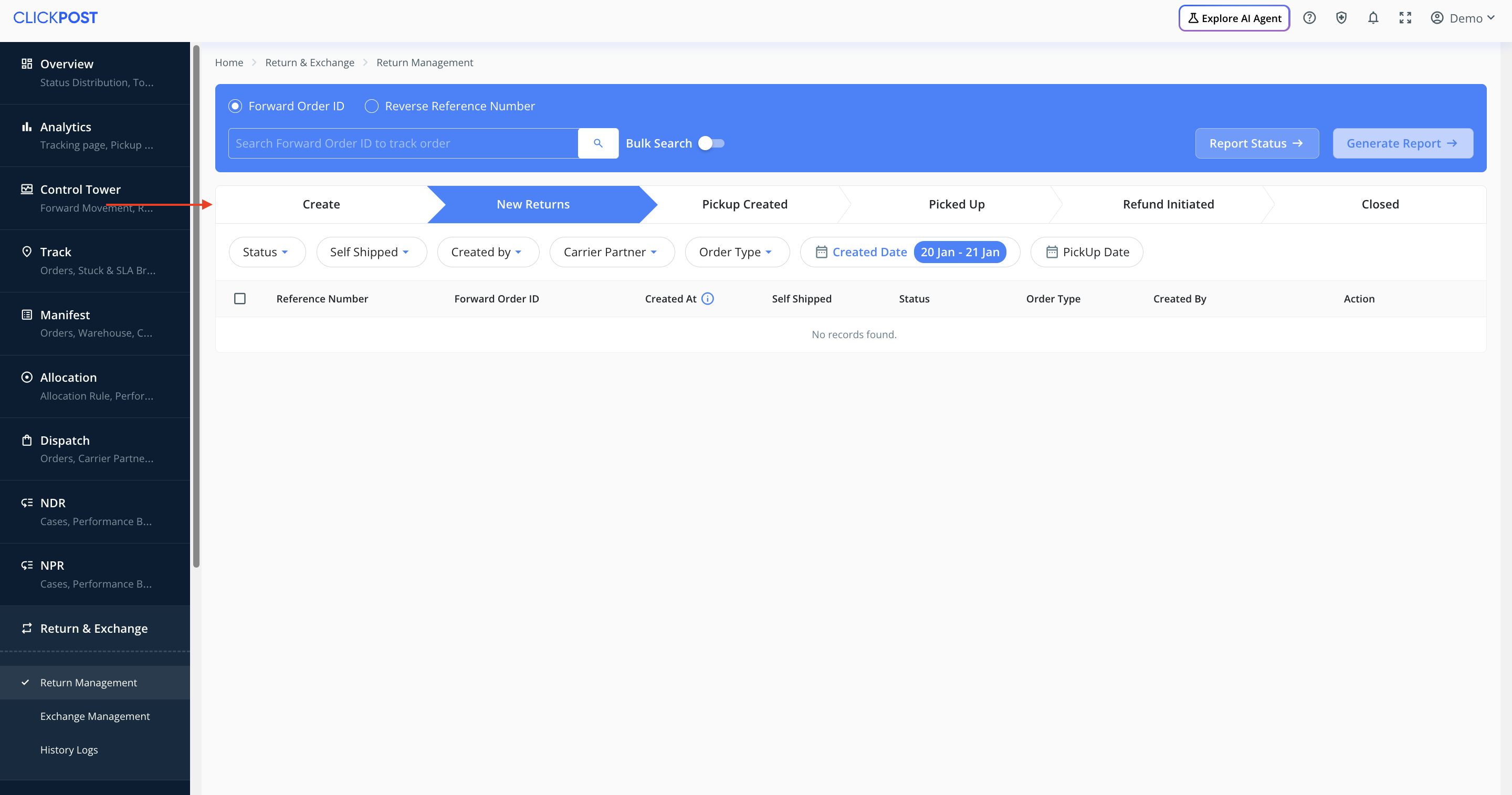
3. After making your selection, you will be directed to the "New Returns" section. From there, click on the "Create" option.
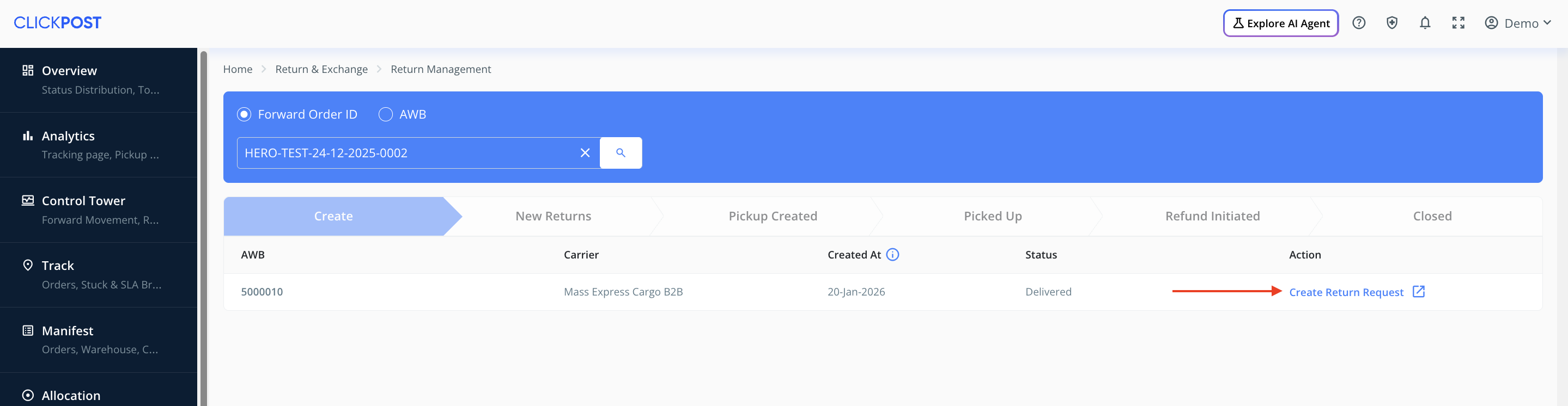
4. Enter the Order Number/AWB for which you wish to create the Return request. Once the order appears, click on "Create Return Request".
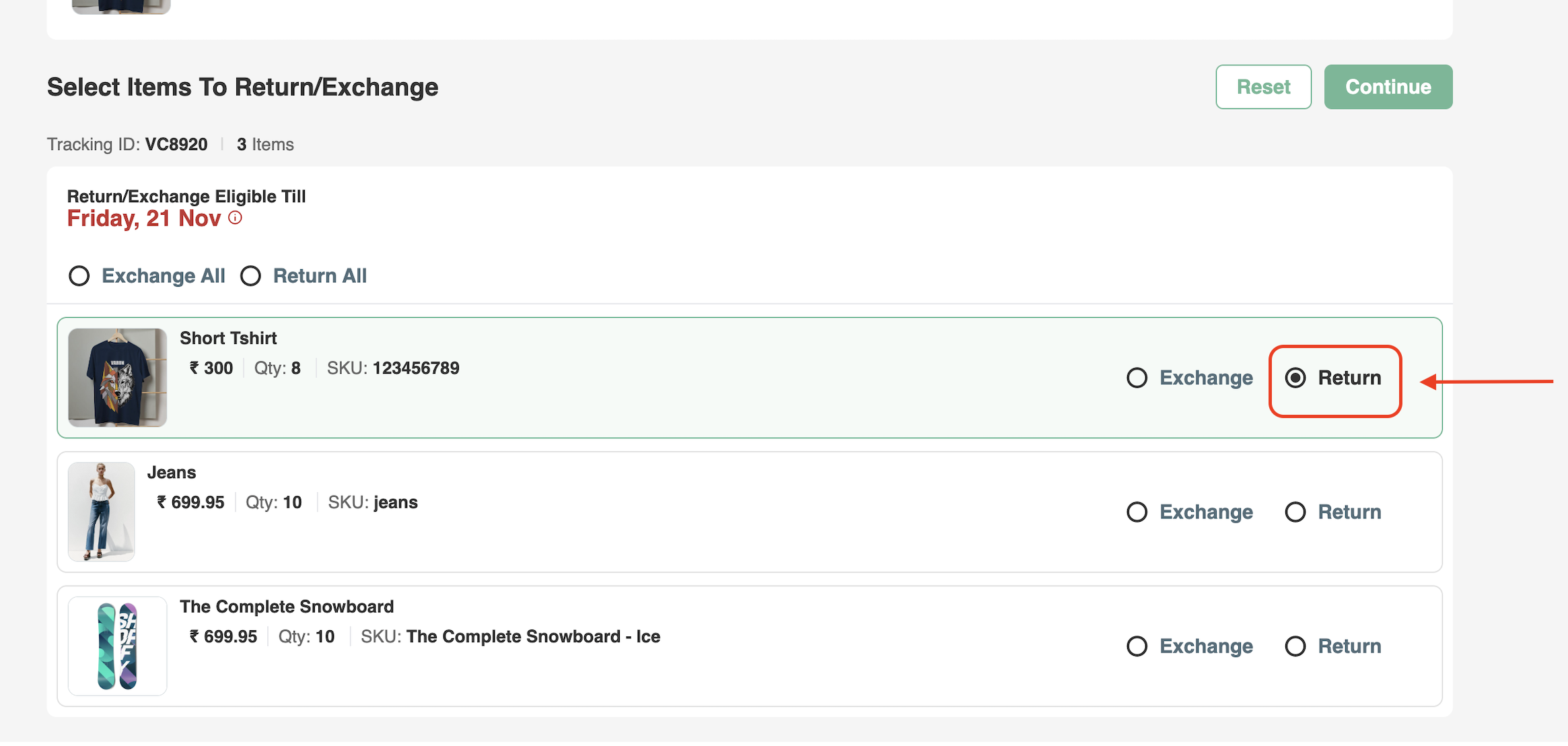
5. Now, choose the product for which you would like to initiate the return request and click on "Continue".
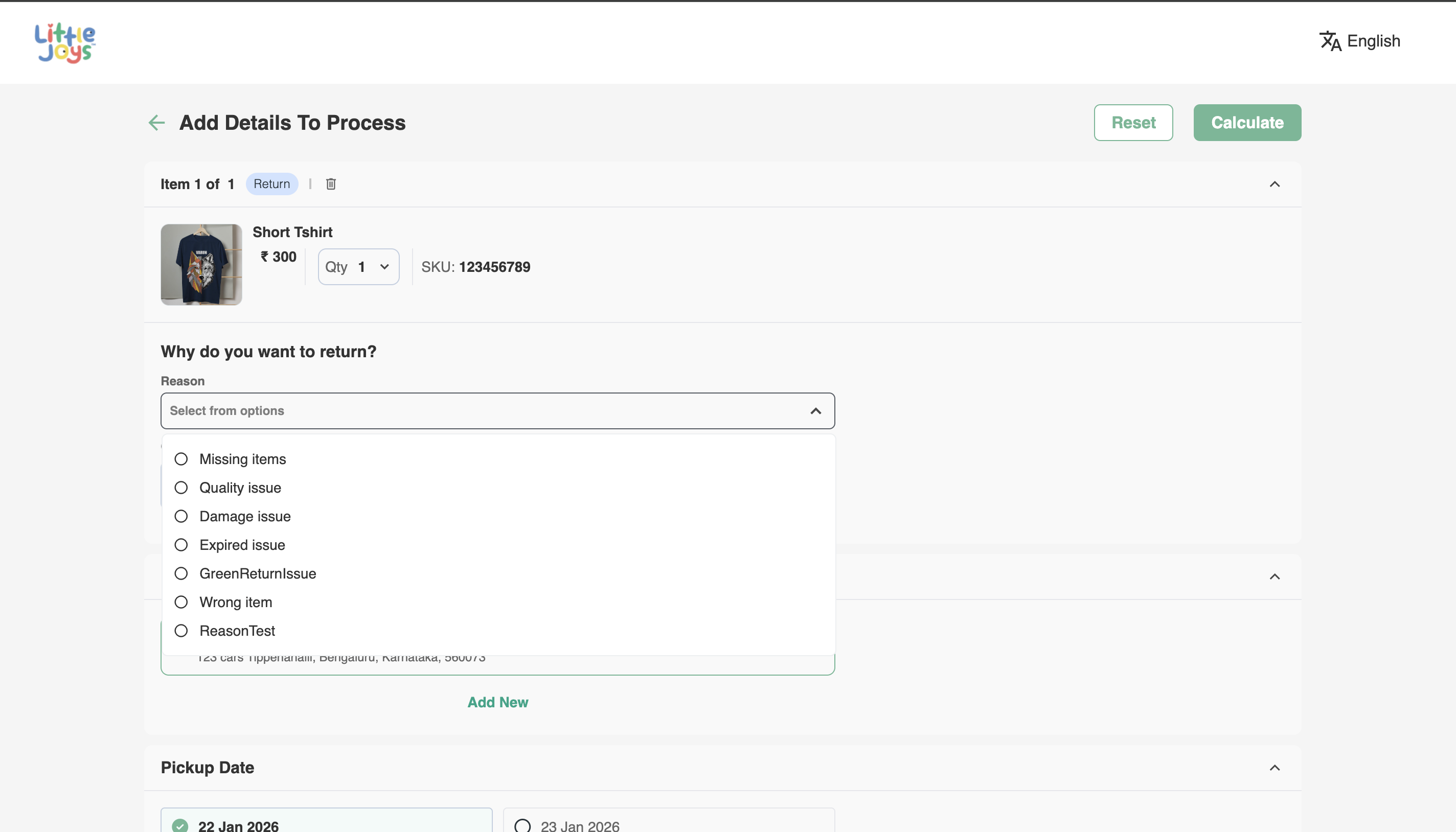
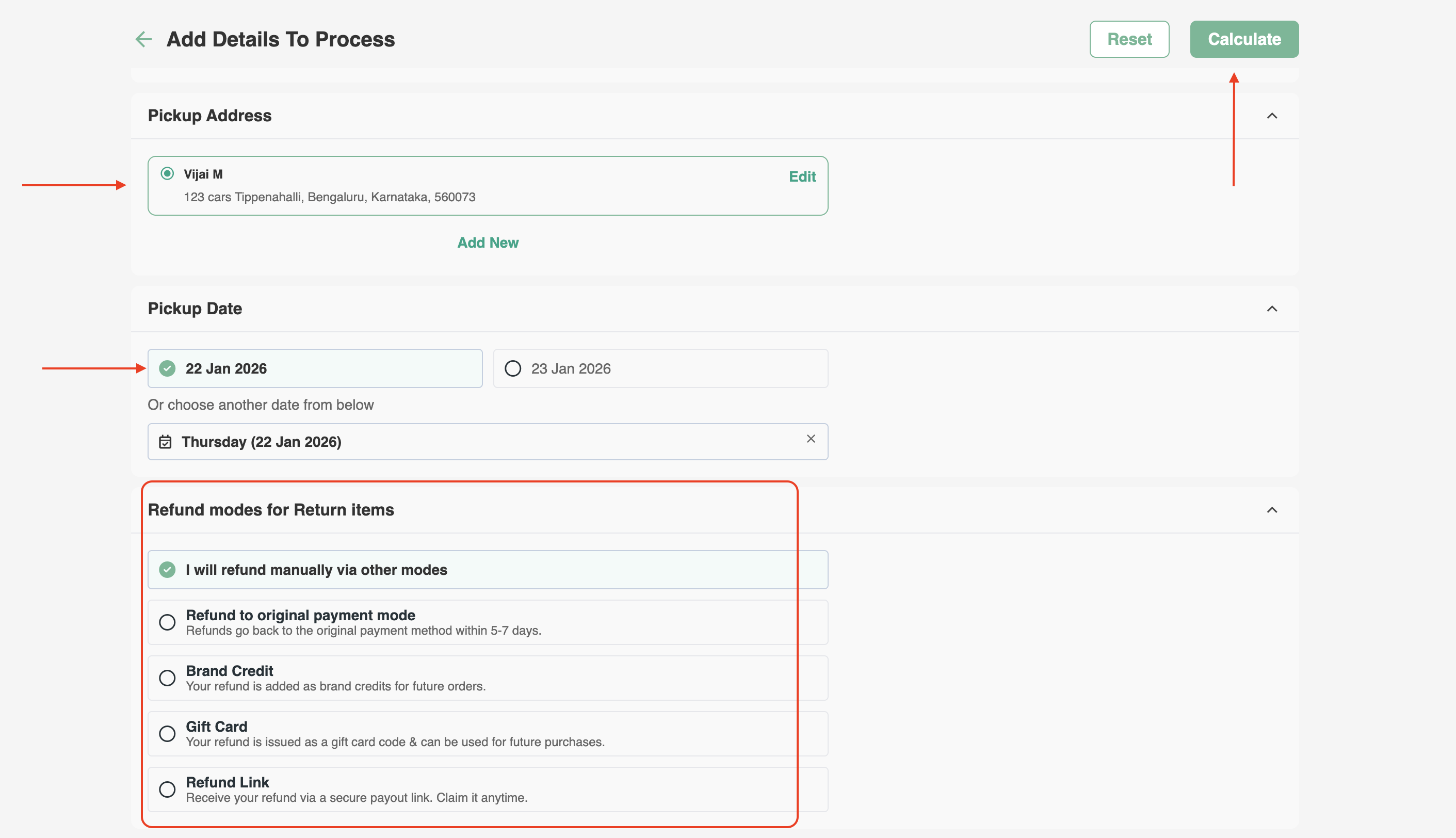
7. Once that is complete, scroll down the page to select the "Pickup Address," "Pickup Date," and "Refund Modes for Return Items".
After selecting the options, click on "Calculate".
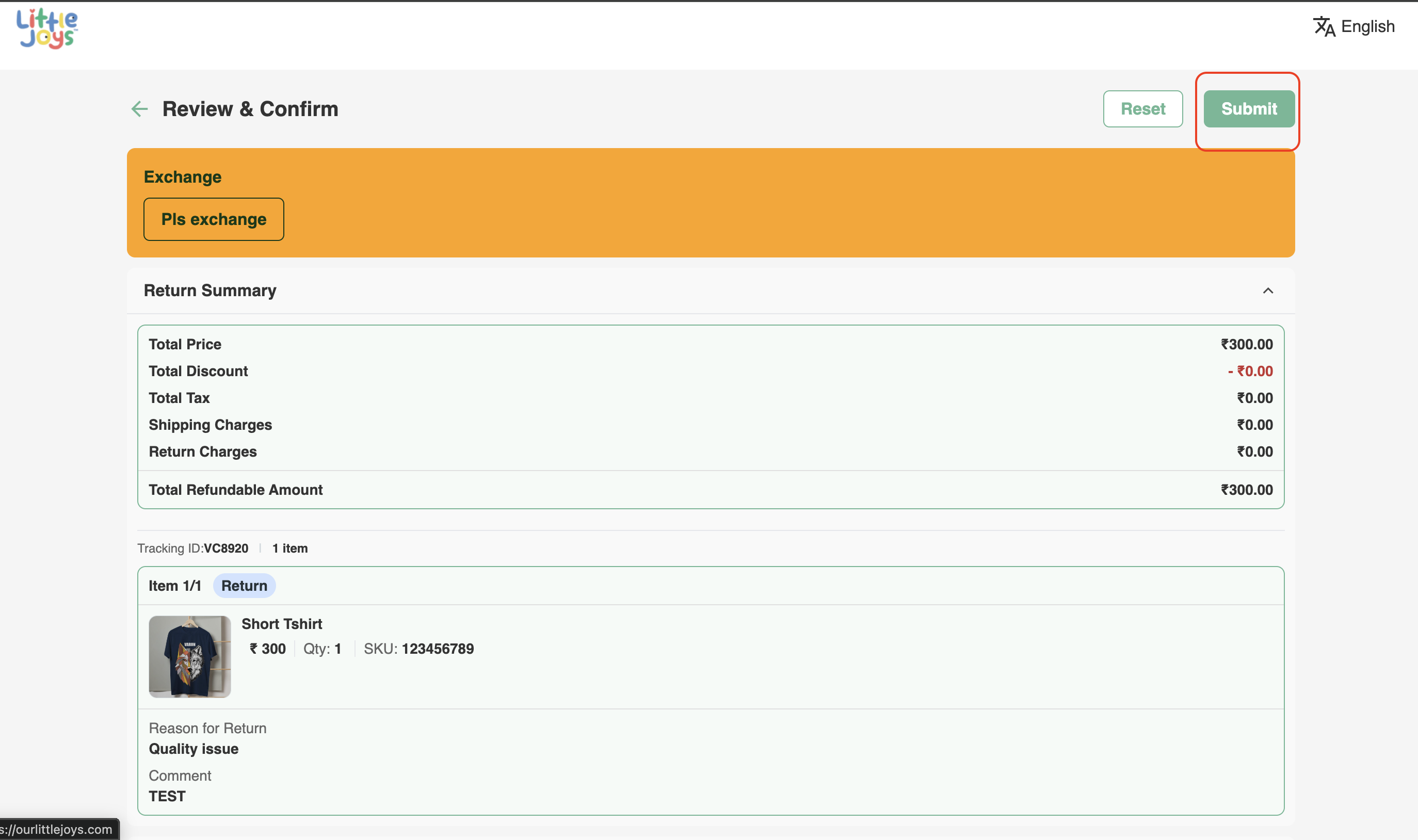
8. Review the Return Summary and click on "Submit" to successfully process the return request.
Exchange Process
1. The procedure remains unchanged; simply choose the "Exchange" option instead of Return inthe order tracking page.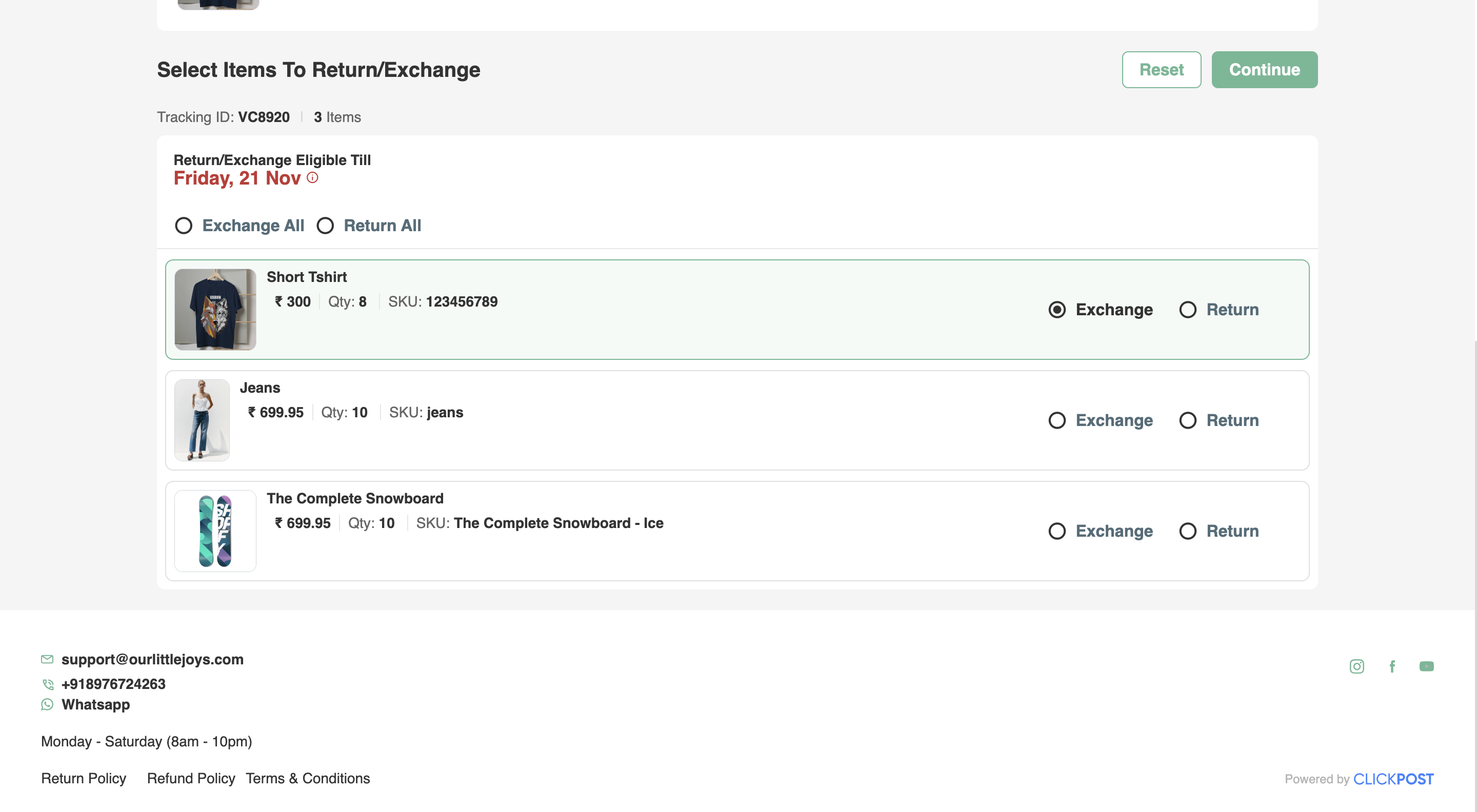
2. Next, choose the "Reason" from the dropdown menu.
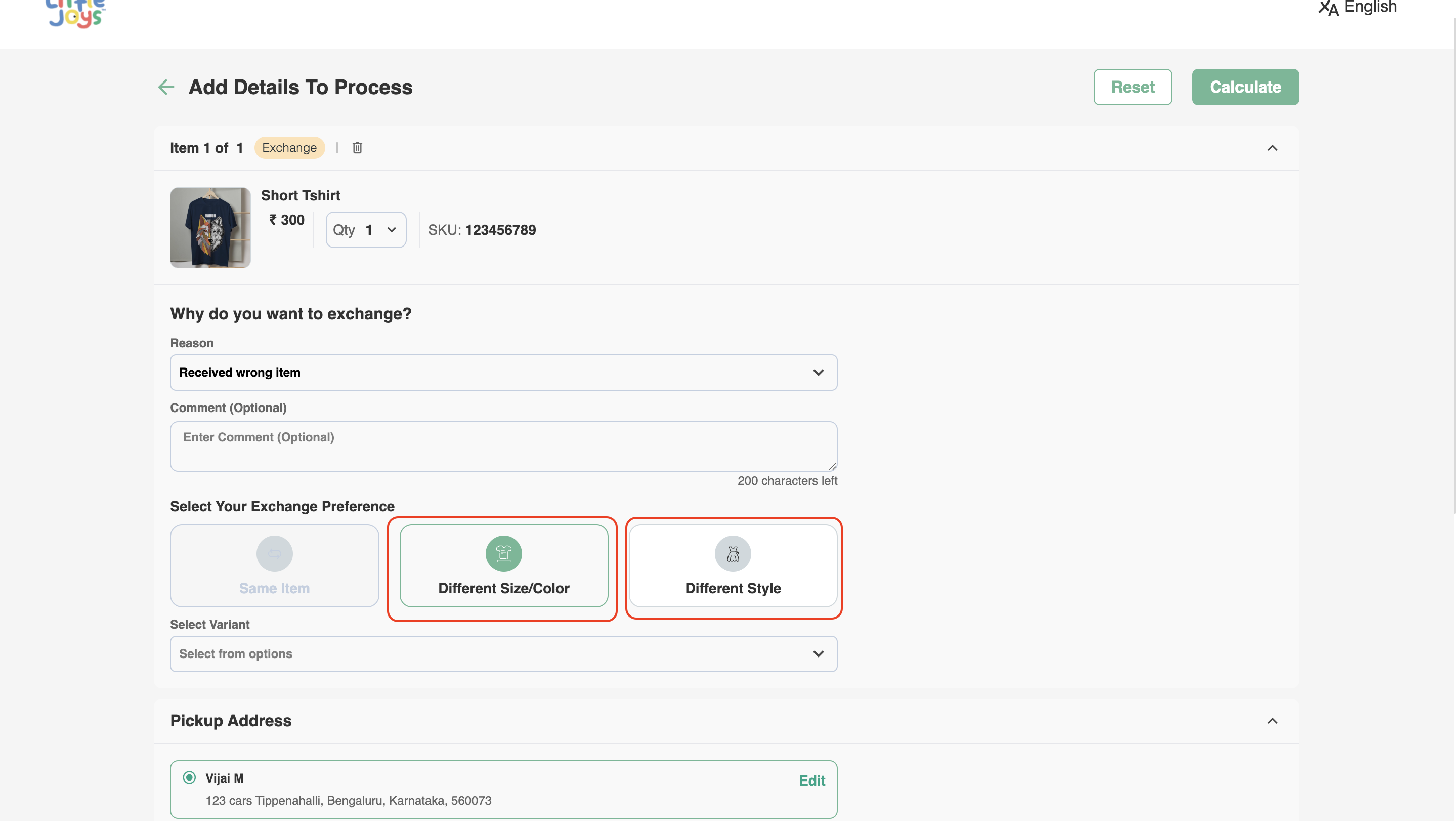
3. Here, you can choose from "Same Item", "Different Size/Color", or "Different Style Option".
4. For the different size/color option, you may select the "Variant" from the available variant choices and submit the request.
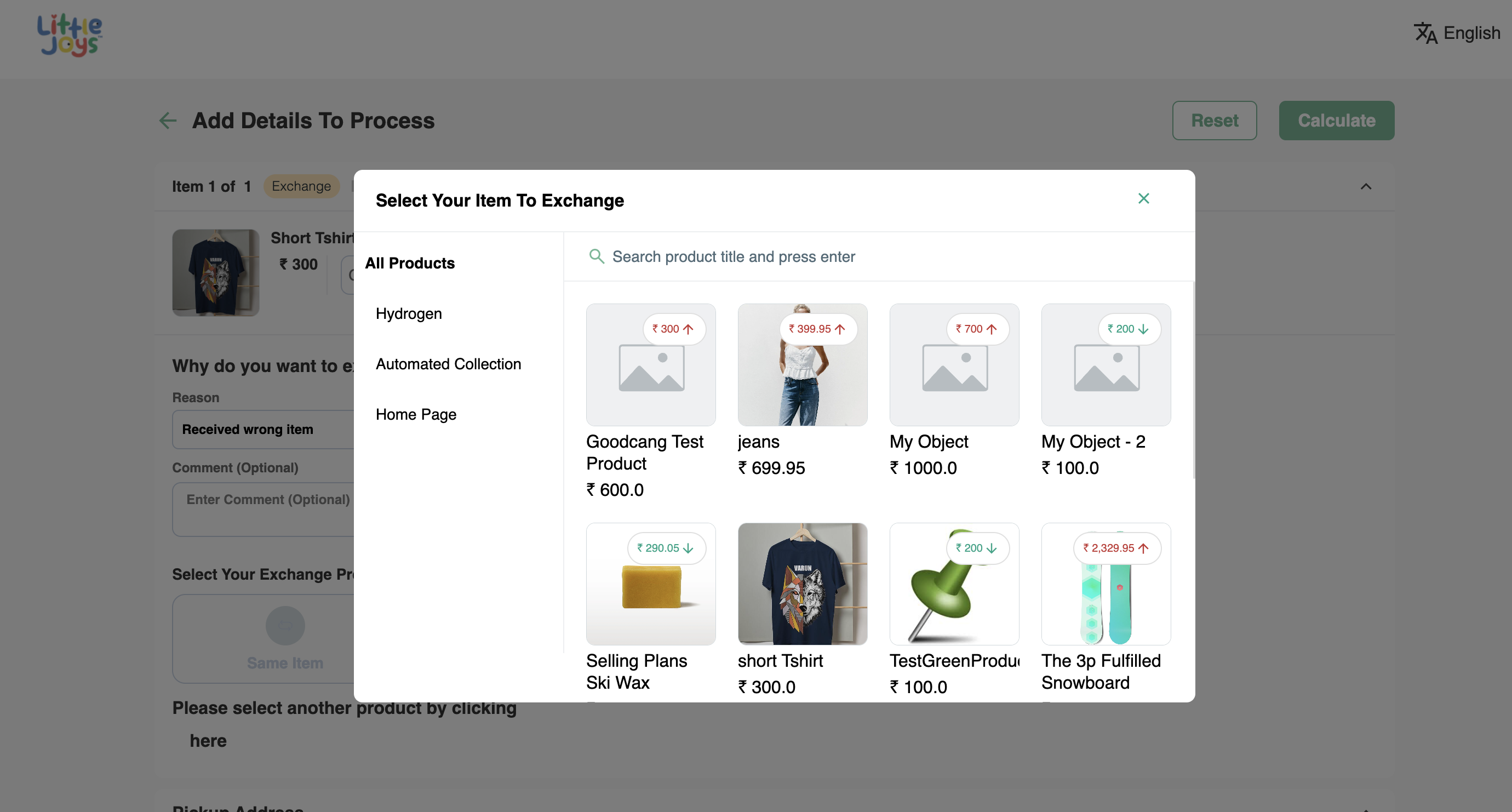
5. In the case of a Different Style, you can pick a completely different product from the catalog. If you select a higher value item than the current order value, additional payment will be required. vice versa, if you choose a lower value variant, the difference will be refunded to the end customer.
Was this article helpful?
That’s Great!
Thank you for your feedback
Sorry! We couldn't be helpful
Thank you for your feedback
Feedback sent
We appreciate your effort and will try to fix the article