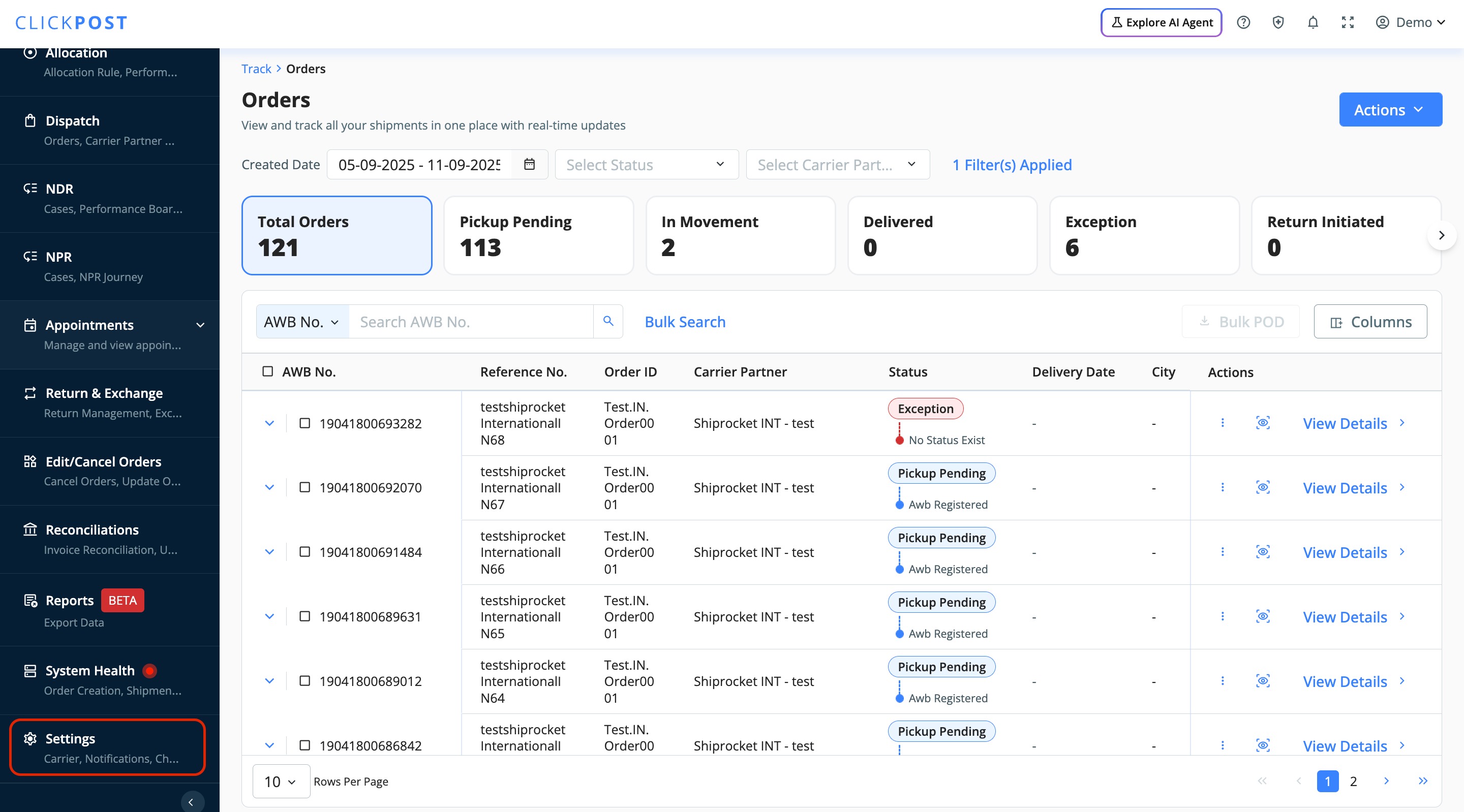
1. Log in to the Clickpost dashboard using: https://dashboard.clickpost.ai
/ and navigate to the left navigation panel to Settings --> Carrier --> Carrier Integrations.
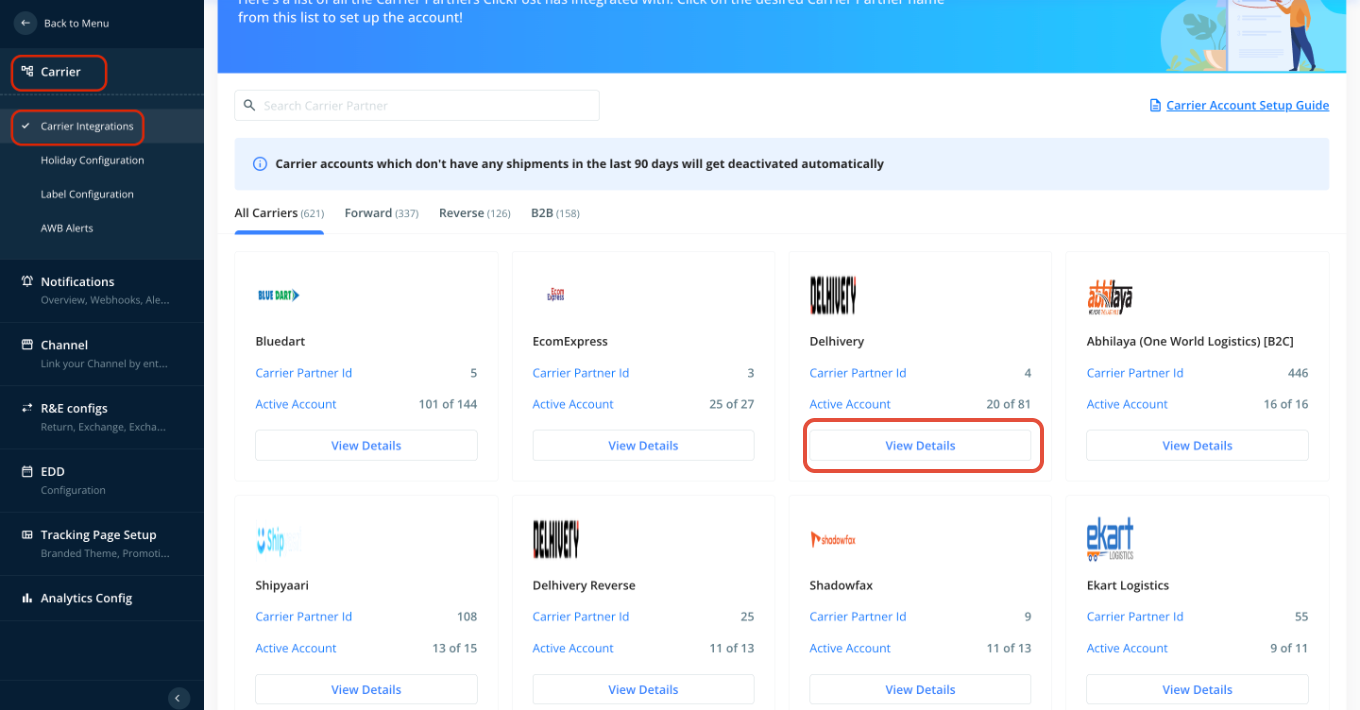
2. Under the "Carrier" tab, click on the Carrier Integrations tab and search for the Courier partner name that you want to configure and click on "View Details."
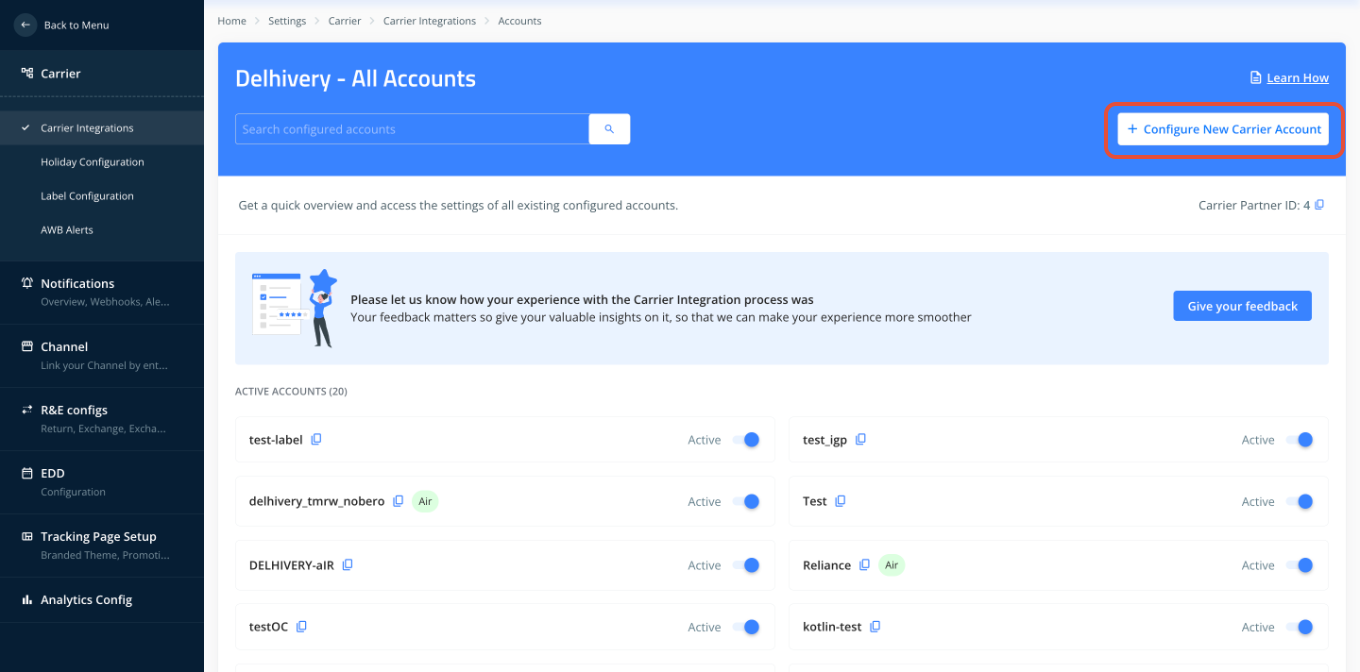
3. Add the account name by clicking on "Configure New Carrier Account."
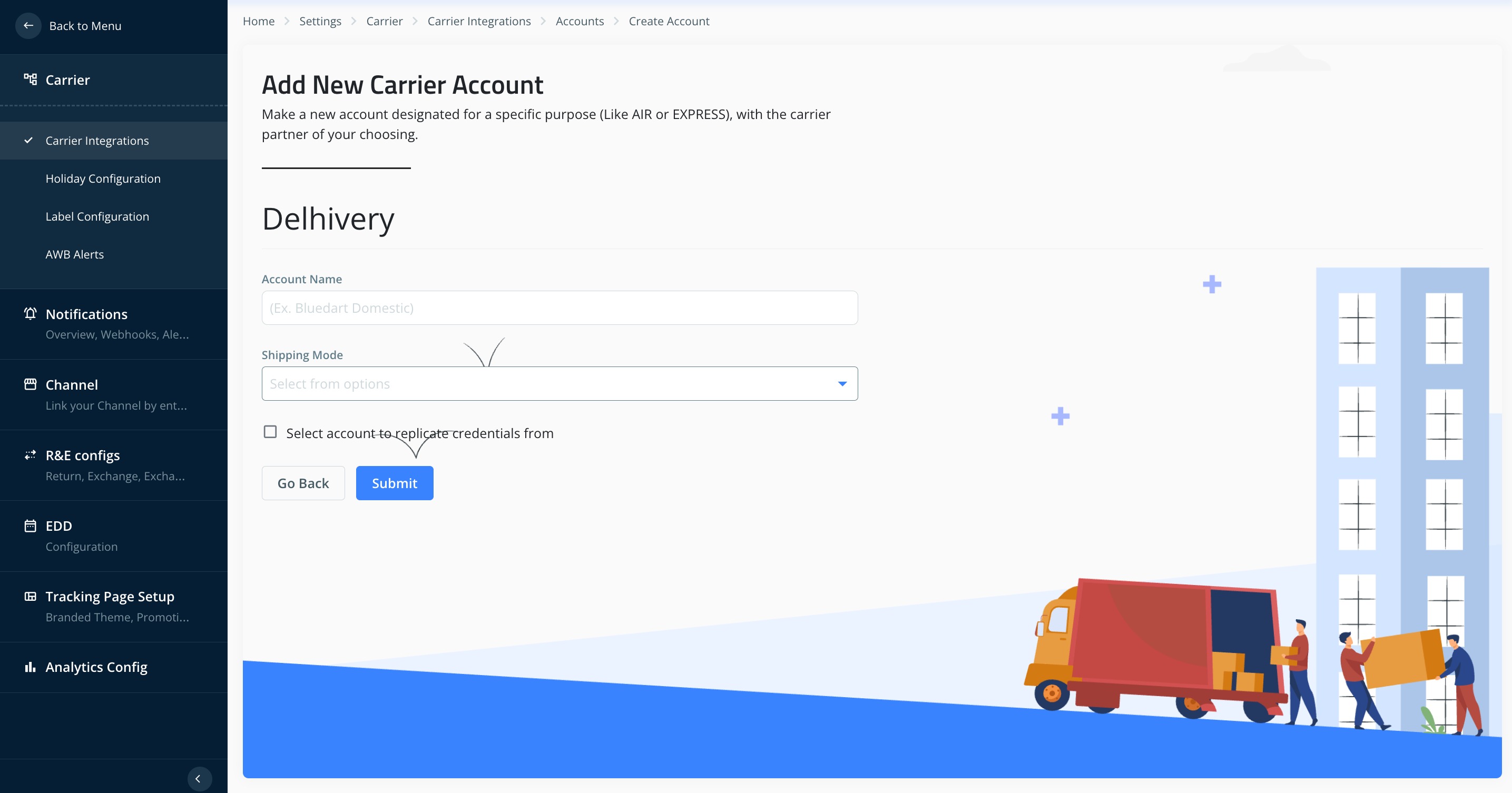
4. Add the account name and click "Submit."
This is the "account_code" that you need to pass in the Clickpost API to identify this account.
5. Input the staging API credentials provided by courier partner for the added account and click "Submit".
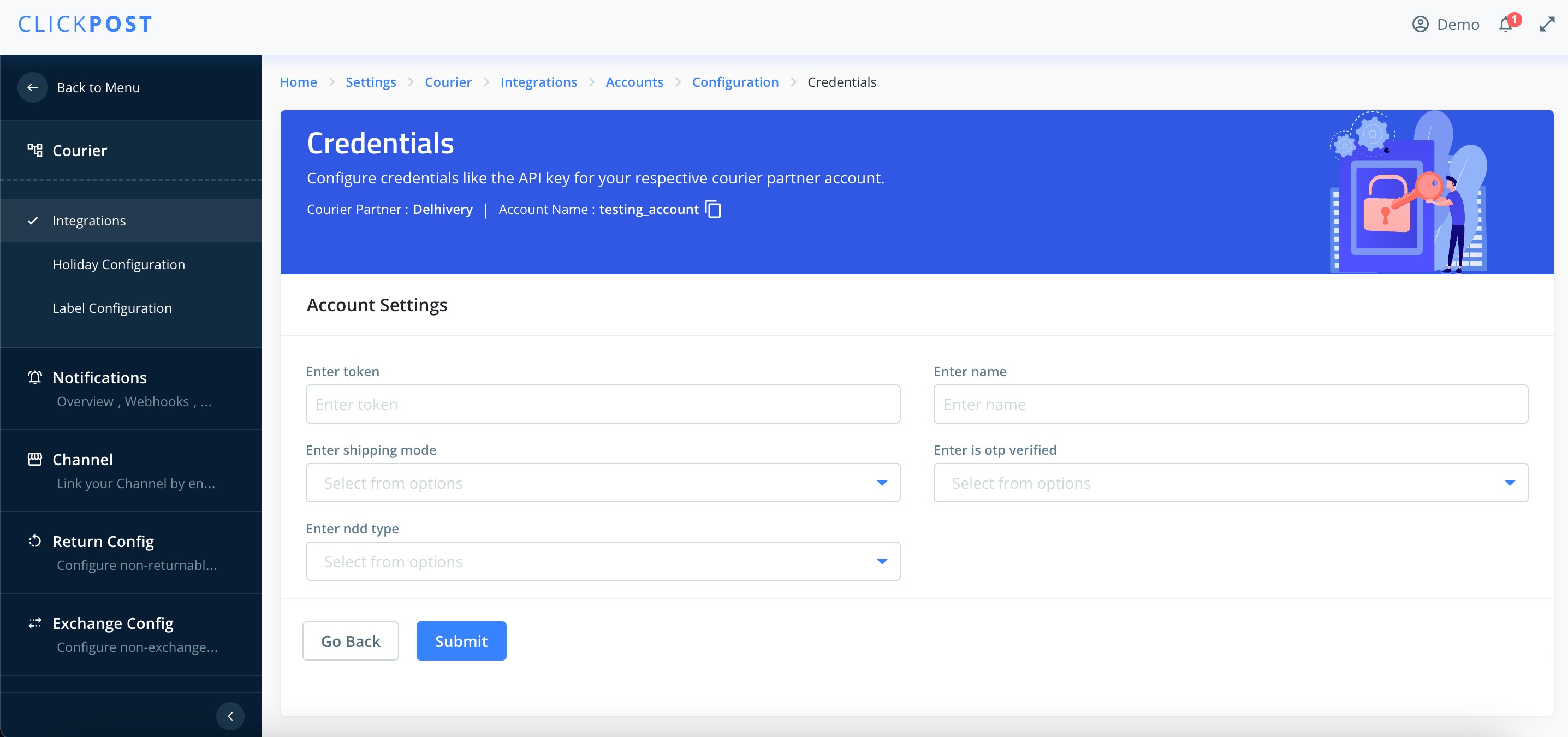
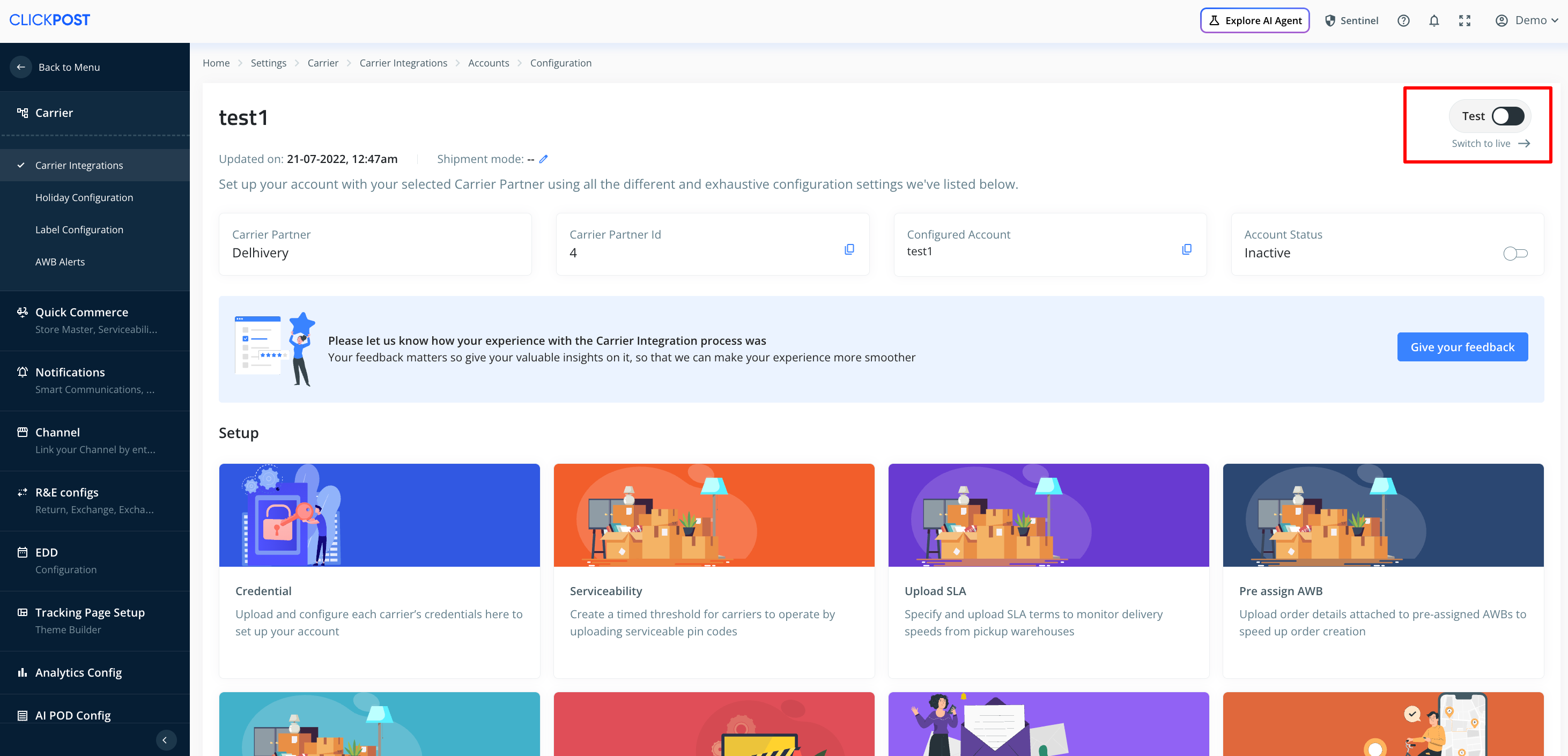
7. Once completed, you will see a “Test” switch, which is enabled by default. When the switch is enabled, requests are routed to the courier partner’s production environment.
When the switch is disabled (as shown in the screenshot below), requests are routed to the courier partner’s staging environment.
Was this article helpful?
That’s Great!
Thank you for your feedback
Sorry! We couldn't be helpful
Thank you for your feedback
Feedback sent
We appreciate your effort and will try to fix the article