Objective
For cancelled pickups of returned items, brands previously had to manually close the return request and raise a new one in situations such as courier miss, incorrect return reason selected by the customer, QC failure, etc. To reduce this manual effort, we have introduced the option to re-create a return request directly from the dashboard.
Note: -
Return requests can be re-created only after a shipment has been marked as Cancelled, either manually or based on courier partner scans. Currently, this process is still manual.
Steps to Re-Create Return Requests: -
Step 1: Navigation
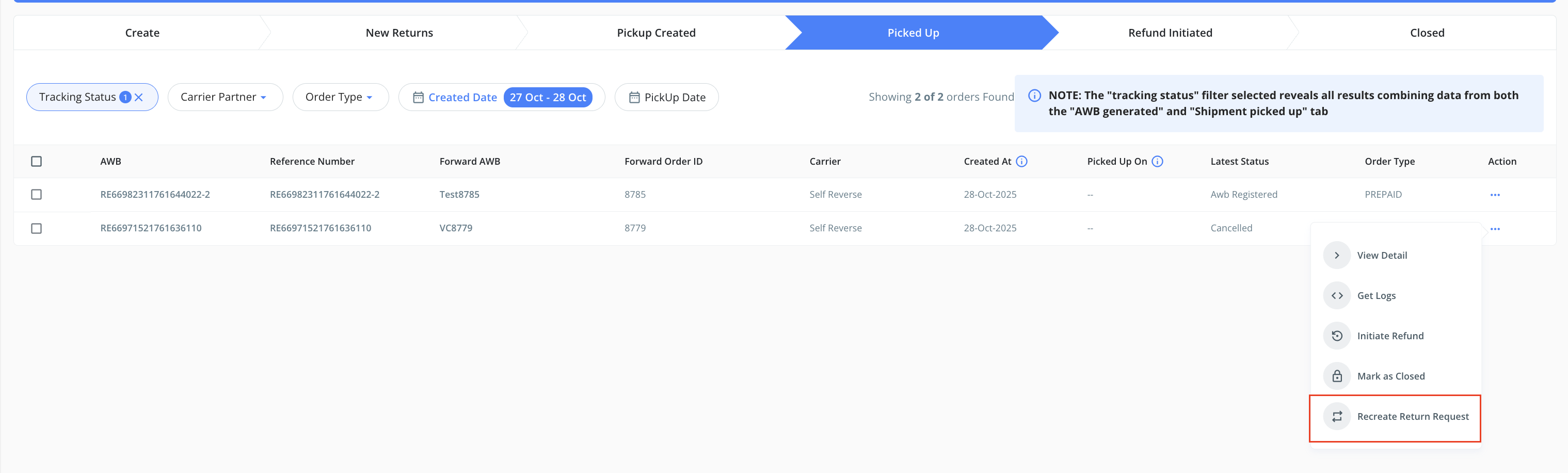
Go to Home → Return Management → Actions → Recreate Return
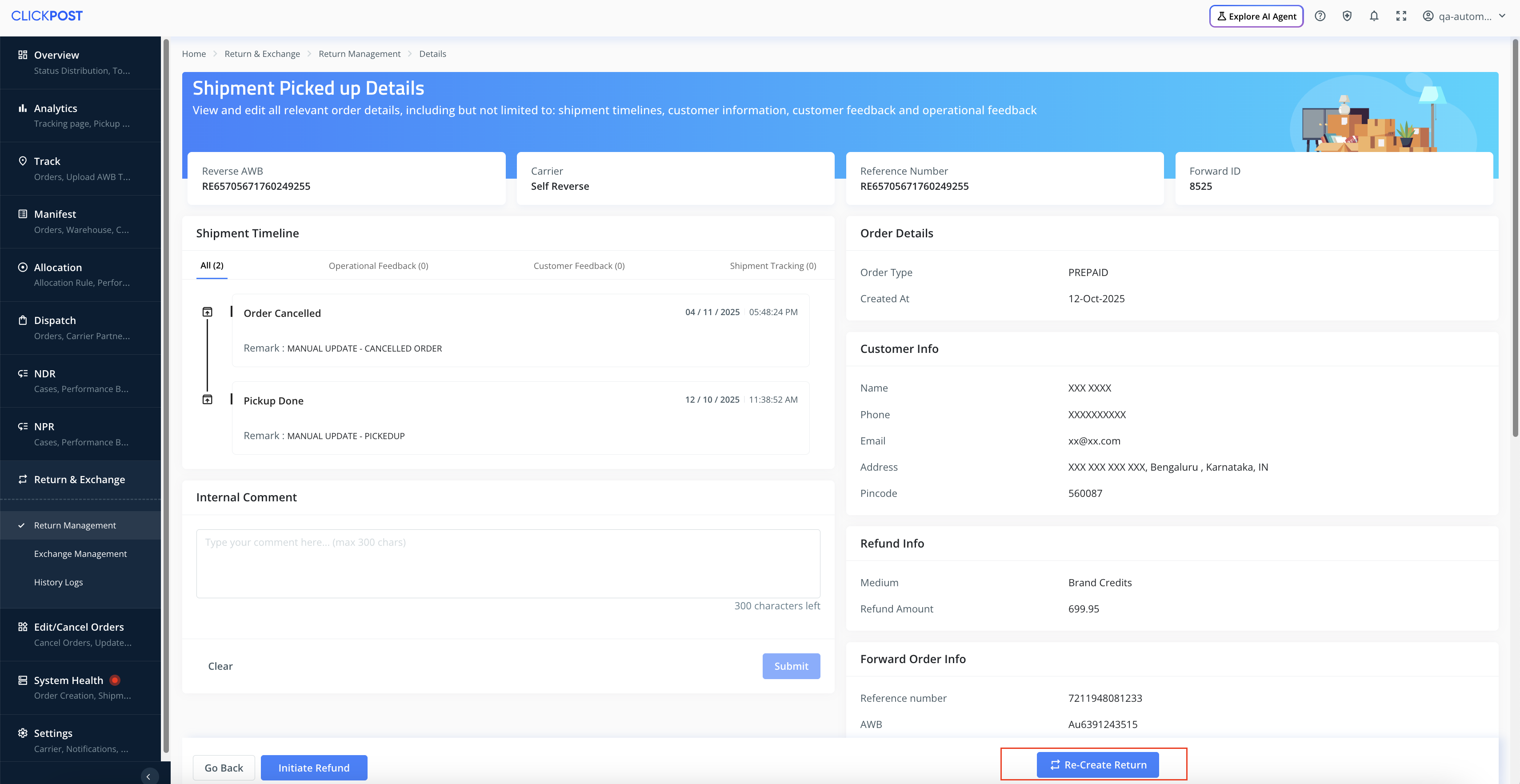
You can also click View Details, where you will find the Recreate Return button at the bottom.
Img 1.1
Img 1.2
Step 2
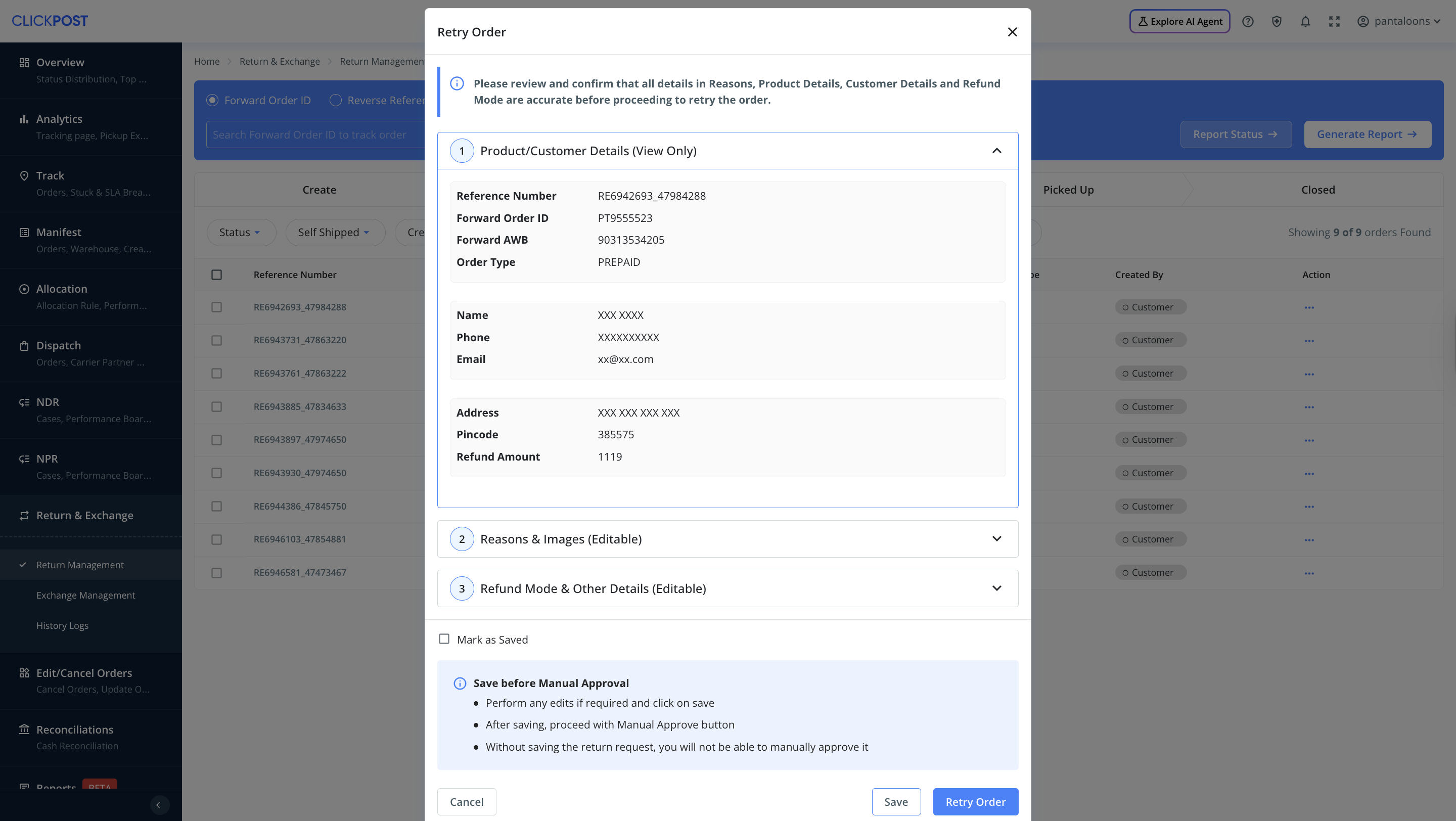
a. When you click on the Re-Create Return button, a pop-up will appear prompting you to verify the order details.
Img 1.3
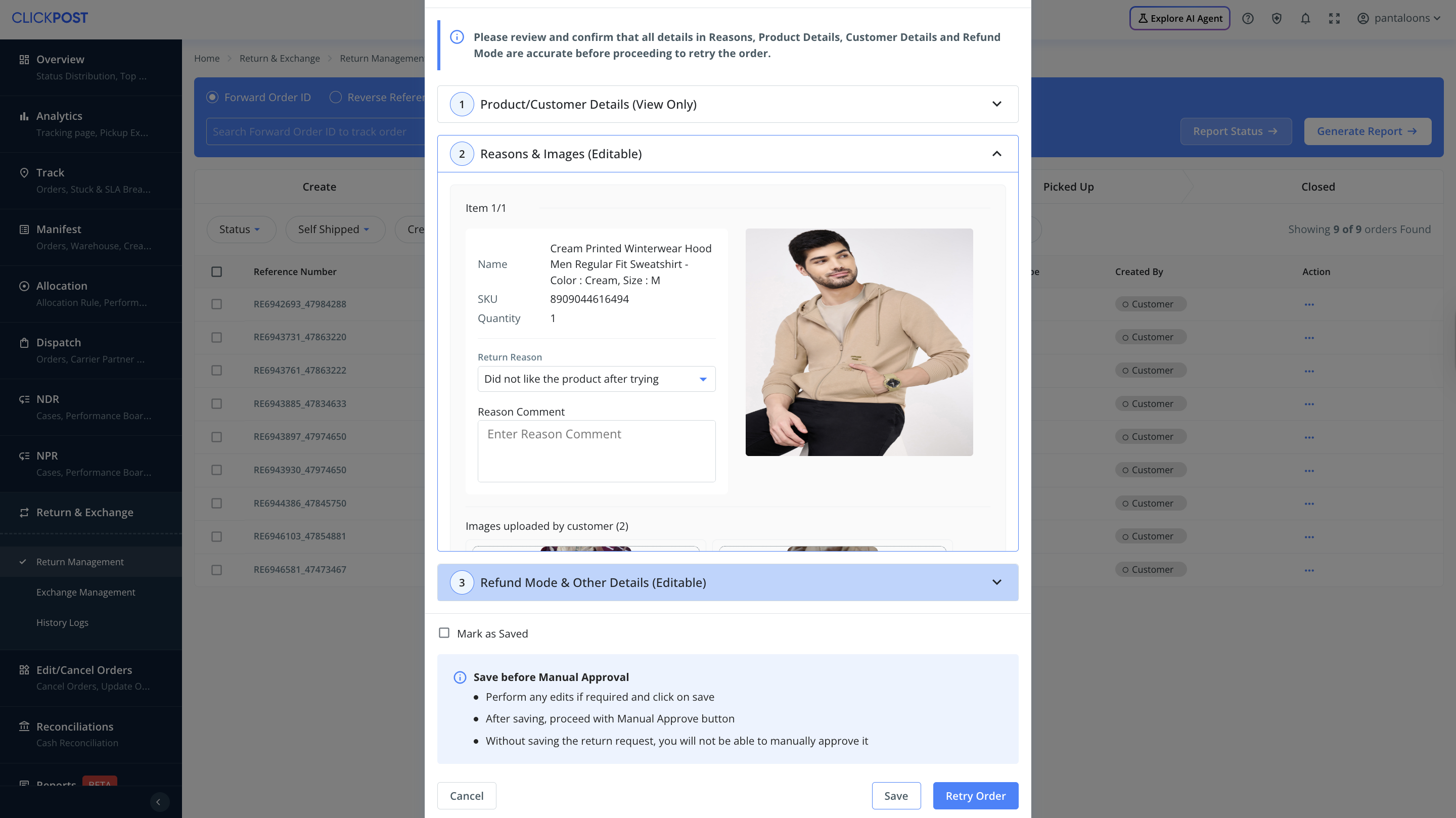
b. Dashboard users can edit fields such as return reason, sub-reason, and comments. They can also add or remove images uploaded by the customer.
Img 1.4
Note:
The Comment field is mandatory when re-creating a return request.
If you edit the return reason, add/remove images, etc., please ensure that you click Save first. Only after saving the updated details should you click Recreate to successfully submit the request.
Img 1.5
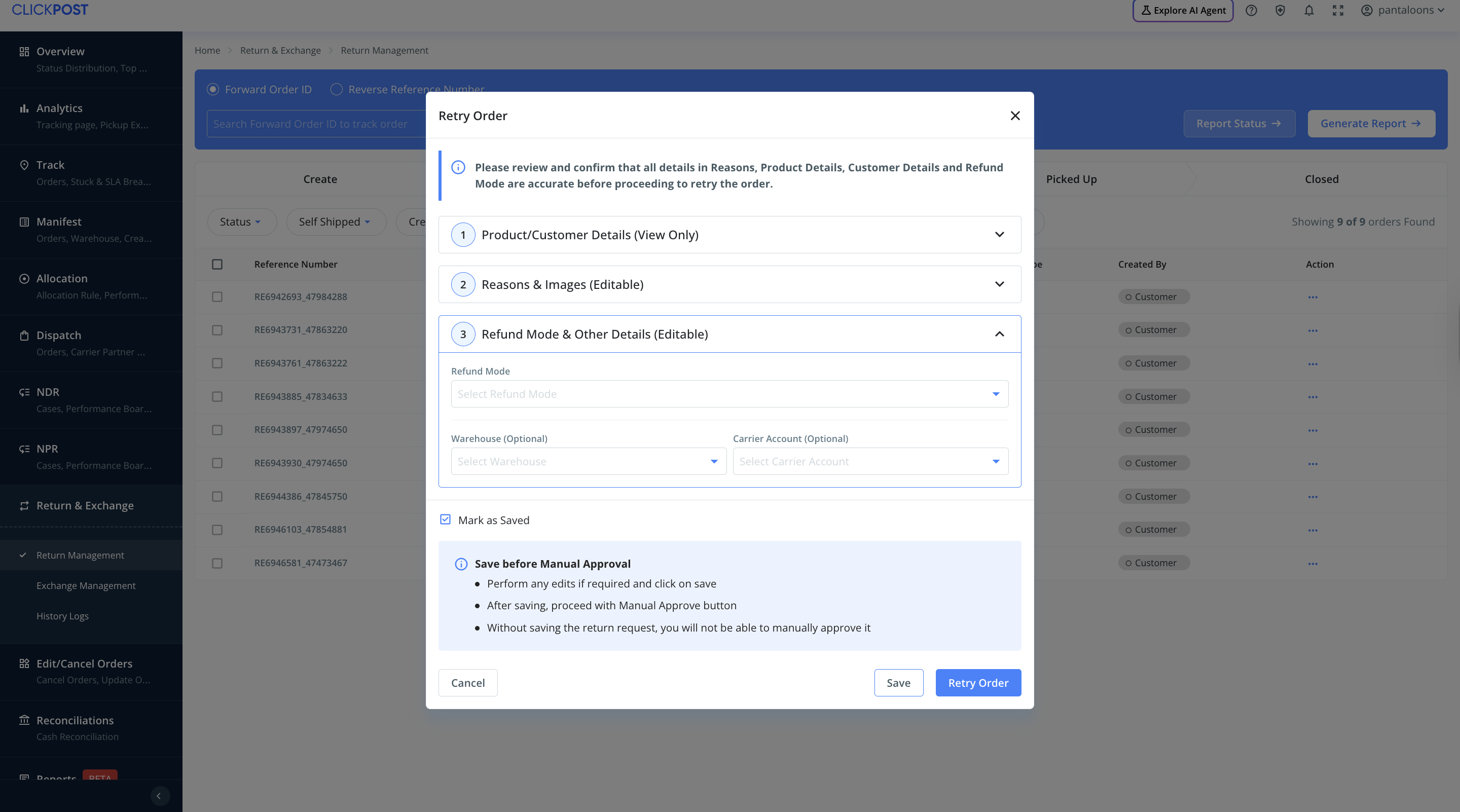
c. Users can also edit the refund mode, warehouse, and courier partner details.
Img 1.6
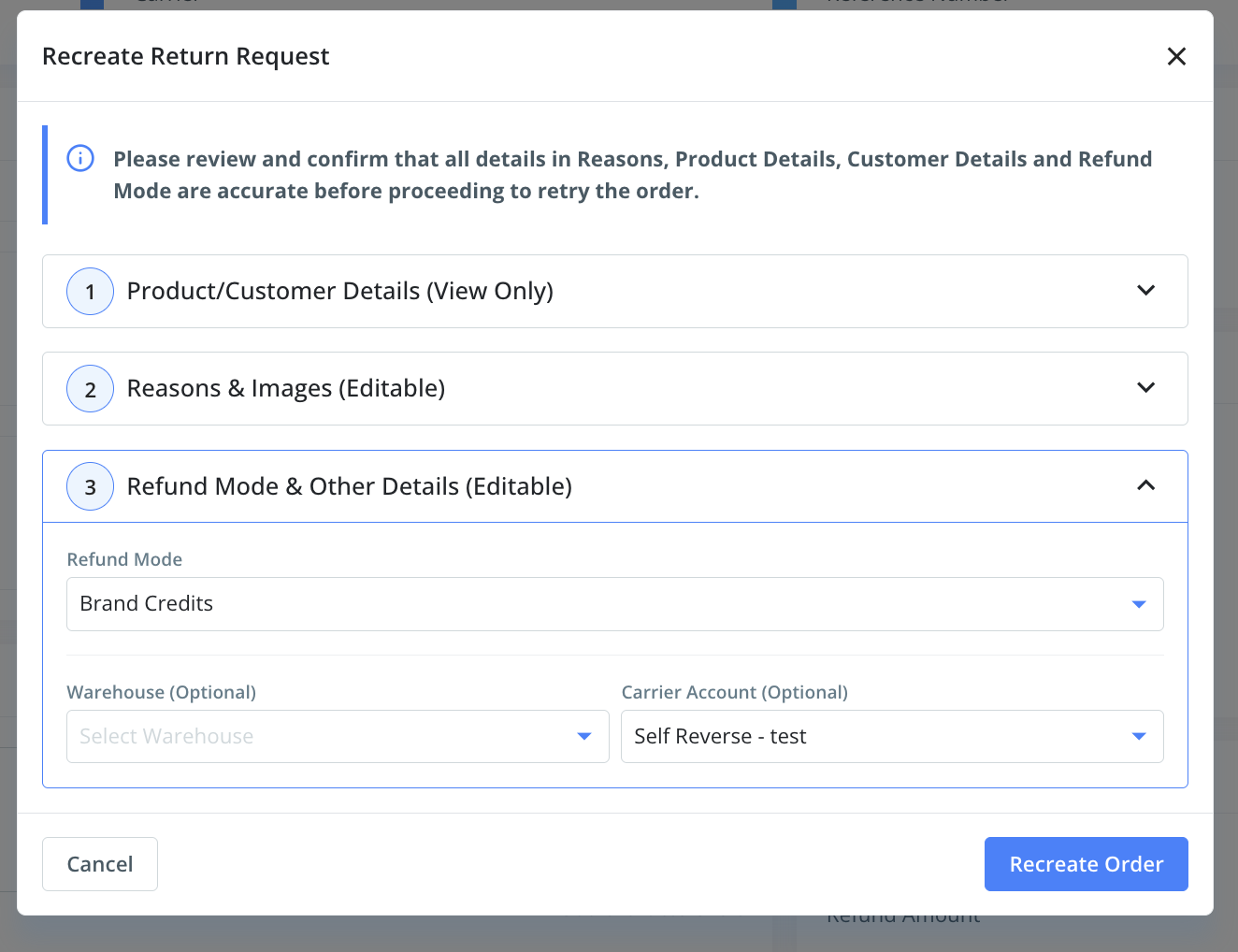
Journey After Re-Creating a Return
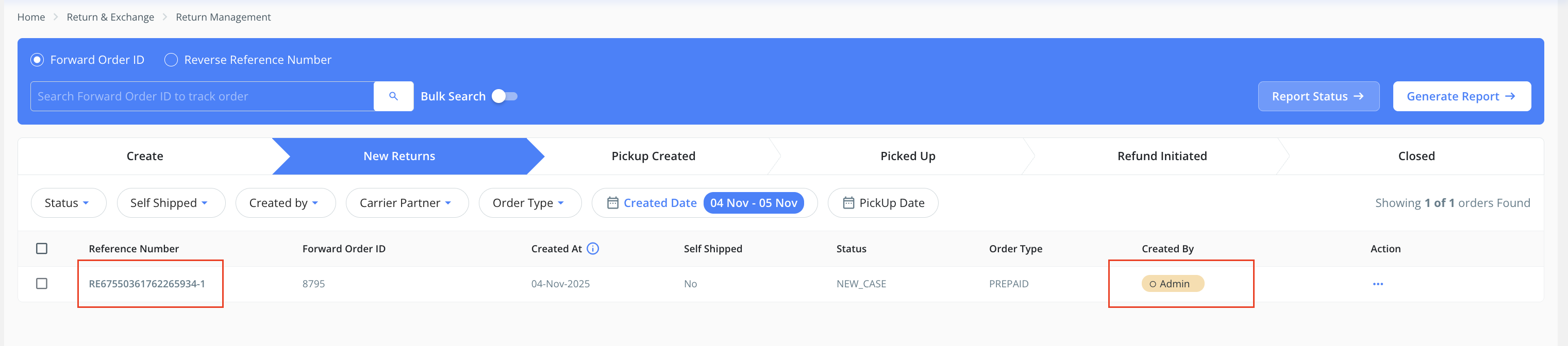
Once the Re-Create Return CTA is submitted, the new request will appear in the New Returns tab and will function like any new return request.
The newly created reference number will have a “-1” suffix added to the original reference number.
If the request is re-created again, the suffix increments to “-2”, “-3”, and so on.
The Created By field will show “Admin” for all re-created return requests.
Img 1.7
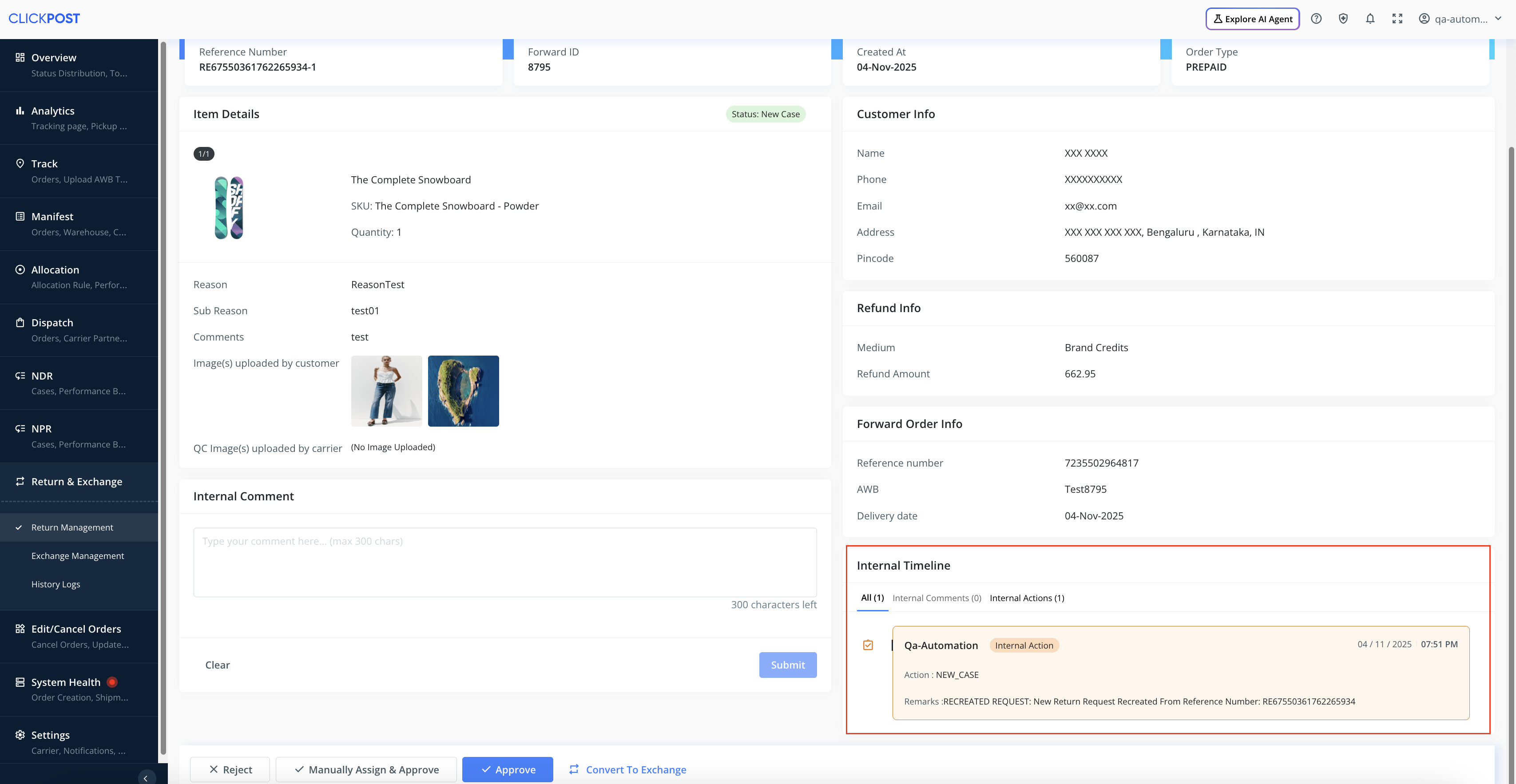
Additionally, a comment is added in the Internal Timeline section for transparency, indicating when and by whom the request was re-created.
Img 1.8
What Happens to the Original Request
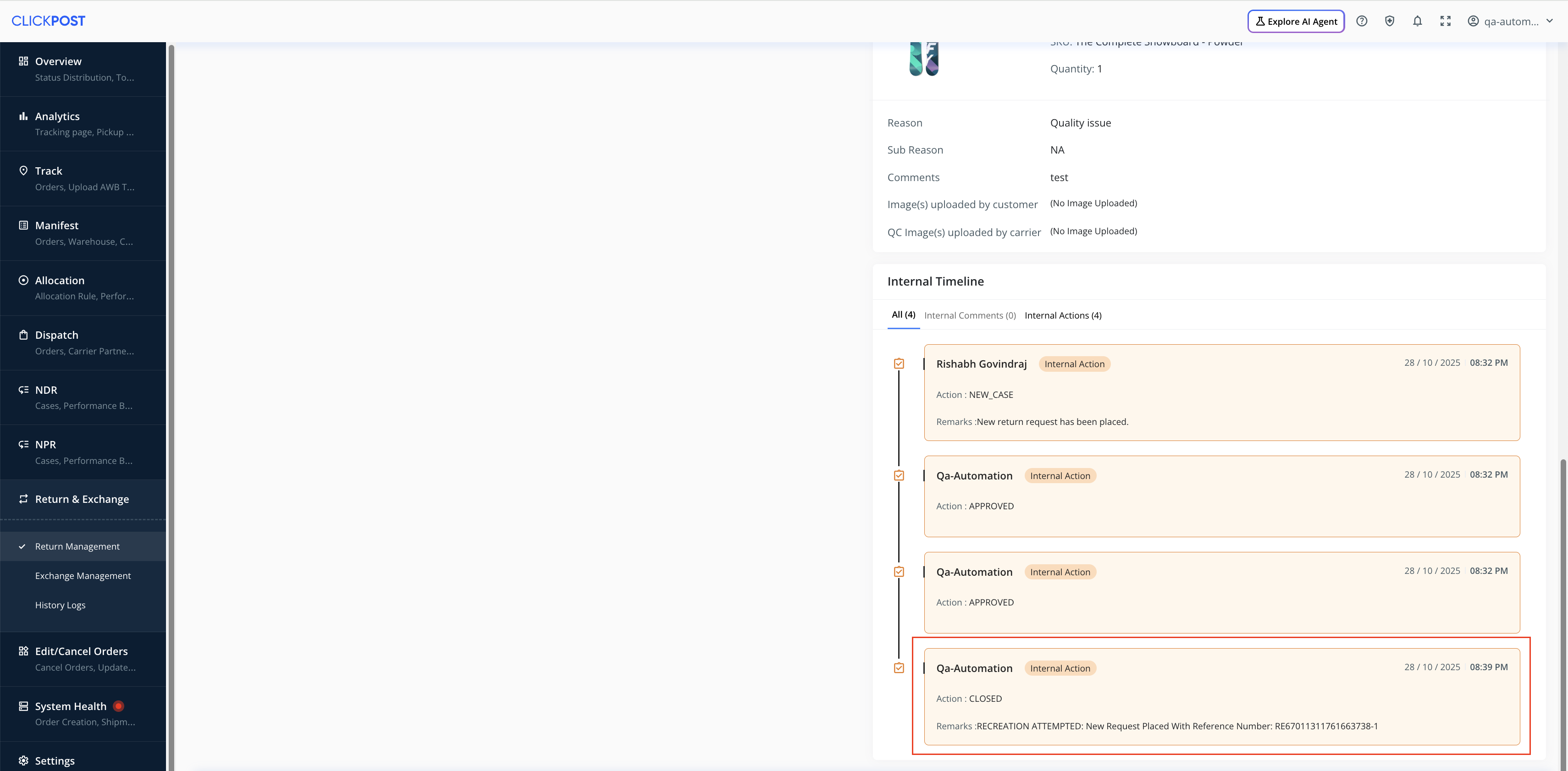
Every time a return request is re-created, the original request is automatically moved to the ‘Closed’ tab in the dashboard.
The original request will also have an update in the Internal Timeline stating that the request has been closed and re-created.
Img 1.9
Additional Notes: -
We have extended the same editable capabilities to two more actions within the dashboard:
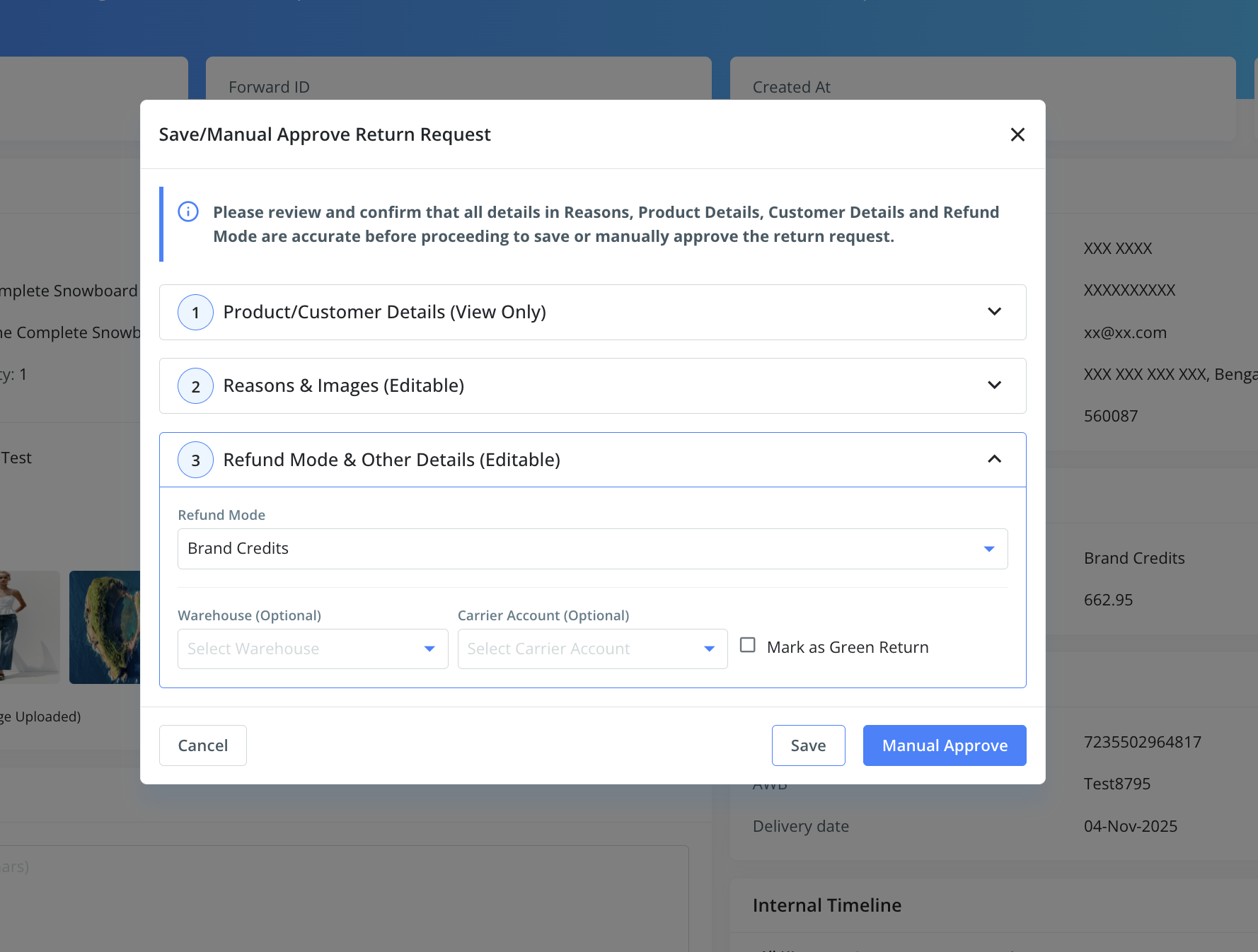
a) Manual Approve and Assign → Available in the New Returns tab
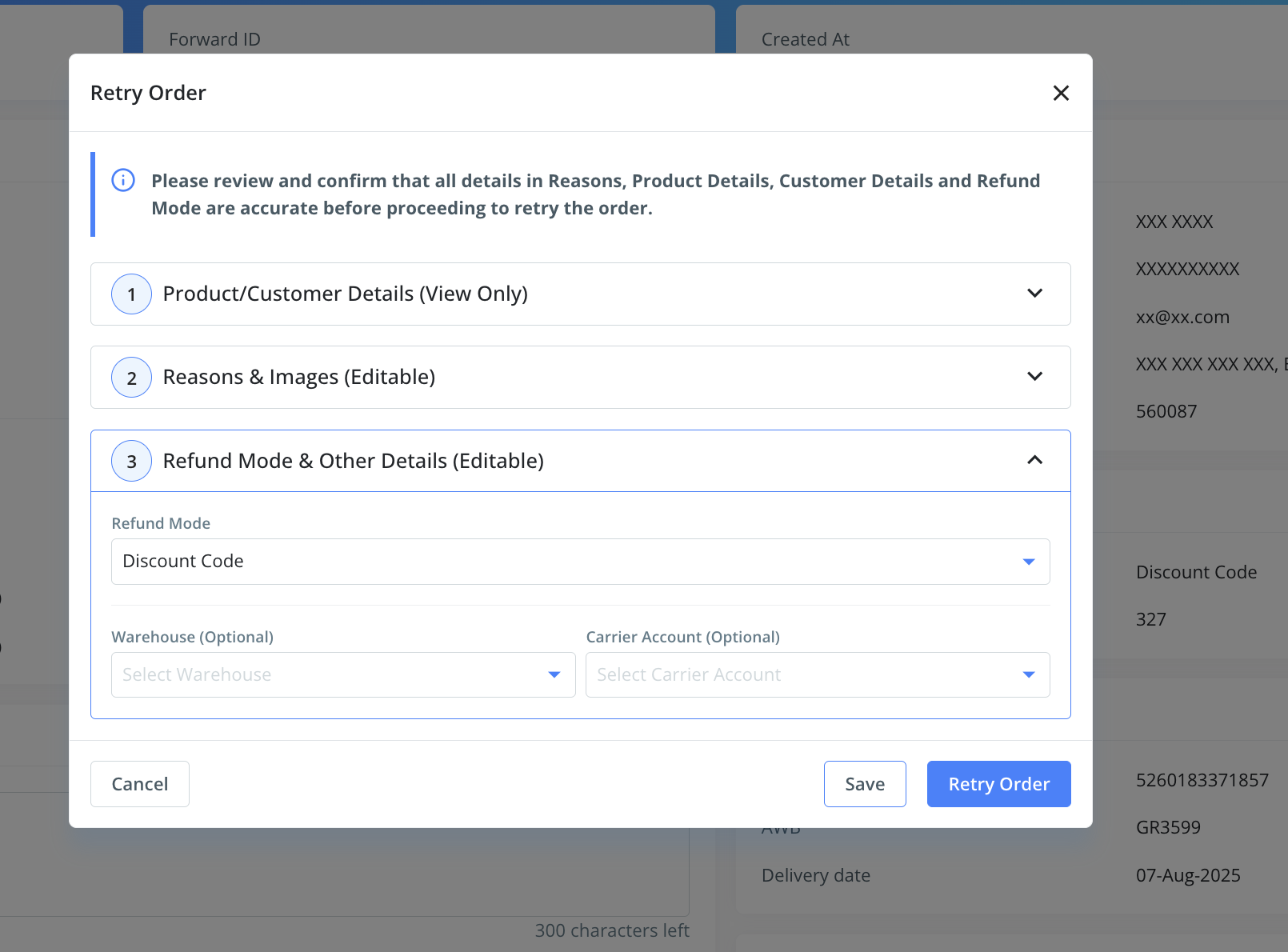
b) Retry Order → For return requests that failed under the New Returns tab
Was this article helpful?
That’s Great!
Thank you for your feedback
Sorry! We couldn't be helpful
Thank you for your feedback
Feedback sent
We appreciate your effort and will try to fix the article